
How to Use Kling 4.0 on Guma for AI Video Creation
Quick Takeaways
- The Golden Rule: Treat Kling 4.0 like a real human director, not a mind-reading magician. Give it a clear shot, one defined action path, and timed beats.
- Core Capability: Generate continuous clips up to 30 seconds with native two-channel stereo audio, lip-sync matching, and spatial tracking inside the Guma creator workspace.
- Prompt Optimization: Eliminate generic fluff tokens like "photorealistic" or "4K ultra HD". They dilute the instructions that actually control the shot.
Choose the Right Workflow Before Prompting
Select the input pipeline based on your asset readiness and visual control requirements:
| Creation Goal | Recommended Mode | Input Assets Needed | Control Level |
|---|---|---|---|
| Quick Concepting | Text to Video (T2V) | Text prompt only | Concept Exploration |
| Animating Existing Art | Image to Video (I2V) | 1 Base Image + Text Prompt | Frame Anchor Control |
| Character & Brand Continuity | Omni Reference Mode | 1–4 Reference Photos + Text (@Tags) | High Subject Locking |
| Complex Story Scenes | Multi-Keyframe Mode | Multiple Keyframe Images + Text Prompt | Precise Timeline Trajectory |
Step-by-Step: The Complete Kling 4.0 Production Guide
Step 1: Choose Your Aspect Ratio and Shot Framing
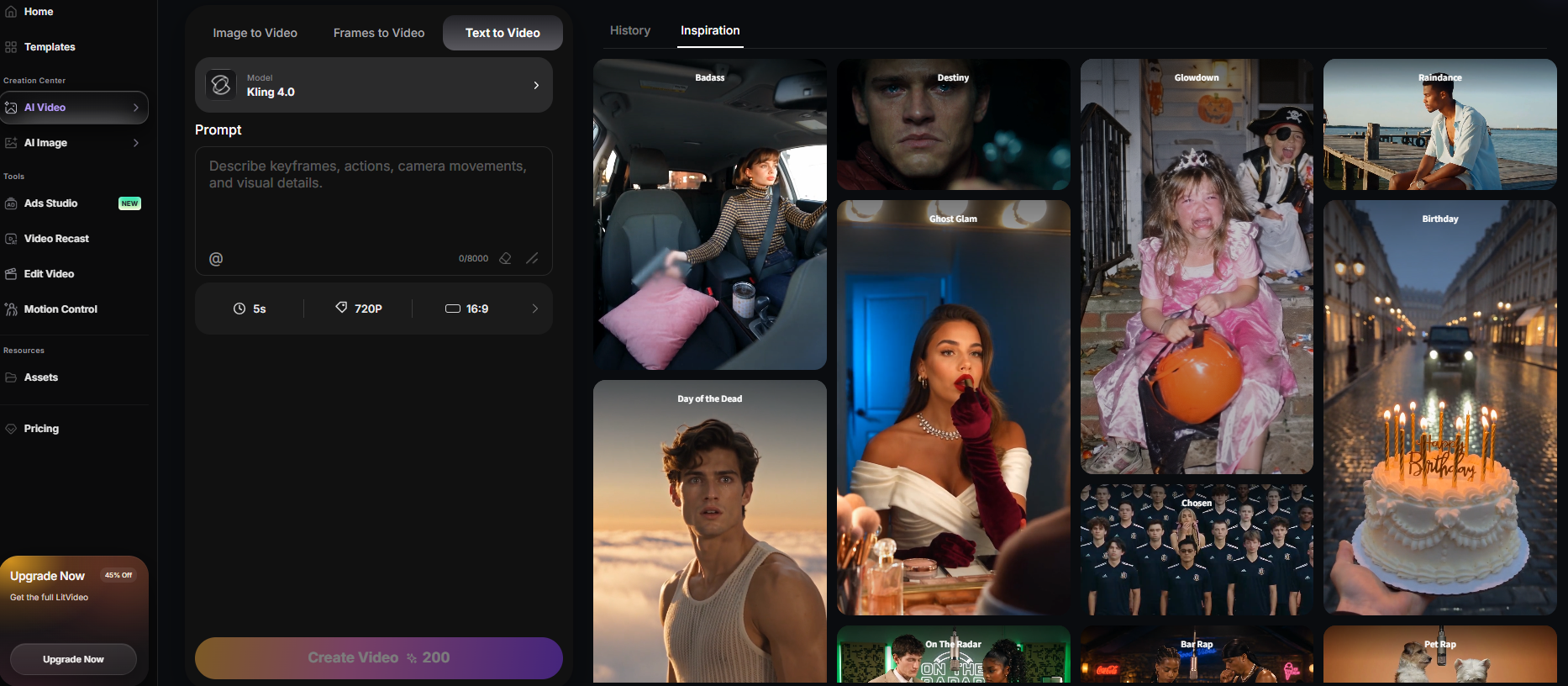
Before generating, select "Kling 4.0" from the dropdown menu on the Guma text to video page, then set your output aspect ratio and camera framing in the workspace:
- Aspect Ratios: Select 9:16 for vertical short-form feeds, 16:9 for cinematic narrative clips, or 1:1 for social showcase cards.
- Lens Framing Selection:Close-up: Focuses on facial expressions, product details, or clear lip-sync dialogue.Medium shot: Captures character upper-body actions and conversational exchanges.Wide shot: Establishes surrounding environment, movement paths, and multi-character layouts.
Step 2: Prepare Source Images and Reference Assets
- Pre-Crop Images: Match your source graphic's aspect ratio to your output canvas before uploading. Mismatched inputs force internal padding, causing edge distortion.
- Resolution Baseline: Use clean PNG or JPG files at ≥1080p. High-density edge details help the generator preserve facial and structural features during motion.
Step 3: Assign Every Reference Asset a Clear Role
When using Omni Reference mode, do not upload multiple images without defining their functions:
- Subject Reference: Upload a clear face or product shot, tagged as @CharacterA.
- Style Reference: Upload a lighting or color palette reference asset without clutter.
- Action Reference: Upload a pose or motion trajectory image to guide physical positioning.
Step 4: Build Your Prompt with the Director Blueprint
Structure your text prompts into modular blocks to maintain clear creative control:
- The Upgraded Director Prompt Blueprint:[Mode & Goal] + [Reference Roles] + [Subject & Environment] + [Action Trajectory] + [Camera & Lens] + [Timed Beats] + [Continuity & Audio]
Blueprint Field Breakdown:
- [Mode & Goal] — Omni Reference mode, 10-second character-driven running sequence.
- [Reference Roles] — @CharacterA defines facial appearance and clothing; preserve both throughout.
- [Subject & Environment] — @CharacterA wearing a red windbreaker on a wet coastal highway.
- [Action Trajectory] — Jogging steadily against light sea mist.
- [Camera & Lens] — 35mm lens, low-angle close-up transitioning into a medium profile shot.
- [Timed Beats] — 0–3s: running shoes; 3–8s: crane up to profile; 8–10s: hold on face.
- [Continuity] — Preserve the red jacket, hairstyle, direction of travel, and original lighting.
- [Audio Track] — Running footsteps on asphalt, distant crashing waves, light wind ambience.
Step 5: Break Extended Videos into Timed Beats
For generations longer than 5 seconds, define exact timestamp markers:
- 0–3s: Static wide shot establishing the room and ambient lighting.
- 3–7s: Subject steps forward toward camera; rack focus onto face.
- 7–10s: Slow tracking tilt downward as subject sets coffee cup on wooden table.
Step 6: Configure Motion Scale, Duration, and Audio
Adjust generation controls inside the Guma interface:
- Motion Scale 2.0-4.0: Ideal for subtle micro-expressions, conversational head turns, or slow camera drifts.
- Motion Scale 6.0–8.0: Use for sprinting, athletic movement, fast camera pans, and sweeping aerial shots.
- Audio Toggle: Enable native audio generation and enter vocal dialogue inside quotation marks ("We need to leave now").
Step 7: Review the Result with a Five-Point Checklist
Evaluate generated clips inside Guma against this quality review checklist:
- Subject Consistency: Does the character or product remain recognizable throughout?
- Motion Quality: Does the movement look smooth and physically believable?
- Camera Direction: Did the shot follow the requested movement and framing?
- Timing: Did each action happen within its assigned time block?
- Audio Sync: Do dialogue, lip movement and sound effects align with the visuals?
Step 8: Iterate by Changing One Variable at a Time
If your clip strays from your creative vision, isolate the failure point:
- If the character face drifts → lower Motion Scale or keep the physical subject description near the beginning of your prompt.
- If the camera pans too fast → replace vague motion adjectives with explicit focal lengths (50mm lens, slow horizontal tracking) rather than leaving camera direction open to conflicting interpretations.
- If lighting shifts unnaturally → add "Preserve the source lighting and color balance" to the continuity section of your prompt.
Step 9: Export and Archive the Final Clip
Download the final video after reviewing the full-resolution file inside the Guma workspace. Save the successful prompt, reference assignments, Motion Scale, duration, and aspect ratio alongside the exported clip so the setup can be accurately reproduced later.
What Makes Kling 4.0 Different?
If you have used AI video generators before, you know the frustration: You write a detailed prompt, hit generate, and watch as your character's face warps, eyes drift, or background geometry twists halfway through the clip.
Kling 4.0 addresses these core stability challenges. Instead of guessing frame movement at random, It gives creators more control over subject identity, camera movement, and visual continuity across longer sequences.
Guma Kling 4.0 Execution Pipeline:
- Visual Inputs: Source photo, target keyframes, or subject reference assets
- Script Directives: Structured prompt blueprint with timed narrative beats
- Audio Layer: Voice track & ambient sound design
→ Guma Kling 4.0 Engine → 30-Second Video + Synchronized Audio (Stabilized identity tracking)
Kling 3.0 vs. Kling 4.0 Feature Matrix
| Production Capability | Kling 3.0 | Kling 4.0 |
|---|---|---|
| Max Shot Length | 5 – 10 seconds | Up to 30 continuous seconds |
| Audio Processing | Silent (requires external post-sync) | Native ambient audio & vocal lip-sync |
| Subject Consistency | Frequent feature drift and morphing | Omni Reference (@Tag character locking) |
| Trajectory Control | Global pan/tilt vectors | 10-point multi-keyframe timeline mapping |
Five Copy-and-Paste Kling 4.0 Prompt Templates
Template 1: Text to Video Cinematic Narrative
- Mode: Text to Video (16:9)
- Prompt:Cinematic wide shot on 35mm anamorphic lens, warm golden hour sun. An elderly watchmaker with spectacles inspects a brass pocket watch at a cluttered wooden workbench. 0-3s: Close-up on magnifying glass reflecting clock gears. 3-8s: Smooth camera tilt up to watchmaker's focused face as he smiles gently. Ambient ticking clocks, faint rustling tools, low evening hum.
- Motion Scale: 3.5
Template 2: Image to Video Dynamic Product Commercial
- Mode: Image to Video (9:16)
- Prompt:Commercial product shot, studio key lighting, matte backdrop. @ProductBottle sitting on dark granite. 0-2s: Water droplets bead and slide down glass surface. 2-6s: Camera slowly rotates 180 degrees around bottle while soft mist rises from base. Crisp water splash audio, subtle bass synthesizer swell.
- Motion Scale: 4.5
Template 3: Omni Reference Multi-Subject Character Locking
- Mode: Omni Reference (16:9)
- Prompt:Medium two-shot on 50mm portrait lens, soft overcast lighting. @CharacterA in a dark trench coat stands on a rain-slicked train platform talking to @CharacterB, who is holding a yellow umbrella. 0–4s: @CharacterA nods slowly while speaking. 4-10s: Camera tracks backward as a distant train whistle sounds and a steam engine train pulls into station background. Rain ambient patter.
- Motion Scale: 3.0
Template 4: 20-Second Long Shot with Synchronized Vocal Speech
- Mode: Text to Video (16:9)
- Prompt:Over-the-shoulder tracking shot on 35mm lens, atmospheric neon street lighting. A female detective turns slowly toward camera. 0-4s: She steps into puddle reflection and speaks the line: "We are running out of time." Synchronize the spoken line with her visible mouth movement. 4-12s: Camera slowly pans right as she walks into alleyway darkness. 12-20s: Hold frame on neon sign flickering in rain. Heavy rain ambient sound, distant traffic hum.
- Motion Scale: 5.0
Template 5: Multi-Keyframe Product Reveal
- Mode: Multi-Keyframe Mode (16:9)
- 0s Keyframe: Closed product box centered on a dark table.
- 6s Keyframe: Box partially open with warm light emerging.
- 12s Keyframe: Product standing upright beside the open box.
- Prompt:Preserve the table position and background throughout. Transition smoothly between each keyframe with a slow forward camera push. Avoid abrupt cuts. Audio: Soft mechanical opening sound followed by a short tonal reveal.
- Motion Scale: 3.5
Troubleshooting Common Generation Artifacts
Problem: Facial deformation or identity drift after 5 seconds
- Root Cause: Too many modifiers can weaken the defining facial details that need to remain consistent throughout the clip.
- Fixing the Workflow:
- Remove subjective fluff words (stunning, award-winning, photorealistic).
- Place the physical subject description near the beginning of the prompt ([Subject: 30-year-old woman, dark hair in a bun, oval face]).
- Keep negative prompt concise: no facial distortion, no feature morphing, no extra limbs.
Problem: Background geometry warping during camera pans
- Root Cause: Vague camera inputs leave camera direction open to conflicting interpretations, scrambling spatial consistency layers.
- Fixing the Workflow:
- Specify real optical camera parameters: Shot on 85mm portrait lens, slow right pan on horizontal axis.
- Reduce subject motion complexity when panning fast across detailed backgrounds.
Problem: Video speeds up like a fast-forward GIF
- Root Cause: Lack of pacing markers causes the engine to render all visual actions simultaneously in early frames.
- Fixing the Workflow:
- Script actions into explicit timestamp blocks (0-3s: Action A, 3-8s: Action B).
- Reduce Motion Scale slider down to 3.0 - 4.0.
Final Pre-Generation Checklist
Before clicking Generate inside Guma, confirm your setup:
- [ ] Aspect ratio matches source image aspect ratio (16:9, 9:16, 1:1).
- [ ] Source graphics are uploaded at ≥1080p resolution.
- [ ] All uploaded reference assets have clear @Tag identifiers assigned in text.
- [ ] Text prompt uses explicit optical framing and timestamp beats (0-3s, 3-8s).
- [ ] Motion Scale slider is matched to physical action speed (2.0-4.0 for subtle, 6.0-8.0 for dynamic).
- [ ] Subject physical specs are placed at the beginning of text prompt block.
Frequently Asked Questions (FAQ)
Q1: Can Kling 4.0 generate synchronized voice dialogue on Guma?
A: Yes. Enclose spoken dialogue in quotation marks within the prompt and assign it to a tagged subject (e.g., @CharacterA says: "We need to clear the area," with matched lip movement).
Q2: Why is my image-to-video output ignoring source lighting?
A: Conflicts happen when text prompts introduce lighting descriptors that contradict source photo geometry (e.g., prompting "midday sun" over a sunset photo). Align prompt lighting tags with source image temperature, or add “Preserve the source lighting and color balance” to the continuity section of your prompt.
Q3: What is the ideal Motion Scale setting for narrative storytelling?
A: Keep Motion Scale between 3.0 and 5.0 for character scenes. Values above 7.5 often introduce unwanted background wobbles.
Q4: How does Kling 4.0 compare to Runway Gen-3 Alpha?
A: Kling 4.0 excels at longer 30-second generations, multi-keyframe trajectory control, and multi-subject reference locking (Omni Reference). Runway Gen-3 is effective for fast 5-second camera sweeps.
Q5: Do video generations on Guma include commercial rights?
A: Yes. Clips created on paid Guma (guma.top) subscription plans carry commercial usage rights for social ads, client deliverables, and commercial media.
Q6: Which image format works best for Image-to-Video (I2V) input?
A: Uncompressed 1080p JPG or PNG files yield optimal results. Highly compressed WebP images contain artifacts that can turn into video glitches.
Q7: What aspect ratio should I select for TikTok and Instagram Reels?
A: Select 9:16 vertical format inside the Guma creator workspace and crop source assets vertically prior to generation.
Q8: How many keyframes can I set in Multi-Keyframe mode?
A: Kling 4.0 supports up to 10 sequential keyframes along a 30-second timeline, allowing you to lock key story beats from start to finish.