
Edit Existing Videos with the AI Video Editor
Guma AI Video Editor turns rough footage into a cleaner cut without starting from zero. Type the change you want, such as “remove the 12-second pause” or “cut the repeated introduction,” then remove filler, add captions, and refine audio in one edit.
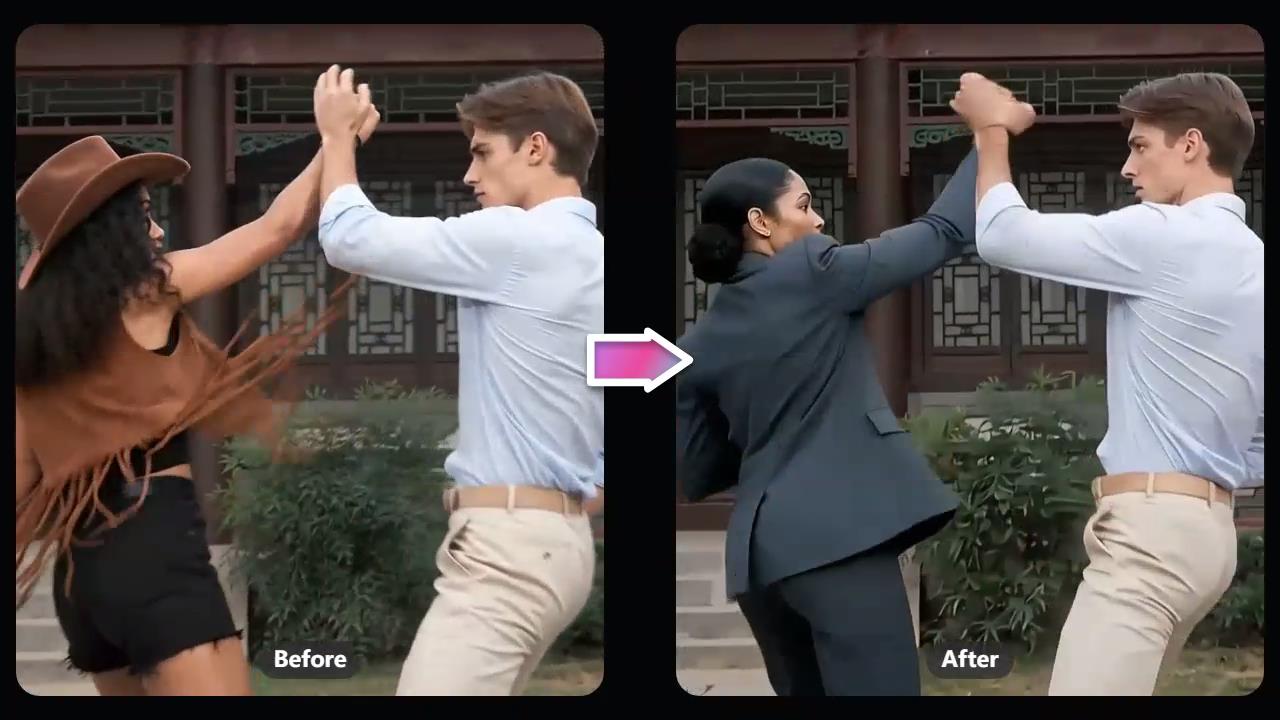
Access More AI Editing Models in One Place
Unlike a single-model editor, Guma brings multiple AI editing models into one workflow. Each model supports a different editing focus, helping you choose the right approach for pacing, audio cleanup, captions, or visual updates. The text-based video editor keeps the request clear and the edit focused.
Cut the Moments That Slow the Story Down
A recording can contain useful material and still feel longer than it needs to. Ask the editor to “remove the repeated product explanation” or “cut the slow opening.” The unwanted sections are trimmed while the main message stays intact.
Clean Up Filler Words Without Losing the Speaker
“Um,” “you know,” and long pauses are normal when people speak on camera. They can make a finished video feel less focused. Ask for “remove filler words from the interview” or “tighten the pauses between answers.” The pacing becomes smoother while the speaker’s natural voice remains.
Make Captions and Audio Easier to Follow
People watch videos in noisy places, on small screens, and often with the sound off. Clear captions and cleaner dialogue make the message easier to follow. Use requests such as “add captions to the video” or “make the dialogue clearer,” then check names, timing, and key details.
Update the details that no longer fit.
A useful recording may need a new visual, an updated caption, or a tighter supporting moment. Tell the editor what needs to change, such as “replace the outdated screen recording” or “remove the old offer.” Targeted edits keep product videos, explainers, and social posts current without rebuilding the project.
Turn Raw Footage into a Share-Ready Cut
Upload Your Video
Add the footage you want to improve.
Edit Your Video
Describe the changes you want using text prompts, and let AI edit your video.
Download Your Video
Make any needed adjustments and download the version you want to share.
Questions About Editing Existing Videos with Guma
What Is Guma AI Video Editor?
Guma is a text-based video editor for footage you already have. It supports recordings, demos, interviews, tutorials, and social clips without requiring you to create a video from scratch.
Can I Edit a Video with Text Prompts?
Yes. Type a specific request, such as “remove the first 10 seconds,” “cut the repeated introduction,” or “add captions to the video.” Clear instructions make the requested edit easier to understand.
Can Guma Remove Filler Words and Pauses?
Guma can help remove filler words, repeated phrases, and awkward pauses from existing recordings. Review the edited version before publishing when wording or timing is especially important.
Can I Add Captions to an Existing Video?
Yes. Captions can be added during the editing process. Check names, product terms, timing, and readability before sharing the video.
Can Guma Help Clean Up Video Audio?
Guma can help refine dialogue and reduce distracting audio issues as part of the edit. Listening through the exported version is useful for interviews, training videos, and customer-facing content.
Does Guma Create Videos from Scratch?
No. This page focuses on editing existing videos with AI. Use text prompts to improve structure, pacing, captions, audio, and visual details in footage you already have.
Do I Need Editing Experience to Use Guma?
No. Describe the change you want instead of searching through the timeline manually. You decide which edits fit the message and when the video is ready.