
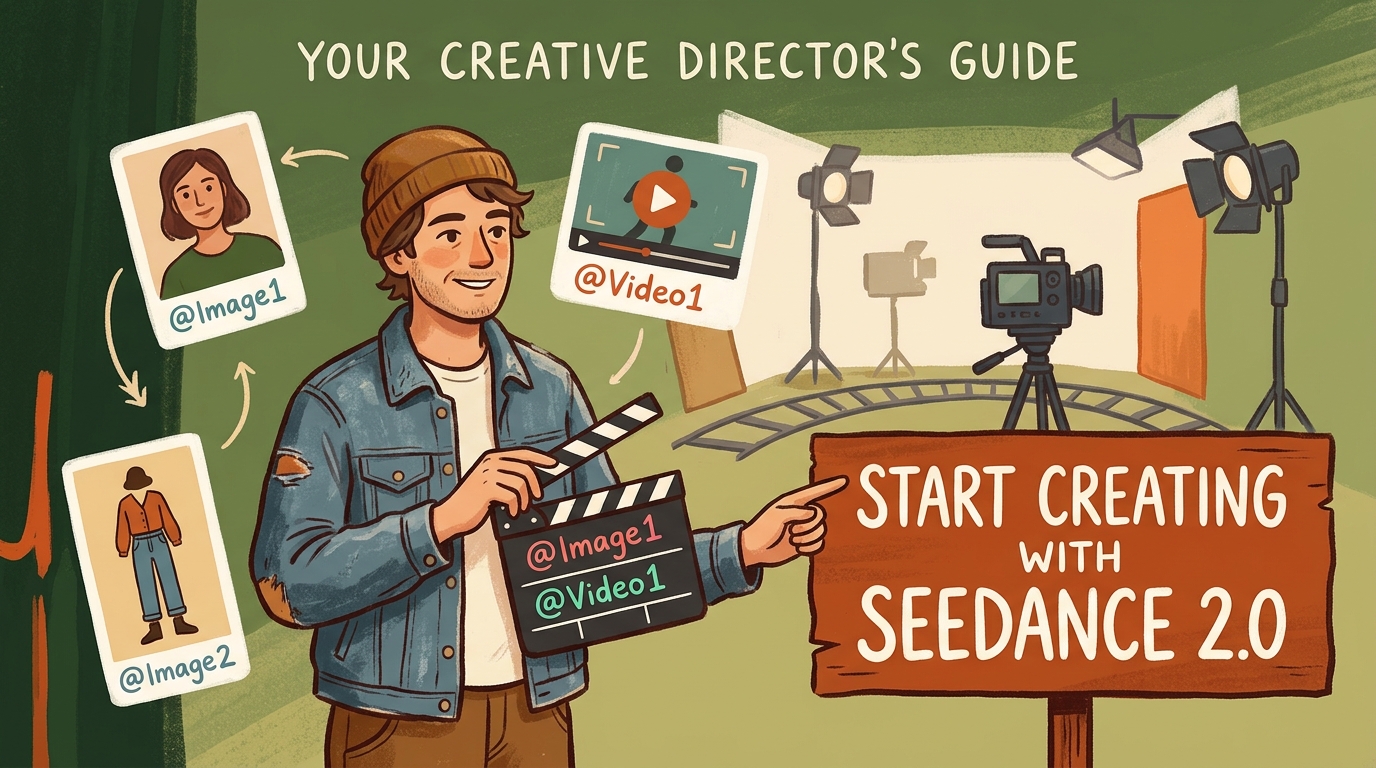
How to Use Seedance 2.0 for AI Video Creation: Full Guide
If you have been experimenting with generative AI video tools recently, you have likely seen impressive showcase clips—only to run into common production hurdles when trying to create your own. A text prompt may generate a convincing subject in the first shot, but their appearance changes after a simple camera turn. Lip-syncing often requires manual secondary editing, and directing specific camera movements can feel like a trial-and-error process.
ByteDance’s Seedance 2.0 architecture addresses these control challenges. Rather than relying solely on text to video (T2V) prompt generation, Seedance 2.0 accepts structured visual and audio assets to give creators precise, reference-driven directional control over the final output.
This guide walks you through the core capabilities of Seedance 2.0, an asset-mapping workflow for Guma AI, and a current feature comparison with alternative AI video models.
1. Core Capabilities: How Seedance 2.0 Addresses Production Bottlenecks
Traditional text to video generators operate like black-box samplers. Seedance 2.0 can improve output controllability and consistency by using a multimodal reference workflow.
Key Technical Advantages:
- Multimodal Reference Capacity: Supports up to 9 images, 3 reference videos, and 3 audio clips at the model level to guide character features, camera trajectories, and sound pacing.
- Audiovisual Integration: Supports joint audio-video generation workflows where available in the platform workspace.
- First & Last Frame Control: Accepts start and end keyframes to interpolate intermediate motion guided by the start and end frames.
- Base Resolution Options: Seedance 2.0's technical documentation lists native 480p and 720p base generation, with higher-resolution export options available depending on the platform and selected mode.
2. Practical Workflow: Creating AI Videos on Guma
To get predictable results on Guma AI, switch from long descriptive prompts to a structured Asset Mapping + @ Syntax workflow.
Step 1: Upload and Map Your Asset Matrix
Drag your reference files directly into the Guma dropzone. The workspace assigns clear tag identifiers to each file:
- Primary Subject Portrait (@Image1): A clear, high-resolution front-facing photo.
- Outfit & Style Anchor (@Image2): A full-body or clothing reference image.
- Camera Movement Reference (@Video1): A short, stable reference clip containing the desired camera trajectory or subject movement. Follow the file size and duration limits displayed in your current workspace.
- Optional Audio Reference (@Audio1): Seedance 2.0 supports audio references at the model level.
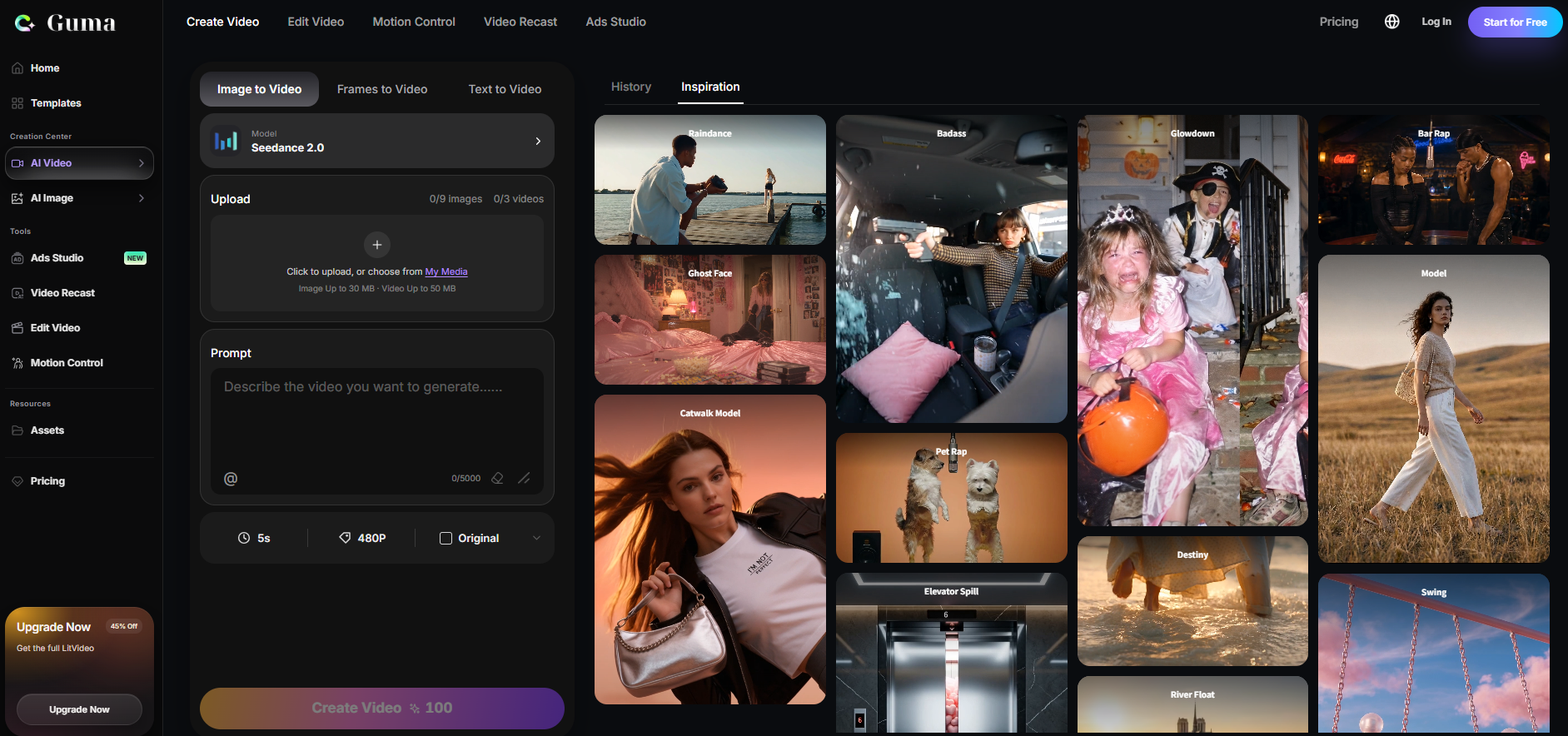
Note: Up to 15 total reference assets (9 images, 3 videos, 3 audio clips) are supported at the model level. The exact available assets inside your workspace depend on the active interface mode and platform rollout.
Step 2: Formulate Prompts Using @ Syntax
Write prompts that explicitly delegate visual and motion tasks to your tagged assets. Choose the template that matches your current workspace capabilities:
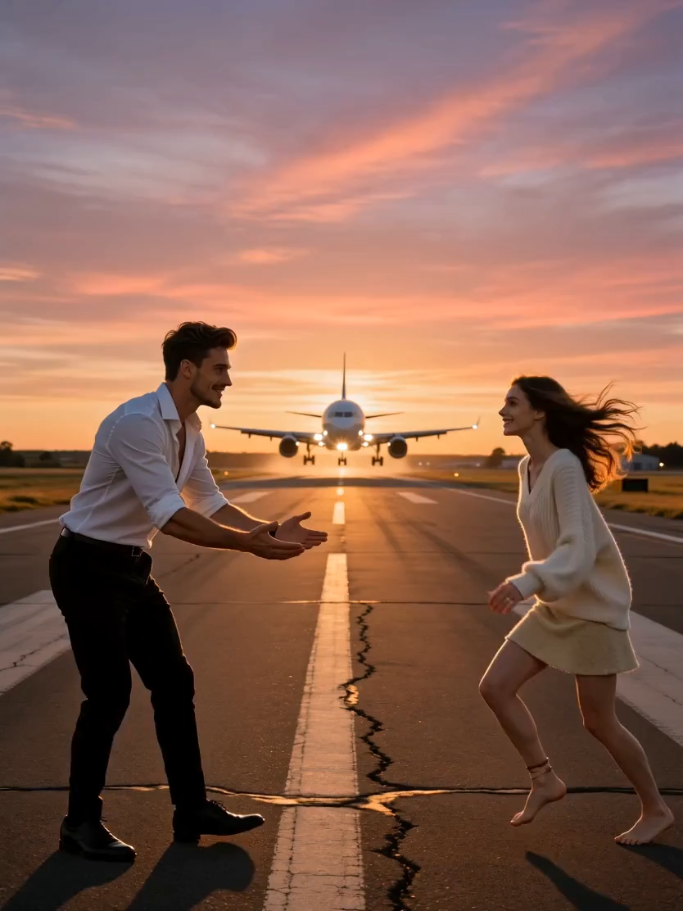
- A hyperrealistic 12-second cinematic medium-wide shot on an airport runway at dusk. Keep the camera fixed at eye level as the male from @Image1 faces the female from @Image2 several meters away. The female runs toward him and steps into his palms; he squats slightly, lifts her overhead, and supports one foot while she holds a graceful ballet pose with both arms extended and one leg raised sideways. At the same moment, a commercial airliner with landing gear down approaches and flies directly overhead. Use warm orange, pink, and purple sunset lighting with golden sidelight and long shadows. Preserve the characters’ facial features, hairstyles, skin tones, clothing, and realistic anatomy from the reference images. Maintain natural motion, believable balance, cinematic 4K realism, and no camera movement.
Workflow Tip (Dual-Image Anchoring):Using only a single headshot can lead to feature distortion during wide camera pans. Uploading a frontal portrait (@Image1) alongside a full-body posture photo (@Image2) is generally easier for the model to align and helps maintain consistent subject features during complex multi-shot turns.
Step 3: Configure Aspect Ratio and Mode
After writing the prompt, select 16:9 from Guma’s Size control for widescreen video or 9:16 for vertical social content. If your current platform or generation mode exposes First & Last Frame controls, upload the start and end images to guide the intermediate motion. Otherwise, use the platform’s dedicated frame to video workflow when available.
Step 4: Run Draft Tests Before Exporting
Execute initial tests using draft modes or shorter durations where available. Use shorter durations or lower-cost draft settings when available. Check the estimated credit cost displayed in your workspace before generating. Once the camera trajectory and subject appearance match your intent, switch to the appropriate final-output setting.
3. Model Comparison: Seedance 2.0 vs. Kling 4.0 vs. Wan 3.0
Comparison updated on November 9, 2026. Features and availability may vary by platform, region, account, and subscription plan.
| Feature | Seedance 2.0 | Kling 4.0 | Wan 3.0 |
|---|---|---|---|
| Core Strength | Precise multimodal reference control and synchronized audio-video generation | Long-form cinematic shots, high-motion scenes, and advanced keyframe control | All-in-one multimodal creation with longer native output |
| Supported Inputs | Text, images, videos, and audio | Text, images, videos, subjects, voices, and keyframes | Text, images, videos, audio, documents, and web pages |
| Reference Capacity | Up to 9 images, 3 videos, and 3 audio clips at the model level | Up to 15 combined reference assets and up to 10 keyframes | Up to 20 combined references, including up to 10 images, 5 videos, and 5 audio clips |
| Maximum Native Duration | Up to 15 seconds | Up to 30 seconds | Up to 30 seconds |
| Documented Resolution | Native 480p or 720p; platform export options may vary | 10-bit HDR output documented; 4K and 1080p support announced, with availability dependent on rollout and product access | 480p, 720p, and 1080p |
| Native Audio | Joint audio-video generation with dialogue, music, sound effects, and stereo output | Supports voice and audiovisual reference workflows; exact output options depend on product availability | Native dialogue, background music, and sound-effect generation |
| Camera and Motion Control | Strong reference-based camera, motion, composition, and pacing control | Designed for complex camera movement, large-scale action, and continuous cinematic shots | Supports continuous camera movement, long takes, and first/last-frame control |
| Editing and Extension | Video editing and continuation supported | Creative recreation, asset replacement, and planned multi-stage extension up to two minutes | Video editing, story recreation, and video extension supported |
| Workflow Complexity | Asset-mapping workflow; best results require organized references | Prompt, reference, and keyframe-driven professional workflow | Unified workflow supporting conventional media, documents, and links |
| Best For | Product advertising, character-driven shorts, reference-heavy creation, and synchronized audiovisual scenes | Action sequences, cinematic commercials, professional key shots, and longer continuous scenes | Longer narrative videos, document-to-video workflows, explainers, and multimodal production |
| Main Trade-Off | Shorter native generation length and lower documented native resolution | Some announced features may still depend on rollout, region, or account access | Broad feature coverage can require more setup and asset management, while availability may vary by region and platform |
Specifications are based on official model documentation; individual platforms may expose only a subset of these capabilities.
Which Model Should You Choose?
- Choose Seedance 2.0 when your workflow depends on multiple visual references and, where supported by the selected platform, audio references. It is particularly suitable for character-driven advertising, short-form storytelling, product videos, and scenes where camera movement, subject appearance, and sound must follow uploaded assets.
- Choose Kling 4.0 when your priority is longer cinematic shots, intense action, complex camera movement, or precise keyframe planning. Its 30-second native generation and multi-keyframe workflow make it a strong option for professional commercials, action sequences, and visually ambitious hero shots.
- Choose Wan 3.0 when you need a flexible all-in-one production workflow. It supports videos of up to 30 seconds, native audio generation, 1080p output, and references ranging from images and videos to documents and web pages, making it useful for explainers, presentations, narrative content, and document-to-video projects.
These models should not be ranked by a single universal score. The best choice depends on your required duration, reference assets, audio workflow, output resolution, and level of camera control.
Suggested Internal Comparison Protocol
- Use the same creative brief, source assets, target duration, aspect ratio, and evaluation criteria across all three model workflows on Guma. Adapt only the asset-reference syntax required by each model interface.
- Prepare 1 frontal subject headshot (@Image1) and 1 full-body outfit photo (@Image2) where supported.
- Select 1 motion/camera reference video.
- Generate multiple iterations per model under matching settings.
- Record platform versions, test dates, output duration/resolution, prompt enhancement settings, generation counts, success/failure cases, and post-processing steps.
4. Frequently Asked Questions (FAQ)
Q1: How do I generate e-commerce product videos using Seedance 2.0?
Upload your product shot as @Image1 and a reference clip showing lighting movement as @Video1. Prompt the model to keep the subject locked to @Image1 while reproducing the camera path and lighting transitions of @Video1. The model may reproduce reflections, material highlights, and shadows based on the supplied references.
Q2: Why is the lip-syncing inaccurate or unavailable after attaching an audio reference?
Check whether your active workspace interface supports direct audio uploads. If the current Guma interface only exposes image and video reference slots, describe the intended dialogue and sound directly in your prompt or handle audio during post-production. If an audio slot is available, ensure the reference audio contains clear, isolated speech without heavy background noise or multi-speaker overlap.
Q3: What native video resolution does Seedance 2.0 support?
Seedance 2.0’s technical documentation lists native 480p and 720p base generation. Guma and other host platforms may provide higher-resolution export options or post-processing enhancement modes depending on your selected subscription plan and interface settings.
Q4: Why does a video output stutter or behave unexpectedly when referencing a motion clip via @Video1?
Inspect the stability and framing of your uploaded reference clip. Use stable, clearly framed reference clips and test different sources when motion appears uneven, as the generated output may inherit instability from rough reference footage.
Start Creating with Seedance 2.0 on Guma
Seedance 2.0 is most useful when you treat reference assets as directorial instructions rather than optional prompt attachments. Start with one clear subject image and one stable motion reference, test a short draft, and add more references only when they serve a specific visual or motion purpose.
Try Seedance 2.0 on Guma and compare the available duration, resolution, and reference options in your current workspace before starting a final production render.
Compliance Reminder: Only upload images, videos, voices, and music that you own or are authorized to use. Obtain consent before generating content based on an identifiable person.