
Filtar osmijeha
Dodajte osmijeh na bilo koju fotografiju pomoću AI-a
Pretvorite ozbiljnu selfiju u topliju i pristupačniju fotografiju. Gumaov filter osmijeha dodaje realističan osmijeh portretima, profilnim slikama i svakodnevnim snimkama — izravno u vašem pregledniku.
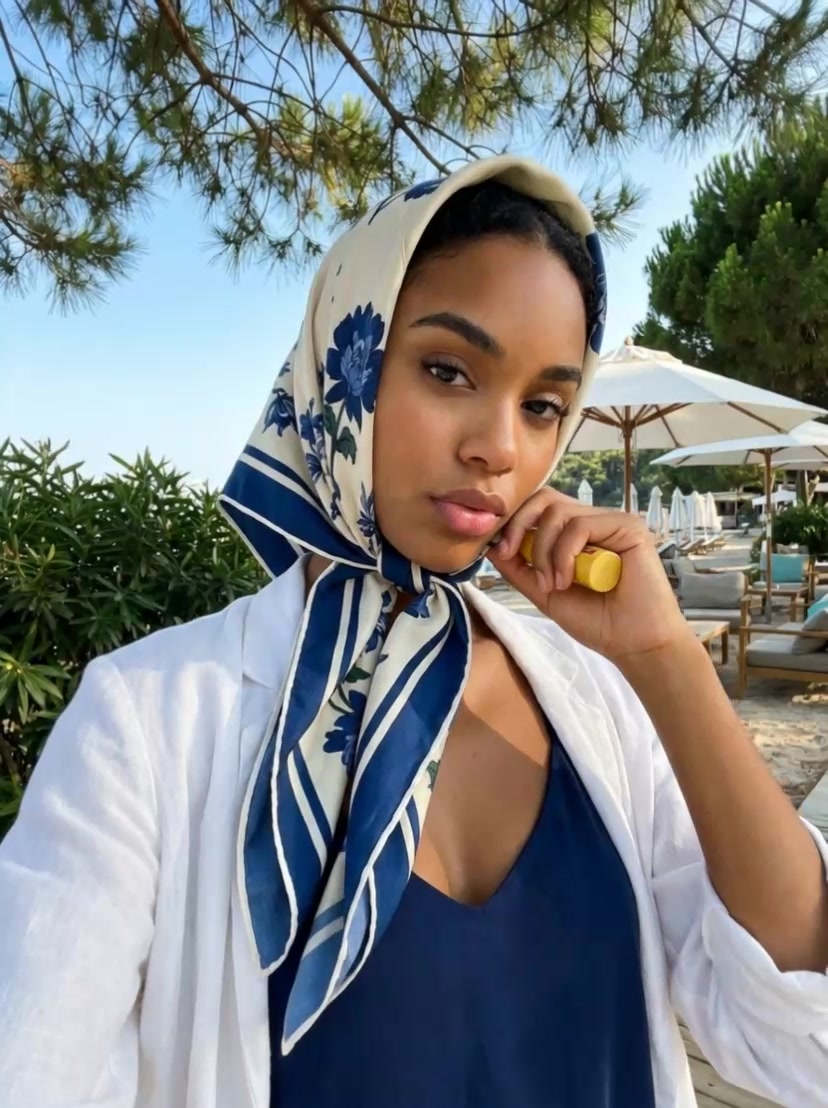
AI upit
Generirajte 5-sekundni ultra-realistični video s 4K HD kvalitetom i filmskim dojmom, {parametri kamere: 1,6 piksela}, prirodna razina šuma na slici 3,0, {parametar realnosti: 1,6}, prirodni prelazi između svjetla i sjene, potpuno točne proporcije ljudskog tijela; glavni lik u 100% odgovara licu i fizičkim karakteristikama slike @, bez promjene pola, temperamenta, boje kose, frizure i make-upa. 【Prva slika】 Prva slika je korisnikova unesena slika, Neka se lik u videu nasmiješi bez pokazivanja zuba, ostali manji pokreti.

Popravite izraz bez ponovnog snimanja fotografije
Slika je oštra, osvjetljenje je dobro, a netko ipak izgleda pomalo preozbiljno. Guma vam omogućuje da prilagodite izraz bez potrebe za novim snimanjem. Korisna je za portrete, obiteljske fotografije, školske slike i grupne snimke u kojima jedna malena promjena može poboljšati cjelokupnu sliku.

Učinite profilne slike prijateljskijima
Prijateljski izraz može učiniti da profilna fotografija radi jače. Koristite Guma za društvene račune, stranice stvaralaca, direktorije timova i profesionalne predstave. Filter osmijeha održava uređivanje usredotočenim na lice, tako da pozadina, odjeća i ukupni stil fotografije ostaju netaknuti.

Odaberite suptilan osmijeh ili živopisniji izgled
Ne treba svaka fotografija imati širok osmijeh. Guma vam omogućuje brz način da isprobate nježniji osmijeh ili vedriji izraz lica, ovisno o raspoloženju koje želite postići. Isprobajte taj učinak na različitim portretima i zadržite rezultat koji odgovara osobi, prigodi i načinu na koji planirate koristiti sliku.

Spremite fotografiju pripravljenu za dijeljenje u nekoliko sekundi
Kad izraz izgleda kako treba, preuzmite gotovu sliku i koristite je gdje god vam treba. Nema kompliciranog radnog tijeka za doradu kojeg morate naučiti. Guma je stvorena za brze izmjene kada želite odmah poboljšati fotografiju — a ne trošiti sat vremena na ponovno izgradnju u uređivaču za desktop.
Kako dodati osmijeh na fotografiju
Prenesite
Odaberite portret, selfi ili grupnu fotografiju.
Generiraj
Guma dodaje osmijeh uz pomoć AI.
Preuzmite
Spremite gotovu sliku.
Više AI alata za bolje fotografije
Česta pitanja o filteru osmijeha
Što mogu učiniti s Gumaovim filterom za osmijeh?
Guma dodaje osmijeh na lice postojeće fotografije, čime je korisna kada je izvorna slika dobro komponirana, ali se izraz osobe čini preozbiljnim, otrcanim ili neutralnim. Za više prilagodbi slika istražite našu Sliku u sliku.
Je li filter za osmijeh besplatan?
Registrirani korisnici Gume dobivaju dnevne besplatne kredite za isprobavanje alata. Plaćeni plan dostupan je ako želite više generacija ili pristup dodatnim alatima za uređivanje.
Koje fotografije djeluju najbolje?
Koristite jasnu sliku s vidljivim licem i razumno osvjetljenjem. Portreti okrenuti prema naprijed obično daju najpouzdanije rezultate; vrlo mala, nejasna ili uvelike prekrivena lica mogu biti teže za uređivanje.
Mogu li ga koristiti za poslovni portret?
Da. Možete ga koristiti za profilnu fotografiju, stranicu tima, životopis ili račun za stvaratelje. Odaberite umjerenu izrazitost kada slika mora ostati profesionalna.
Radi li na grupnim fotografijama?
Može raditi kada su lica dovoljno velika i jasno vidljiva. Za najizvjesniji rezultat, portret jedne osobe obično je bolji početni položaj.