
I Tested 6 AI Video Generators: Here Are My Results
Ever wondered how to create polished videos without complex editing software or a filming setup? AI video generators have made content creation easier than ever. Whether you want to animate an old photo, turn a text prompt into a cinematic shot, or create a short clip for social media, these tools can help you move from an idea to a draft quickly.
To compare the tools in practical workflows, I tested six AI video generators using different scenarios, including short-form social content, photo animation, cinematic text to video, product showcases, motion control, and synchronized audio. Here are the tools that stood out in those tests.
Top 6 AI Video Generators at a Glance
| Tool Name | Available Platforms | Best For |
|---|---|---|
| Guma | iOS / Android / Web | Short-form social content and prompt-to-video creation |
| YouCam Enhance | iOS / Android / Web | Restoring and animating nostalgic old family photos |
| Genbler | Web | Text to video scenes with cinematic lighting and camera movement |
| HitPaw Edimakor | Web / Windows / macOS | Reference-image workflows for product showcases |
| Kling AI | iOS / Android / Web | Realistic movement and localized motion control |
| Google Veo 3.1 | Web / API | Video generation with native audio, dialogue, and sound effects |
Guma: Best for Social Media Content and Flexible Creation
- Platforms: iOS / Android / Web
- Best For: Short-form videos, marketing concepts, and fast creative testing
Tool Review of Guma:
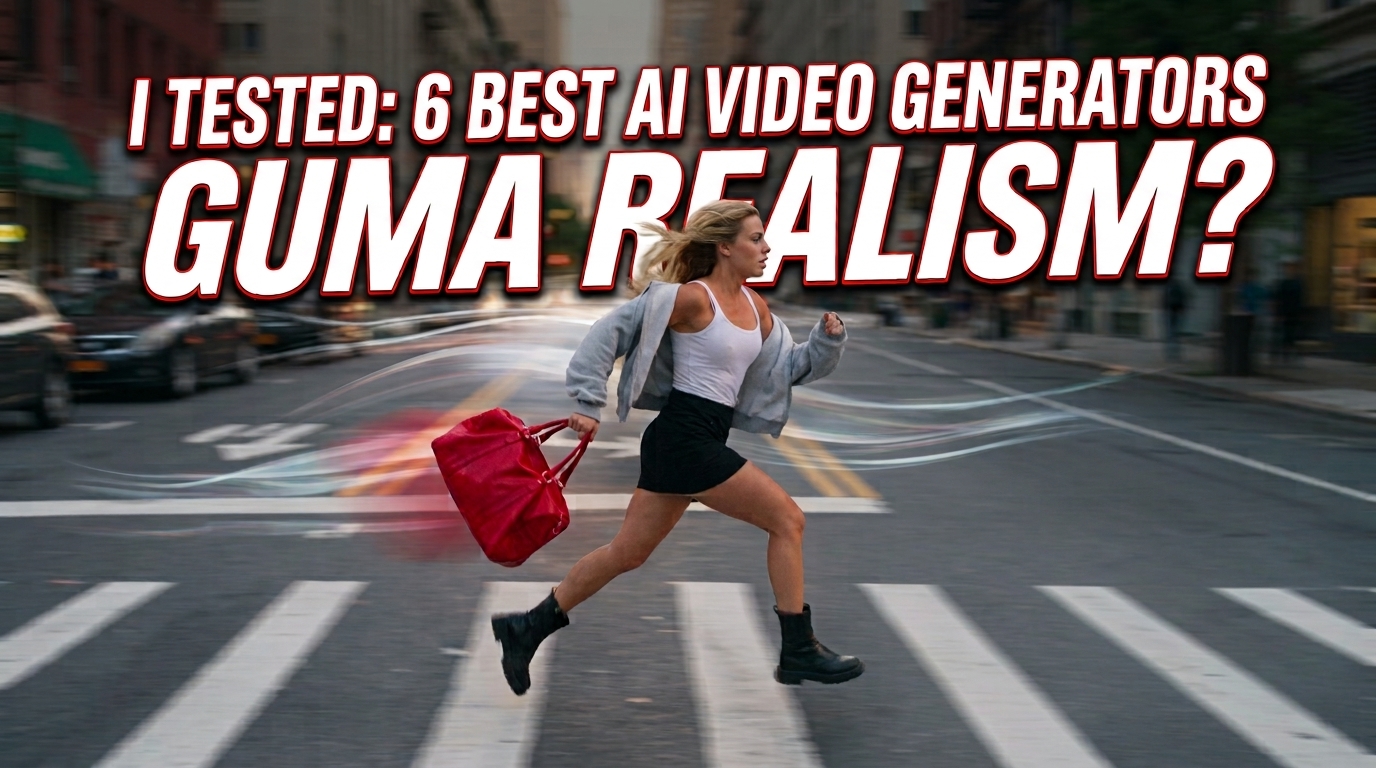
Guma stood out in my testing for its straightforward workflow and range of creation options. I entered a prompt describing a girl running through a busy city street while carrying a red duffel bag. The resulting clip included dynamic camera movement and natural-looking motion in the scene.
The clip also included footsteps and ambient city sound. This was the result of that test rather than a guarantee that every prompt will produce the same audio. If you need a practical tool for turning prompts or images into short videos for recurring social content, Guma is a strong option to consider.
How to Generate an AI Video Using Guma:
- Open Guma and choose the video generation workflow.
- Upload an image for image to video, or enter a text prompt for text to video.
- Select the available model, duration, output size, and aspect ratio for your project.
- Generate the clip, review the result, and download it when it is ready.
YouCam Enhance: Best for Restoring and Animating Old Photos
- Platforms: iOS / Android / Web
- Best For: Restoring faded, low-resolution family pictures and adding subtle animation
Tool Review of YouCam Enhance:
YouCam Enhance is designed for nostalgic storytelling. During testing, I uploaded a faded, black-and-white vintage photograph of a couple. The platform first improved the image by reducing visible noise and sharpening details. Its image-to-video workflow then added subtle movement to the still portrait, giving the image a warmer, more lifelike feel.
It is a useful option for preserving and reimagining cherished family memories, provided that you have permission to use the people and images in the photo.
How to Generate an AI Video Using YouCam Enhance:
- Open YouCam Enhance and choose the image-to-video feature.
- Upload the vintage or faded photo you want to animate.
- Apply restoration enhancements, enter an optional prompt, and generate the clip.
Genbler: Best for Cinematic Camera Movements
- Platforms: Web
- Best For: Text-to-video scenes with cinematic lighting, depth, and perspective
Tool Review of Genbler:
Genbler delivered strong text-to-video results in my cinematic test. I used the prompt: “a hooded skater gliding along a glowing light track above the clouds under a starry night sky.” The result showed clear depth, smooth camera movement, and glowing particles that gave the clip the feel of a fantasy-film concept teaser.
It is a useful choice for creators who need original cinematic visuals without setting up a physical camera.
How to Generate an AI Video Using Genbler:
- Open Genbler and choose its text-to-video workflow.
- Describe the subject, setting, lighting, camera movement, and mood in the prompt.
- Generate the clip, review the result, and download the finished video.
HitPaw Edimakor: Best for Product Showcases with Reference Images
- Platforms: Web / Windows / macOS
- Best For: Maintaining product structure and texture during controlled camera movement
Tool Review of HitPaw Edimakor:
Reference-image workflows can be useful when a product needs to remain recognizable while the camera moves. I uploaded a still image of a luxury perfume bottle surrounded by water ripples. In my test, the generated close-up camera movement kept the bottle, glass texture, and logo relatively consistent.
The clip can also be brought into Edimakor’s desktop editor for additional timeline and multi-track editing, which makes the workflow practical for e-commerce creators.
How to Generate an AI Video Using HitPaw Edimakor:
- Open Edimakor AI and choose the reference-to-video workflow.
- Upload one or more reference images and describe the desired movement.
- Select the available aspect ratio, resolution, and duration, then generate the clip.
Kling AI: Best for Realistic Physical Motion and Localized Control
- Platforms: iOS / Android / Web
- Best For: High-fidelity movement and controlling specific motion areas
Tool Review of Kling AI:
Kling AI performed well in my physical-motion test. I created a scene involving a woman falling through clouds at sunset. The motion of her hair and the rotation of her body appeared natural in the generated result.
Its Motion Brush workflow is useful when you want to identify specific areas of an image for movement. Results can vary depending on the source image, prompt, model, and current processing conditions, but the tool gives creators more localized control than a basic image-to-video prompt.
How to Generate an AI Video Using Kling AI:
- Open Kling AI, choose image-to-video, and upload your source image.
- Enter a prompt describing the scene and desired movement.
- Use Motion Brush when available to mark the areas you want to animate.
- Generate the clip and save the result after reviewing it.
Google Veo 3.1: Best for Native Audio and Dialogue Syncing
- Platforms: Web / API
- Best For: Generating video together with dialogue, sound effects, and background audio
Tool Review of Google Veo 3.1:
Google Veo 3.1 addresses one of the biggest limitations of many AI video tools: audio. In a news-anchor test, the generated clip included the scene, spoken dialogue, and newsroom background audio in the same generation workflow. The dialogue and mouth movement were closely matched in that test, although results can vary by prompt and generation.
Its native-audio workflow makes Veo 3.1 an appealing option when you want a video draft with sound instead of adding every audio element separately in an editor. Available models, resolutions, duration limits, and access may vary depending on the Google product or API configuration you use.
How to Generate an AI Video Using Google Veo 3.1:
- Open Veo through a supported Google product or API and choose text-to-video or image-to-video.
- Describe the scene, visual style, dialogue, and sound effects in the prompt.
- Generate the clip, review the audio and video together, and download the available output.
Start Creating Better Videos with AI Today!
Ready to bring your video ideas to life faster?
The right AI video generator can help you turn text prompts and images into engaging videos with less time and effort.
These AI video generators can help marketers, influencers, e-commerce brands, and content creators explore ideas, create visual content, and speed up production. Choose the tool that best fits your project, try it with your own prompts or images, and discover how AI can make video creation more efficient and creative.