
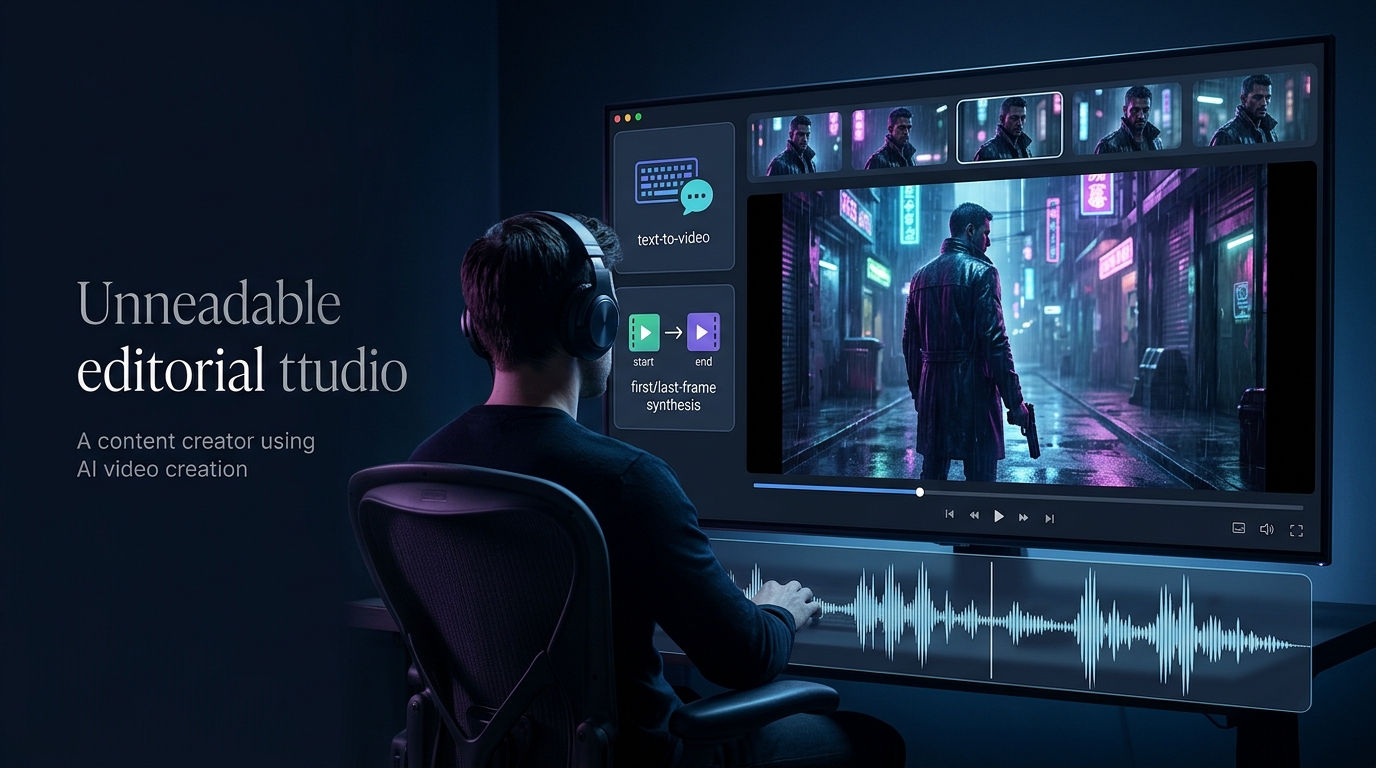
How to Use MiniMax H3 for AI Video Creation
MiniMax H3 generates video and native stereo audio in the same workflow. Use text-to-video when starting from a prompt, first/last-frame mode when you need more control over the opening and ending states, or Reference-to-Video when you want to guide characters, objects, environments, motion, style, or sound with reference assets.
For more reliable results, use clean reference files, focus each clip on one primary action, and clearly describe the subject, movement, camera behavior, visual style, and sound environment. After generation, review the entire clip for character consistency, object warping, camera stability, and audio-visual timing.
MiniMax H3 supports videos from 4 to 15 seconds. The open H3 Base workflow generates at a 768-pixel short side and can regenerate the result at 2K, although the options available on hosted platforms may vary.
MiniMax H3 at a Glance
| Feature | Specification |
|---|---|
| Generation modes | Text-to-Video, First/Last-Frame, and Reference-to-Video |
| Output duration | 4 to 15 seconds for the main MiniMax H3 model |
| Output audio | Native 32 kHz stereo audio |
| Frame rate | 24 FPS |
| Aspect ratios | 21:9, 16:9, 4:3, 1:1, 3:4, and 9:16 |
| Resolution | 768P or 2K through the official API; the open H3 Base workflow generates with a 768-pixel short side and can use H3-Regenerate-2K for 2K output |
| Reference limits | Up to 9 reference images, 3 reference videos, and 3 reference audio clips, with no more than 12 reference files in total |
| Dialogue languages | Stable support for Arabic, Chinese, English, French, German, Italian, Japanese, Korean, Portuguese, Russian, and Spanish |
These specifications describe the official MiniMax H3 system and API as reviewed on November 13, 2026. The options available through a hosted service may differ depending on the model variant and interface implementation.
Choosing the Right MiniMax H3 Mode
Text-to-Video
Text-to-video is the simplest place to start. It creates a scene from a written description without requiring an image, video, or audio reference.
This mode is suitable when you are exploring an original visual idea, testing an atmosphere or camera movement, or creating landscapes, abstract scenes, and establishing shots. It is less suitable when the result must preserve the exact appearance of a particular person, product, costume, or environment.
Because the model has no visual reference to follow, the prompt needs to define the scene clearly. Describe the subject, primary action, environment, camera behavior, lighting, visual style, and soundscape rather than relying on disconnected keywords.
First/Last-Frame Mode
First/Last-Frame mode provides more control over where a scene begins or ends. Depending on the workflow, you can supply a first frame, a last frame, or both.
This mode is useful for opening a door, revealing a product, changing one scene into another, guiding a character toward a final pose, or creating a transition between two prepared compositions. The supplied images establish visual boundaries for the generation, but they do not define every movement between those boundaries.
The start and end frames should be visually compatible. If the subject, perspective, lighting, or environment changes too dramatically between them, the model may create distorted intermediate frames while attempting to connect the two compositions.
Reference-to-Video
Reference-to-Video lets you guide the result with images, videos, audio, or a supported combination of those assets. An image might define the appearance of a character, a video might demonstrate the desired movement, and an audio clip might guide a voice or sound. The prompt explains how the references should influence the final video.
This mode is the better choice when you want to preserve a recognizable character, reuse a costume or product, follow a particular motion, maintain a visual style, continue an existing scene, or guide the audio environment.
Adding more references does not automatically improve the output. Each asset should have a clear purpose, because references with conflicting faces, costumes, lighting, movement, or product details can make the intended result harder for the model to interpret.
First/Last-Frame inputs and Reference-to-Video inputs are separate workflows in the official API. Frame inputs cannot be combined with reference-image, reference-video, or reference-audio roles in the same generation request.
Why MiniMax H3 Feels Different to Use
Video and Audio Are Planned Together
Many AI video workflows produce a silent visual first, leaving the creator to find music, record dialogue, add environmental effects, and align every sound in an editor. MiniMax H3 approaches the task differently by generating video and native stereo audio within a unified workflow.
A single prompt can describe what the viewer sees and hears: rain striking a metal roof, footsteps approaching from behind the camera, a character speaking, or a door creaking as it opens. This can reduce the amount of separate audio assembly required after generation.
Joint generation should not be treated as a guarantee of perfect synchronization. Every result still needs to be checked for dialogue clarity, pronunciation, sound quality, timing, and consistency with the visible action.
Multimodal References Provide More Control
Reference mode can interpret relationships between several types of source material. For example, you might use one image to define a character, another to establish a costume, a short video to guide movement, and an audio clip to suggest a voice.
The written prompt remains important even when references are supplied. It should identify what each asset contributes and explain how the model should combine them. Without that explanation, the model may focus on details that are less important to the intended scene.
Reference audio also requires careful handling. The official MiniMax CLI validation requires at least one reference image or reference video when reference audio is used, so an audio-only reference request should not be assumed to work across all H3 implementations.
References Can Improve Consistency, Not Guarantee It
Reusing the same reference assets and character description can improve continuity across related clips. A clean portrait may help preserve facial features, while a full-body image can clarify clothing, proportions, and accessories.
Results can still vary when the camera angle changes dramatically, the character rotates away from the reference view, the lighting shifts, or the scene contains several simultaneous actions. References should therefore be treated as guidance rather than a guarantee that every facial, clothing, product, or environmental detail will remain unchanged.
Resolution Depends on the Workflow
The open H3 Base workflow produces video with a 768-pixel short side. H3-Regenerate-2K uses the lower-resolution result and the original multimodal context to regenerate a 2K version rather than simply applying conventional upscaling.
The official API currently exposes both 768P and 2K for the main MiniMax H3 model, while other H3 variants may offer different resolution options. Always check the settings shown by the platform you are using instead of assuming that every deployment provides the same choices.
How to Generate a Video on Guma AI
The dedicated MiniMax H3 page on Guma AI provides a simple browser-based workflow. The model is already selected, so you can upload your reference assets, enter a prompt, and start generating from the same page.
1. Upload Your Reference Assets
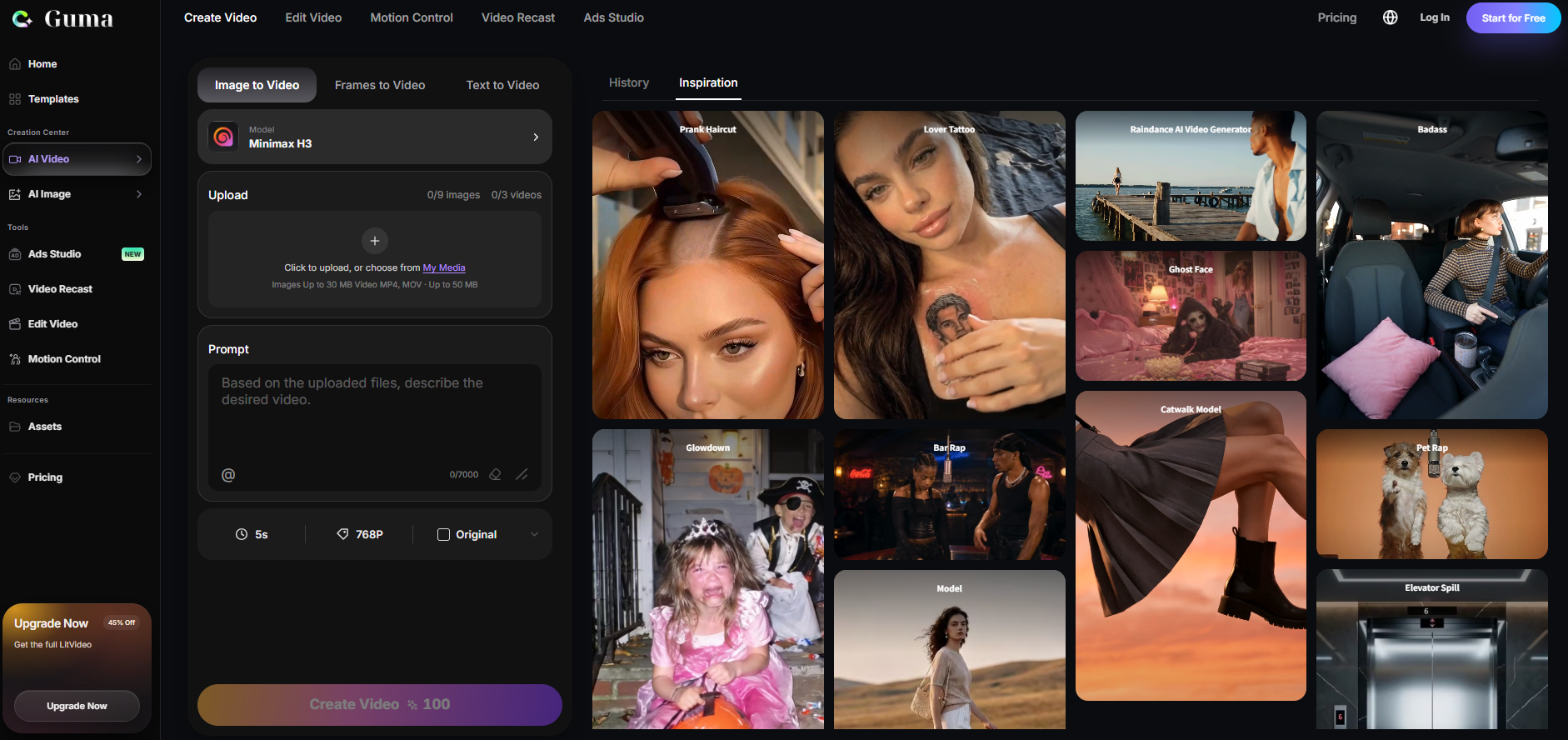
Use the Upload area to add the images or videos you want MiniMax H3 to follow. You can upload files from your device or select existing assets from My Media.
2. Enter Your Prompt
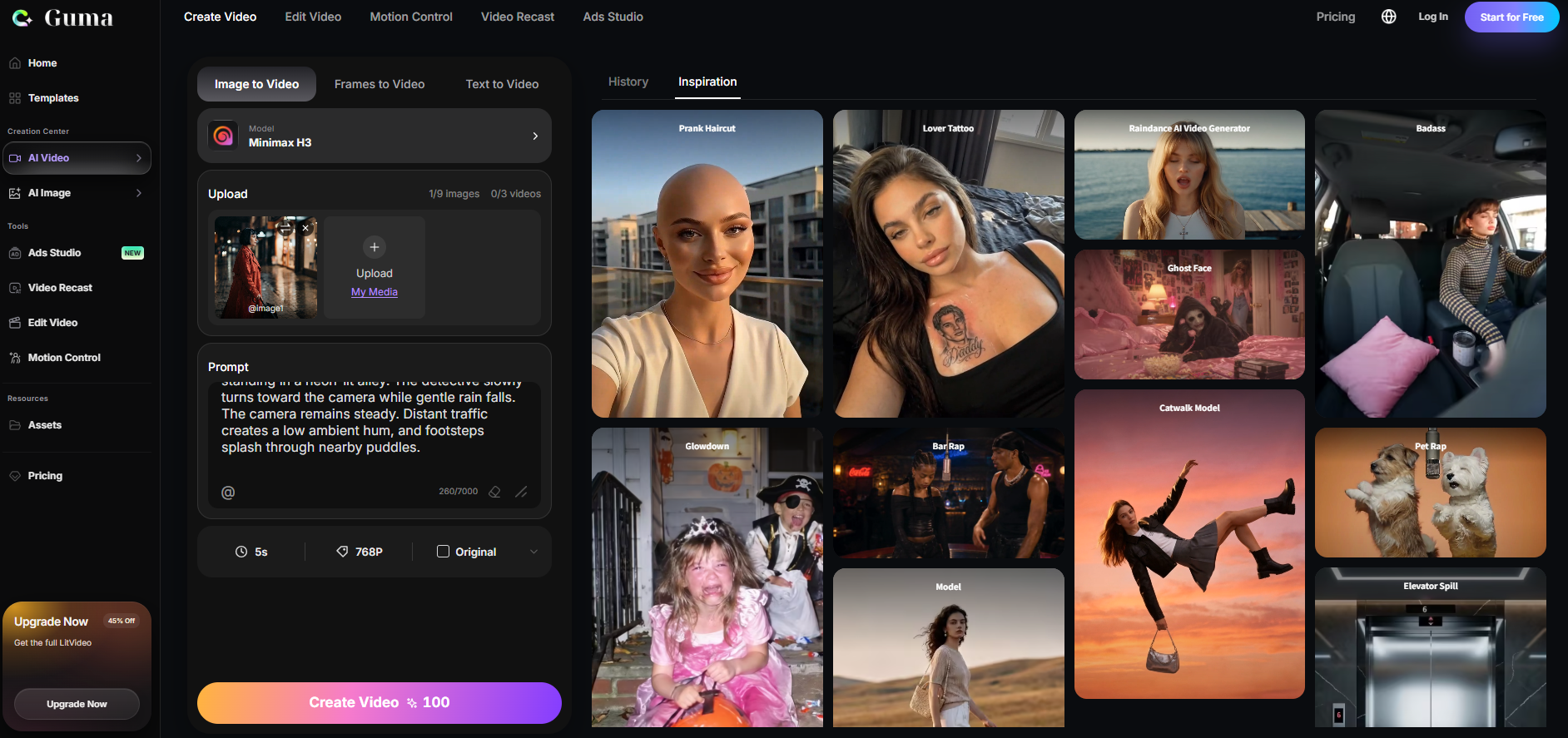
Describe the video you want in the Prompt field. Include the main subject, its action, the camera movement, the setting, and any sound that should accompany the scene.
For example:
A close-up shot of the referenced detective standing in a neon-lit alley. The detective slowly turns toward the camera while gentle rain falls. The camera remains steady. Distant traffic creates a low ambient hum, and footsteps splash through nearby puddles.
Keep the first attempt focused on one main action. If a character, costume, product, or other detail should remain consistent, identify it clearly in the prompt.
3. Create and Review the Video
Check the credit requirement displayed below the prompt, then click Create to begin the generation.
Once the video is ready, open it from History and watch the complete result with sound. Check the character or product details, camera movement, background stability, and audio timing before downloading the video.
If the result needs improvement, return to the prompt and change one element at a time. Simplifying the action or camera movement is often more effective than rewriting the entire prompt.
MiniMax H3 Prompt Examples
Cinematic Landscape — Text-to-Video
Prompt:
A wide-angle cinematic aerial shot moving slowly over a misty pine forest at sunrise. Golden sunlight filters through the tall trees as the camera maintains a steady forward path. A gentle morning wind moves the upper branches, accompanied by soft rustling leaves and distant birds.
When reviewing the result, focus on the stability of the camera path, the consistency of the trees and landscape, and whether the wind and ambient audio feel appropriate for the visible movement.
If the aerial motion becomes unstable, replace broad instructions such as “cinematic drone flight” with a simpler phrase such as “slow aerial forward movement.”
Character Portrait — Reference-to-Video
Upload a clean character portrait in which the face, hairstyle, clothing, and important accessories are clearly visible.
Prompt:
A close-up portrait of the referenced cyberpunk detective standing in a neon-lit alley. The detective slowly turns their head toward the camera while gentle rain falls around them. The camera remains close and stable. Distant city traffic creates a low ambient hum, while quiet footsteps splash through nearby puddles. Preserve the detective’s facial features, short dark hairstyle, black coat, and silver collar pin.
Review the face throughout the entire turn rather than checking only the first frame. Also watch whether the coat and collar pin remain consistent and whether the background stays stable while the character moves.
If the face begins to change, reduce the amount of head rotation, keep the camera closer to the reference angle, and remove unnecessary background motion.
Door Transition — First/Last-Frame Mode
Use an image of a closed wooden door as the first frame and a visually compatible image of the open doorway and garden as the last frame.
Prompt:
A smooth transition from a closed vintage wooden door to the door opening into a sunlit Mediterranean garden. As the door begins to move, its old metal hinges produce a short creak. Warm daylight gradually enters the room. Once the garden becomes visible, a gentle breeze and distant birds can be heard outside.
Check whether the start and end frames remain spatially connected, whether the door opens naturally, and whether the garden appears gradually instead of replacing the room abruptly. The hinge sound should occur as the door begins to move, while the birds should become noticeable after the outdoor space is revealed.
If the transition becomes distorted, simplify the camera movement and keep the door as the only major moving object.
Audio and Motion Troubleshooting
If Motion Distortion Occurs
Motion distortion usually appears when the model is asked to manage too many changes at once. Reduce the scene to one main character action and one simple camera movement. Slower movements are generally easier to maintain than rapid subject motion combined with rotation, tracking, or zooming.
Secondary characters and moving background objects also increase the amount of information the model must coordinate. Remove anything that does not contribute to the main event, and use references in which the subject is clearly separated from the environment.
If the action is still unstable, shorten the generation or split the scene into multiple clips. Instead of asking a character to stand up, cross a room, open a door, and react to something outside in one pass, create separate shots for the major movements.
If Character Identity Drifts
Start with a reference that clearly shows the character’s face and defining features. Reuse the same references and written description across related generations rather than introducing a different portrait for every clip.
Keep hairstyle, clothing, accessories, and lighting instructions consistent. Extreme head rotations, rapid full-body movement, dramatic lighting changes, and sudden shifts in camera angle can all make identity harder to preserve.
If several references show conflicting facial or costume details, remove the weaker images. A smaller set of consistent references is usually more useful than a large set that asks the model to reconcile different versions of the same character.
Reference assets can improve identity consistency, but they cannot guarantee that every facial or clothing detail will remain unchanged.
If Audio-Visual Timing Drifts
Describe the action and its sound as one connected event.
Instead of mentioning a door in one part of the prompt and a creaking sound much later, write:
As the wooden door opens, its hinges produce a short creak.
When a scene contains several audio events, explain their order:
At the beginning of the shot, the door opens with a short wooden creak. Once the garden becomes visible, birds begin chirping in the distance.
Avoid adding too many unrelated sounds to a short video. If synchronization is important, prioritize the sound that must align most closely with the main visual action.
If the Background Starts Warping
Background distortion is more likely when the model must change the subject, camera, lighting, and environment at the same time. Simplify at least one of those elements.
Use a steady or predictable camera path, reduce the number of moving background objects, and avoid fast rotations through complicated spaces. A clean environment reference can also help establish the layout of the scene.
When a structure must remain fixed, identify it in the prompt. For example, state that the walls, windows, furniture, or product display should remain stationary throughout the shot.
If the environment is more important than dramatic camera movement, keep the camera stable and allow the subject to provide the motion.
If Dialogue Is Unclear
Keep spoken lines short and identify the speaker and language clearly. When speech is the focus of the clip, avoid letting music, environmental noise, or another character compete with it.
Give one character one short line at a time. Separate the dialogue instruction from the description of the background sound, and avoid overlapping speech unless it is essential to the scene.
Before publishing the clip, review the pronunciation, vocal quality, timing, and visible mouth movement. If a particular voice must be reproduced, use a supported reference-audio workflow and confirm that you have the right to use the source recording.
Practical Prompt Tips
Natural, production-style instructions generally communicate more than long chains of visual keywords. Describe the scene in the order a viewer experiences it, but keep the central action easy to identify.
Use physical camera directions such as “slow push-in,” “steady side tracking,” or “static close-up” instead of broad language such as “epic camera movement.” If the camera should remain still, say so directly.
Sound instructions should be specific enough to establish the environment without turning the prompt into an audio inventory. “Soft rain on a metal roof with distant traffic” gives the model a clearer soundscape than a long list of unrelated effects.
When visual consistency matters, describe the important invariant details naturally. Ask the model to preserve a costume, product shape, logo position, hairstyle, or lighting direction, but avoid filling the prompt with repeated negative commands.
Most importantly, change one variable at a time during iteration. If you replace the references, camera path, duration, and sound instructions together, you will not know which change improved or damaged the result.
Frequently Asked Questions
What makes MiniMax H3 different from older AI video generators?
MiniMax H3 can interpret text, images, video, and audio as part of a unified multimodal context and generate video with native stereo sound. This makes it possible to describe visual action, dialogue, environmental effects, and music within the same generation workflow.
It can reduce the need to build every audio layer separately, but generated sound should still be reviewed and edited when necessary.
Can I use multiple reference images?
Yes. The official Reference-to-Video workflow supports up to nine reference images. It also supports up to three reference videos and three reference audio clips, with a maximum of twelve reference files across all supported types.
You do not need to use the maximum number. Add a reference only when it provides information that is not already communicated clearly by the prompt or another asset.
Can I use an audio reference by itself?
The official MiniMax CLI validation requires a reference image or video to accompany reference audio. For the most reliable setup, combine the audio with at least one visual reference and explain in the prompt whether the audio should guide the voice, timing, ambience, or another aspect of the result.
Can First/Last-Frame mode be combined with reference images?
Not within the same official API request. First-frame and last-frame inputs belong to the frame-controlled workflow, while reference images, videos, and audio belong to the Reference-to-Video workflow. Choose the mode that addresses the most important requirement for the shot.
How can I reduce warping during fast action?
Limit the generation to one main action, simplify the camera path, and remove unnecessary background movement. If the sequence contains several important actions, divide it into separate shots instead of asking the model to complete everything in one clip.
A clear reference may improve stability, but scene complexity still matters. A high-quality reference cannot fully compensate for conflicting instructions or excessive movement.
Does MiniMax H3 guarantee consistent characters?
No. Reference images can improve identity and style consistency, especially when the same assets and descriptions are reused, but they do not guarantee that every facial, clothing, or accessory detail will remain unchanged.
Large pose changes, extreme head rotation, rapid movement, complicated lighting, and conflicting references can all increase the chance of identity drift.
Does MiniMax H3 generate 2K video?
The main MiniMax H3 API currently supports 768P and 2K output. In the open workflow, H3 Base generates a result with a 768-pixel short side, and H3-Regenerate-2K can regenerate that result at 2K using the original context. Other H3 variants and hosted implementations may provide different resolution choices.