
How to Use ChatGPT Images 2.5: Easy Prompt and Editing Guide
You ask ChatGPT to change the background. It changes the face too. You fix the face, and suddenly the product label looks different. After three more edits, the image barely resembles the version you liked.
If that sounds familiar, the problem is probably not your creativity. The problem is that the prompt never told ChatGPT what was allowed to change—and what was off-limits.
The good news: you do not need a longer, more technical prompt. You need clearer boundaries. This guide shows you how to create a strong first image, edit one part without losing the rest, keep faces and products consistent, and recover when a revision goes sideways.
The easiest way to control a ChatGPT image edit is: Target → Change → Keep.
Is ChatGPT Images 2.5 still the version inside ChatGPT?
Here is the quick version update so you do not waste time hunting for a “2.5” button: as of November 25, 2026, the regular ChatGPT image experience uses ChatGPT Images 2.6. You will not normally see a 2.5 selector in ChatGPT. The older GPT Image 2.5 Flare and GPT Image 2.5 Sunburst names matter mainly when a developer or third-party tool lets you choose an exact API model.
You do not need to worry about model IDs if you simply want to create or edit an image in ChatGPT. Open Images or start a normal conversation and use the workflow below.
How can you create a good image in ChatGPT on the first try?
Start by describing the image as a finished asset, not as a loose idea.
Instead of writing:
Make a nice skincare ad.
Try:
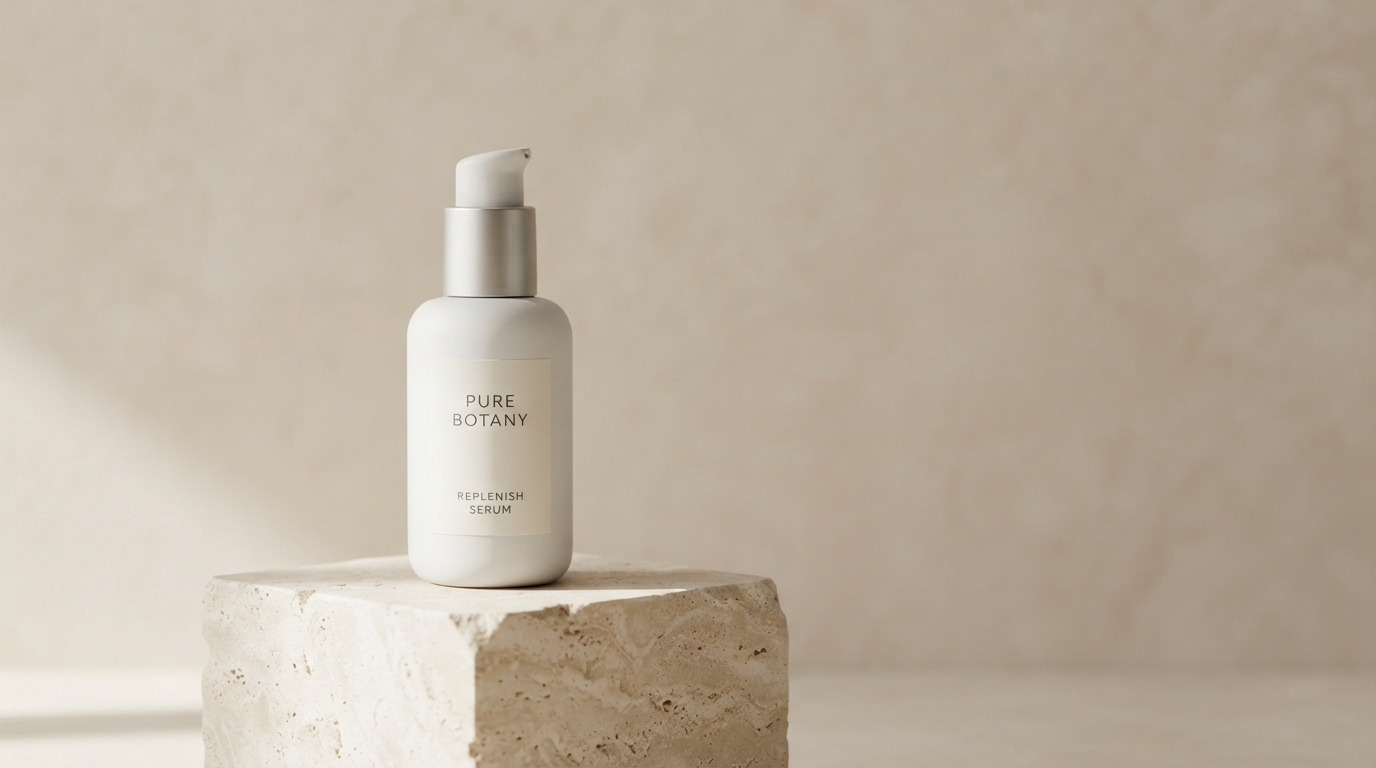
Create a square ecommerce hero image of a white skincare bottle on a pale limestone pedestal. Use soft daylight from the left, a warm neutral palette, and clean negative space in the upper-right corner. Show one bottle only. Add no text or extra props.
The second prompt tells ChatGPT what to show, where to place it, where the light comes from, which colors to use, and what to leave out. You can still be creative, but ChatGPT no longer has to guess what “nice” means.
What should you include in a beginner-friendly image prompt?
You do not need a wall of technical language. For most images, five parts are enough. Say what you are making, such as a product photo, poster, portrait, social post, icon, or edit, and name the person, product, object, or scene that must appear. Then describe the composition, lighting, colors, mood, and visual style. Add the details that must not change—such as a face, logo, product shape, text, crop, or camera angle—and finish with the final file requirement, whether that means a square, vertical, or wide image, or a transparent background.
These five parts should not sound like a form. They can flow through one or two natural sentences, as long as ChatGPT can clearly see the subject, desired look, boundaries, and output requirement.
Copy this starter template:
Create a [type of image] featuring [subject]. Use [composition], [lighting], and [visual style]. Keep [protected details] unchanged. Do not add [unwanted elements]. Output a [shape or background requirement] image.
If the first result feels close but not quite right, that is a good sign. Keep the closest version and edit from there instead of restarting every time.
How do you edit one part of an image without changing everything else?
This is where the Target → Change → Keep formula earns its place.
- Target: Name the exact part of the image you want to edit.
- Change: Describe the new result.
- Keep: List the details that must stay exactly as they are.
Example:
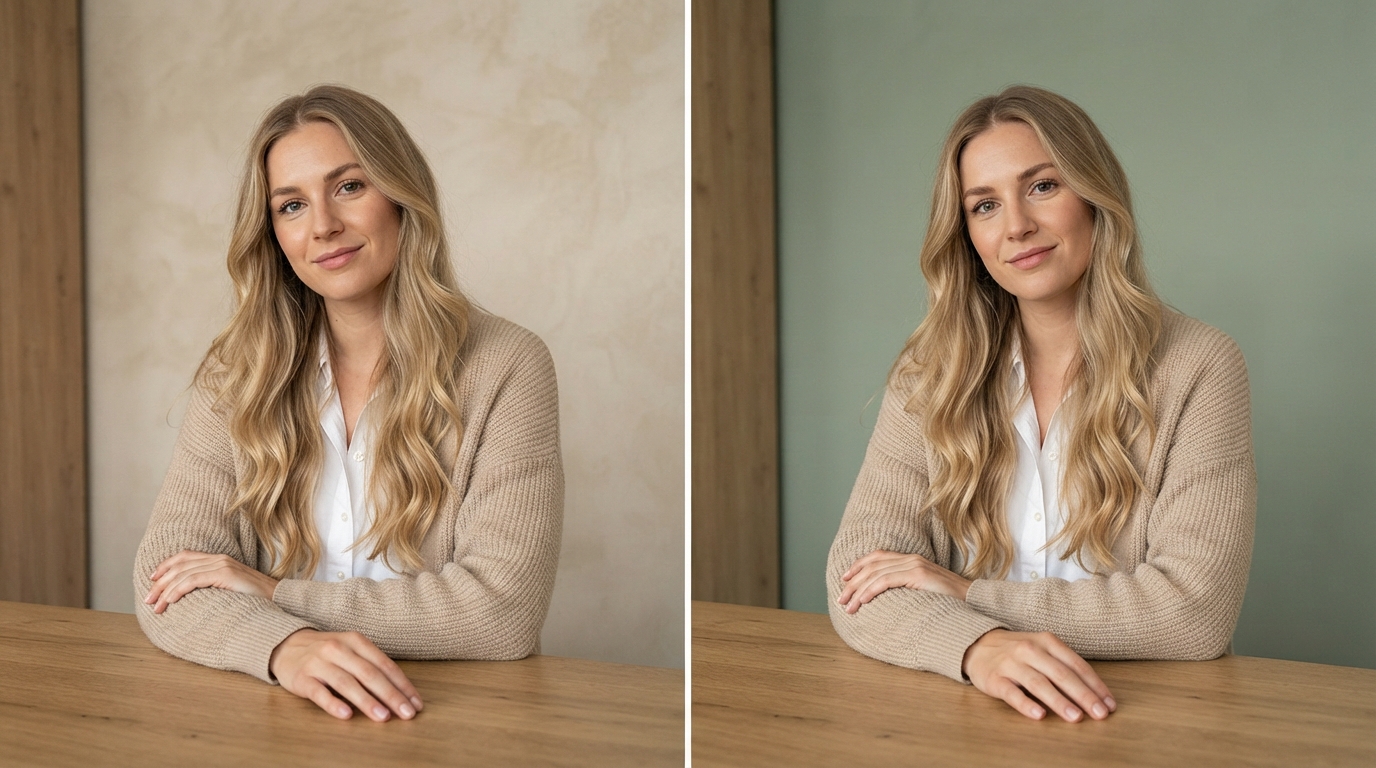
Target the wall behind the subject. Change the wall to matte sage green. Keep the person’s face, hair, pose, hands, clothing, lighting direction, shadows, crop, and camera angle unchanged. Add no furniture, plants, or text.
The keep list may feel repetitive. That repetition is useful because ChatGPT needs a clear boundary for the edit.
What should you do when ChatGPT ruins a version you liked?
Do not keep repairing the damaged version. Go back to the last image you actually liked and continue from that checkpoint.
Think of the process like saving a game:
- Generate a baseline you like.
- Make one meaningful change.
- Compare the result with the baseline.
- Keep the new version only if the requested change worked and protected details survived.
- Roll back when a face, product, layout, or text starts drifting.
Trying to repair five accidental changes at once usually creates six new ones. Rolling back feels slower for a moment, but it saves time over the full project.
How do you use reference images without confusing ChatGPT?
Uploading more references does not automatically make the result more accurate. Every reference needs a job.
For example:
Use reference 1 for the person’s face and hair. Use reference 2 for the jacket shape and color. Use reference 3 only for the lighting and background palette. Do not copy the face, clothing, or objects from reference 3.
Think of it as giving every reference image one job. Without those jobs, ChatGPT may borrow a face from one image, clothes from another, and a background object you never wanted.
How do you keep the same face in ChatGPT images?
Use a clear portrait and name the features that make the person recognizable.
Use the uploaded portrait as the identity reference. Preserve facial proportions, eye shape, nose, mouth, skin tone, hairline, and hairstyle. Change only the clothing to a navy business suit. Keep the pose, expression, camera angle, lighting, and background unchanged.
Then compare the result with the reference at a similar size. Zoom in on the eyes, nose, mouth, hairline, and face shape instead of trusting the general vibe.
No prompt can guarantee that a generated face will stay perfectly consistent. If the person matters, do not trust a quick glance before you use the image.
How do you keep the same product or character?
Product and character consistency works the same way: name the visual features that must survive the edit.
Preserve the bottle shape, cap, label artwork, logo placement, brand colors, camera angle, and crop. Change only the background to a warm bathroom scene. Do not redesign the packaging or add a second product.
For a character, the protected list might include the face, hairstyle, age, body proportions, clothing, and one signature accessory.
What prompt examples can you copy and adapt?
The best prompt is not the longest prompt. The best prompt gives the model enough direction to make a useful decision.
How do you write an AI product photography prompt?
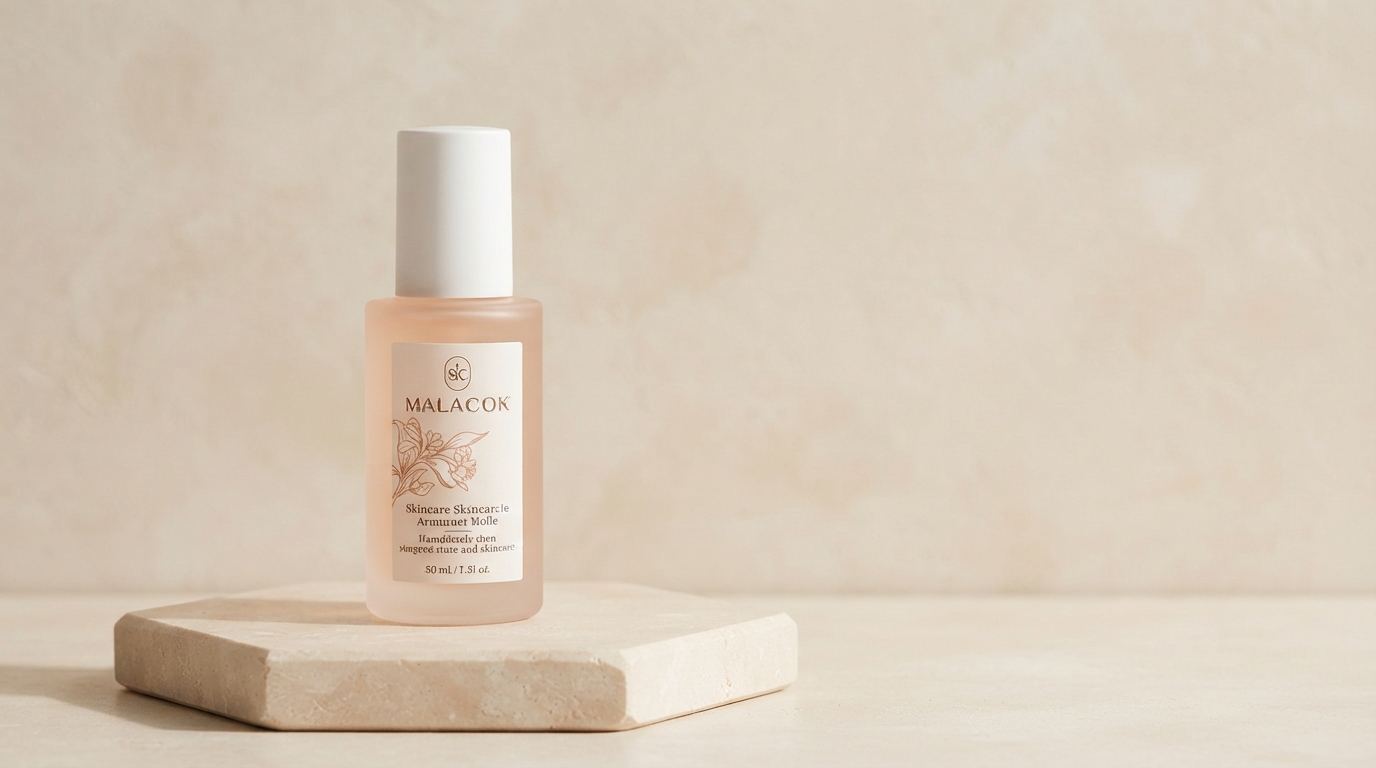
Create a square ecommerce hero image of the uploaded skincare bottle on a pale limestone pedestal. Use a front three-quarter camera angle, soft daylight from the left, and a warm neutral palette. Keep the bottle shape, cap, label artwork, logo placement, and brand colors unchanged. Add no extra text, props, or duplicate products. Leave clean negative space in the upper-right corner.
How do you create a social poster with exact text?
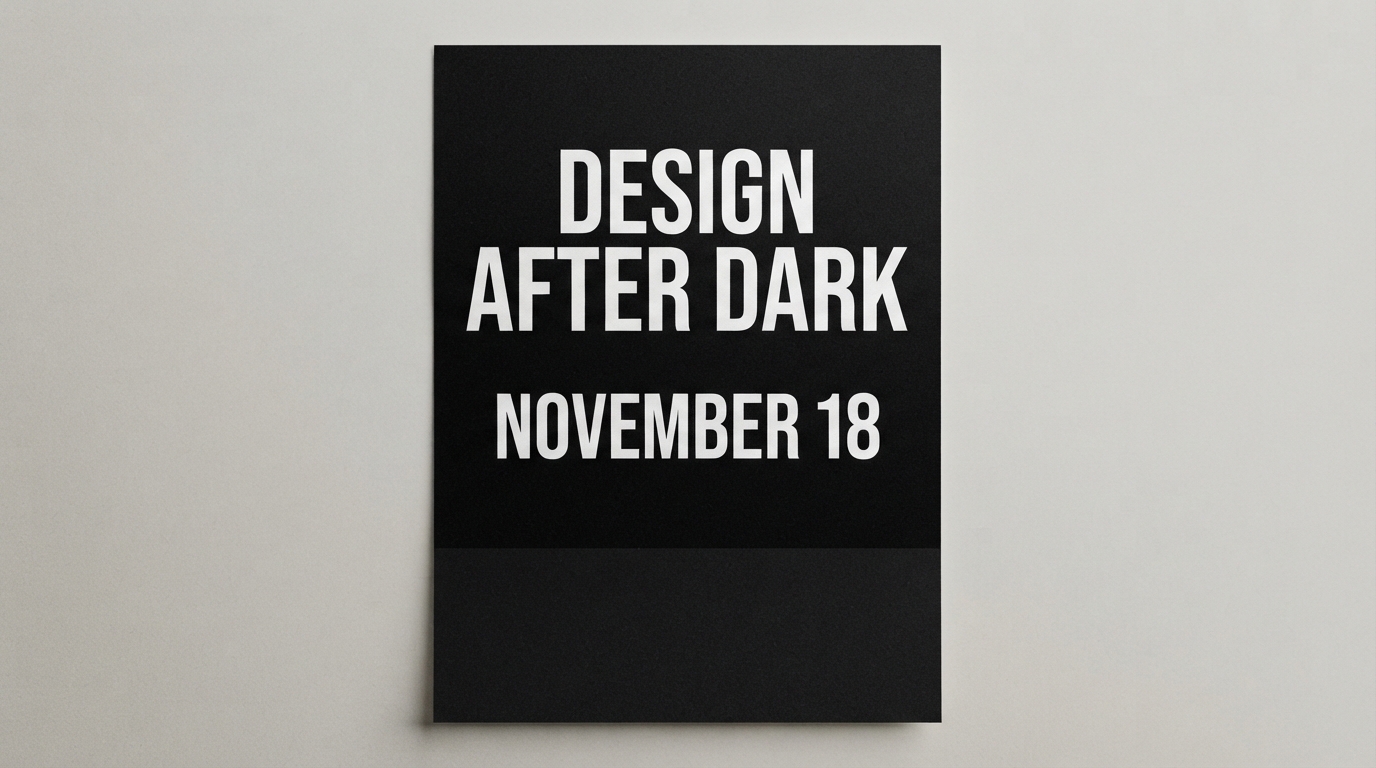
Create a vertical event poster with the exact headline “DESIGN AFTER DARK” and the exact date “NOVEMBER 18.” Use uppercase sans-serif lettering, centered alignment, and high contrast. Add no other words, numbers, logos, or decorative letterforms. Leave the lower 20% empty for sponsor marks.
How do you create an image with a transparent background?
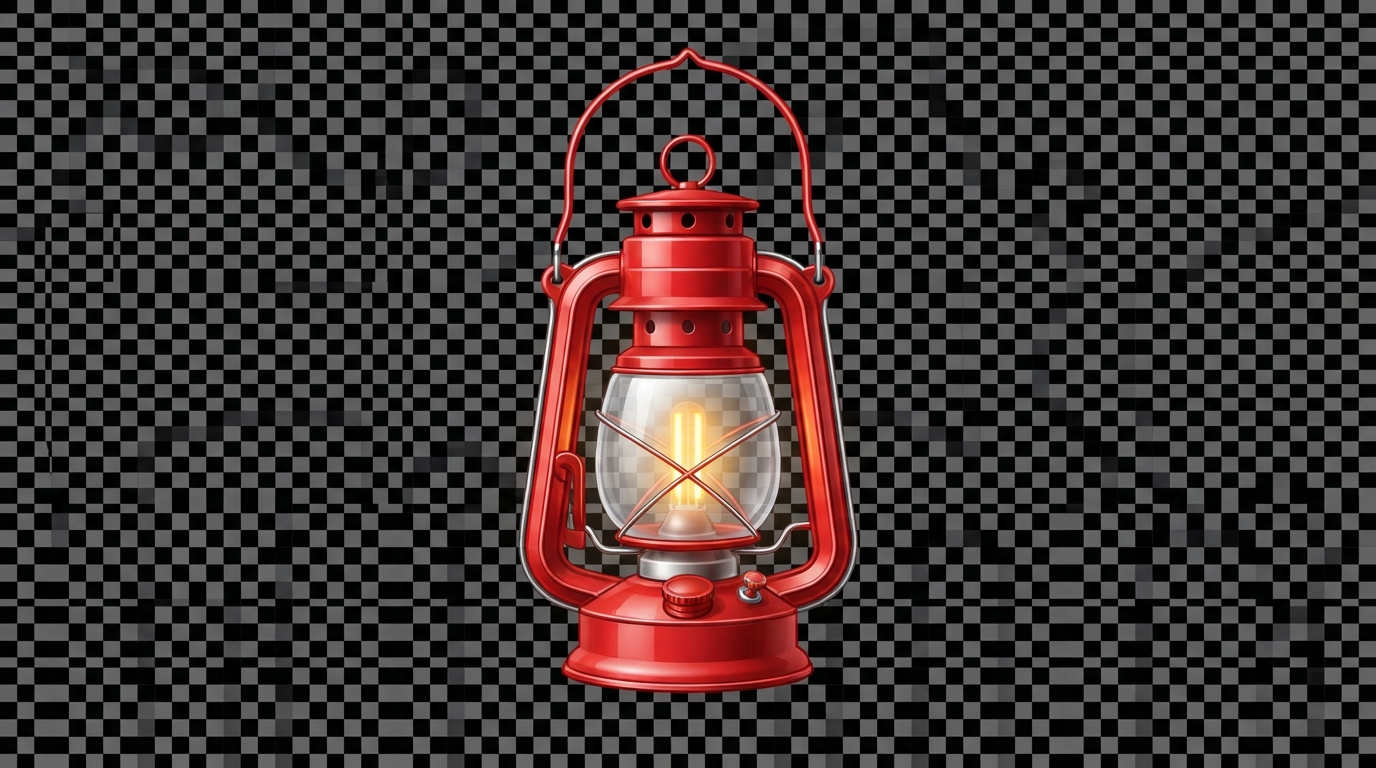
Create a centered icon of a red camping lantern on a transparent background. Show one object only, with no floor, shadow, border, text, or surrounding scene. Keep the full lantern inside the canvas and preserve clean edges.
How do you create a consistent character in a new scene?
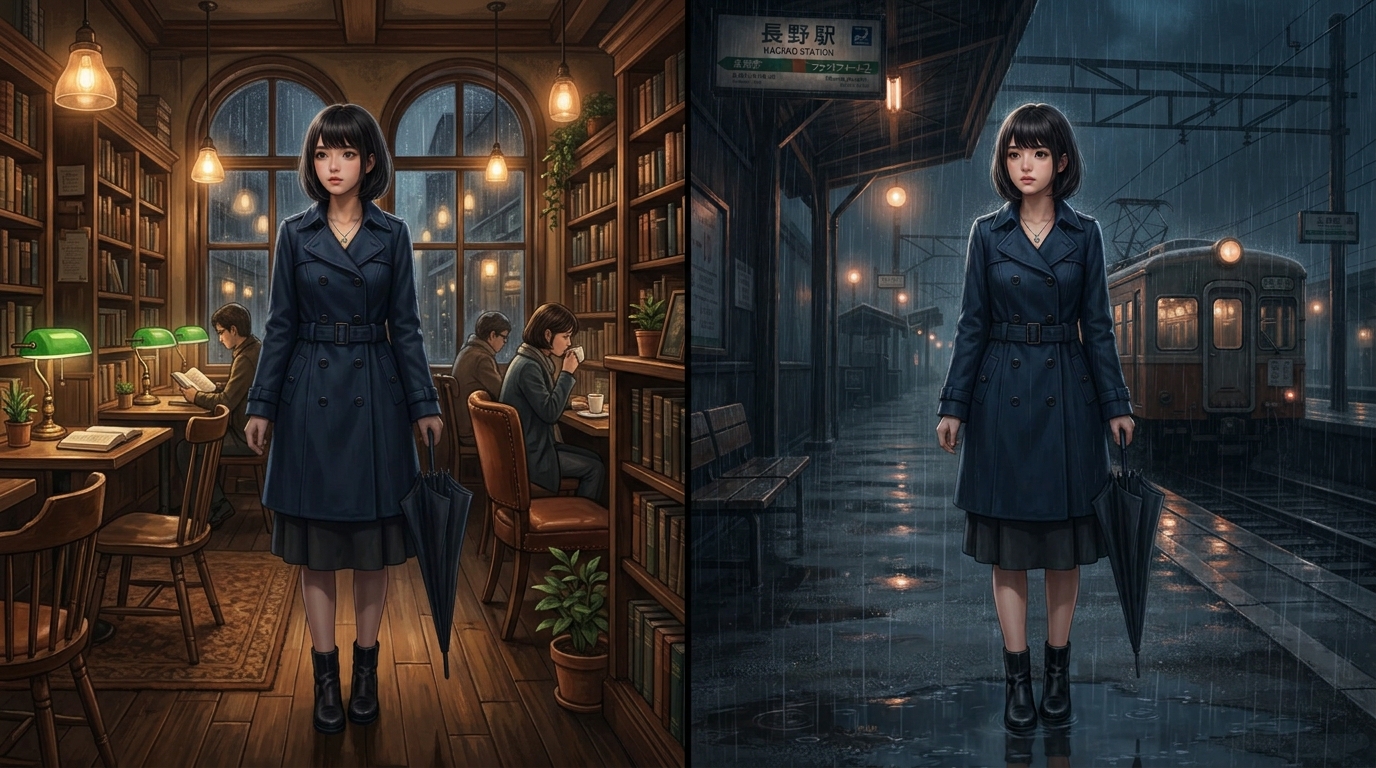
Create a full-body illustration of the character in reference 1. Preserve the face, hairstyle, age, body proportions, blue coat, and silver pendant. Place the character at a rainy train station at night. Use reference 2 only for the environment and color palette. Do not redesign the character or add accessories.
Why does ChatGPT keep changing parts you did not mention?
ChatGPT does not always swap one isolated piece like a traditional photo editor. It may redraw more of the picture than you expected, so a small request such as “change the shirt” can spill into the face, pose, lighting, or background.
You can reduce the drift by giving the edit a smaller job:
| What went wrong | What probably happened | What to try next |
|---|---|---|
| The face changed | Identity features were not protected | Return to the last good image and list the facial features to preserve |
| The product label changed | The product was treated as a general reference | State that label artwork, logo placement, shape, and colors must remain unchanged |
| The whole layout moved | The edit target was too broad | Name the exact region and protect crop, composition, and camera angle |
| Extra objects appeared | The prompt did not set an object count or exclusions | Say “one object only” and list unwanted elements |
| Text is wrong | The copy is too long or loosely described | Shorten the text, place it in quotation marks, and prohibit extra words |
| The background is not transparent | The output used a simulated checkerboard or unsuitable format | Request transparent output and verify a PNG or WebP over solid colors |
When an image edit fails, change one instruction—not the entire prompt—so you can see what actually fixed the problem.
How do you use GPT Image 2.5 on Guma?
Guma offers a simpler way to try GPT Image 2.5 without setting up an API or entering a model ID. Its image tools let you start from a written idea or upload an existing image that you want to change.
1. Choose how you want to start. Open the GPT Image 2.5 generator. Use text to image when you want to create something from scratch. Use image to image when you already have a portrait, product photo, character, or design that you want to edit.
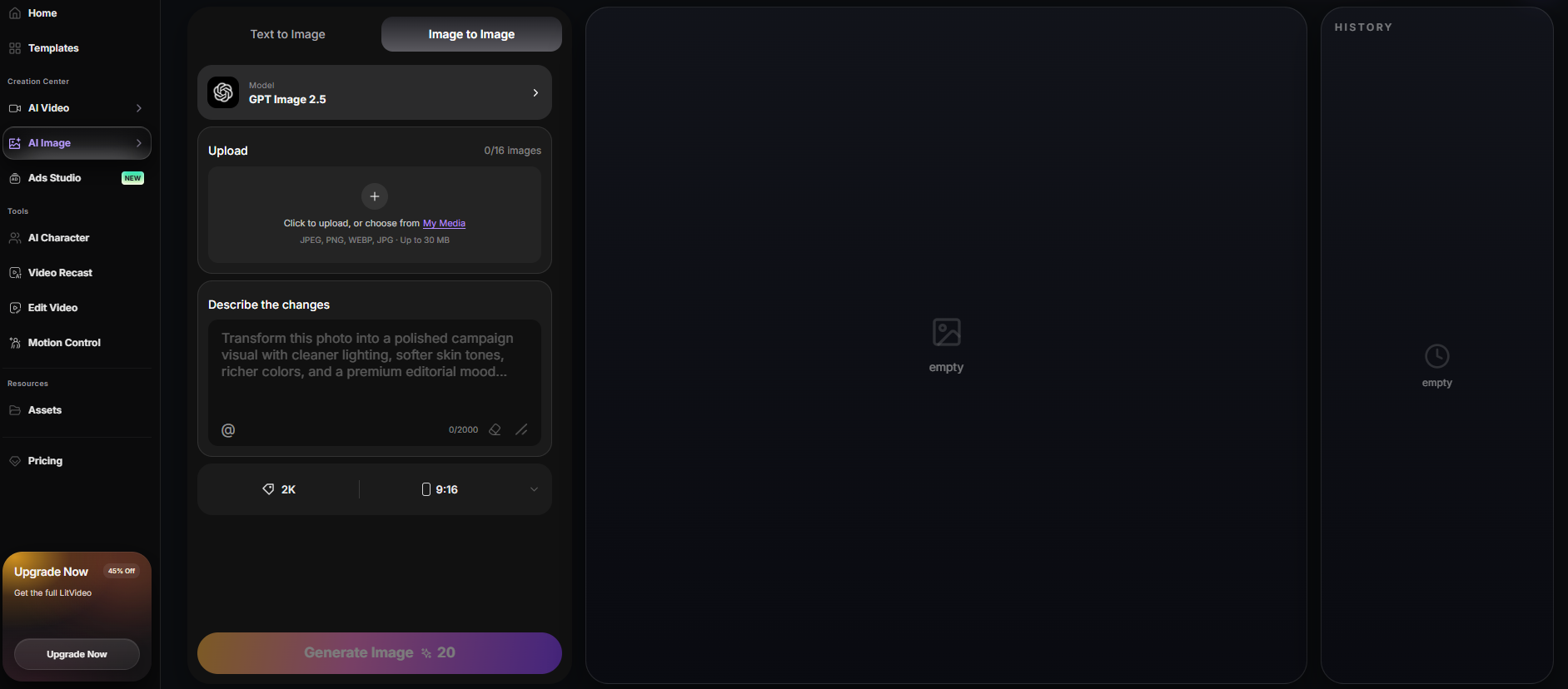
2. Add your starting material. For a new image, describe the subject, scene, lighting, style, and final shape. For an edit, upload the original image and explain whether it should control the person, product, composition, or visual style.
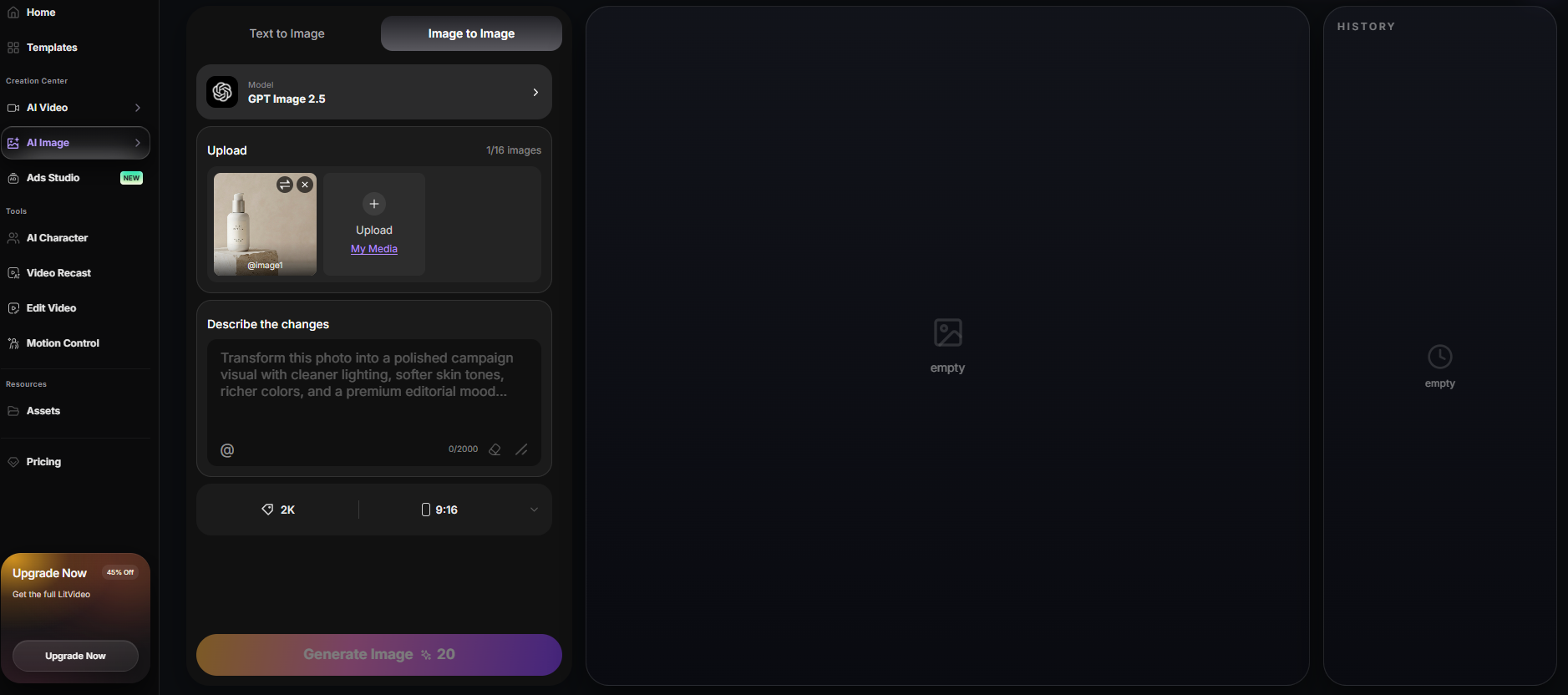
3. Describe one clear result. For example: “Change the wall behind the skincare bottle to pale limestone. Keep the bottle shape, cap, label artwork, logo placement, brand colors, camera angle, and crop unchanged. Add no extra products or text.”
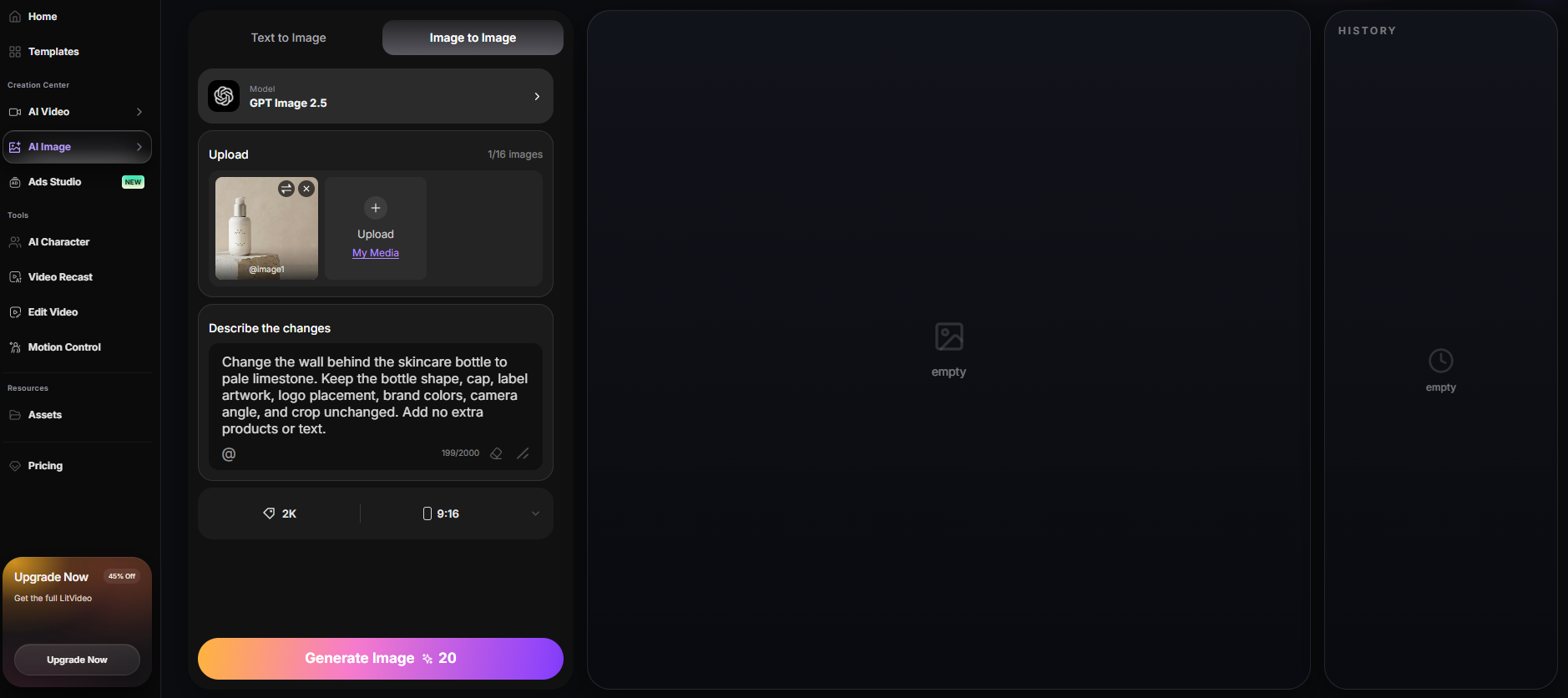
4. Generate and compare. Click Generate, then compare the result with your prompt and original reference. If the label, face, layout, or other protected detail changes, return to the last good image and revise only the instruction that failed.
What is the simplest way to remember the whole workflow?
You do not need to become a prompt engineer to make better images. Start with a clear picture of the finished asset, protect the details that matter, and make one meaningful change at a time.
If an edit works, save it. If an edit drifts, roll back. If exact text or brand details matter, inspect them instead of trusting the first glance.
Describe the result. Protect the important details. Change one thing. Compare. Keep only the better version.
That rhythm is more useful than a perfect-sounding prompt—and much less frustrating than trying to rescue an image after five uncontrolled edits.