
How to Get the Gender Swap Filter
Quick answer: People searching for a “gender swap filter” usually want one of three different results:
- To record a real-time video in a social media camera: Search the Effects or Lens library on TikTok, Instagram, or Snapchat. Availability may vary by account, region, device, app version, and date.
- To create a high-quality photo for a profile picture or before-and-after comparison: Use a browser-based AI image tool such as Guma AI. You can upload a selfie and generate the result without downloading an app.
- To make a video that shows the transformation: Generate a clear gender-swapped portrait first, then import the original and generated images into CapCut or another editor to create the transition.
The right method depends on whether you want to see the change live in your camera, save a clear portrait, or create a complete transformation video.
Filter, Effect, Lens, Template, or Web AI: What Is the Difference?
One reason this effect can be difficult to find is that every platform uses slightly different terminology. What people casually call a “gender swap filter” may actually be an Effect, a Lens, a CapCut template, or a portrait generated outside the social platform.
| Term | What It Does | Where You Usually Find It |
|---|---|---|
| Filter | Changes the appearance of a photo, often after it has been taken | Photo-editing apps and browser-based tools |
| Effect | Applies an interactive camera or visual effect | TikTok and Instagram |
| Lens | Tracks your face and changes your appearance in real time | Snapchat |
| CapCut template | Combines prepared photos or clips into a timed transformation video | CapCut and template links attached to social videos |
| Web AI tool | Generates a new gender-swapped portrait from an uploaded photo | Browser-based AI image platforms |
The classic standalone gender-switching feature that many people remember from FaceApp was removed in 2023. Today, when a video is labeled “gender swap filter,” it does not necessarily mean that the transformation happened inside the app where the video was posted.
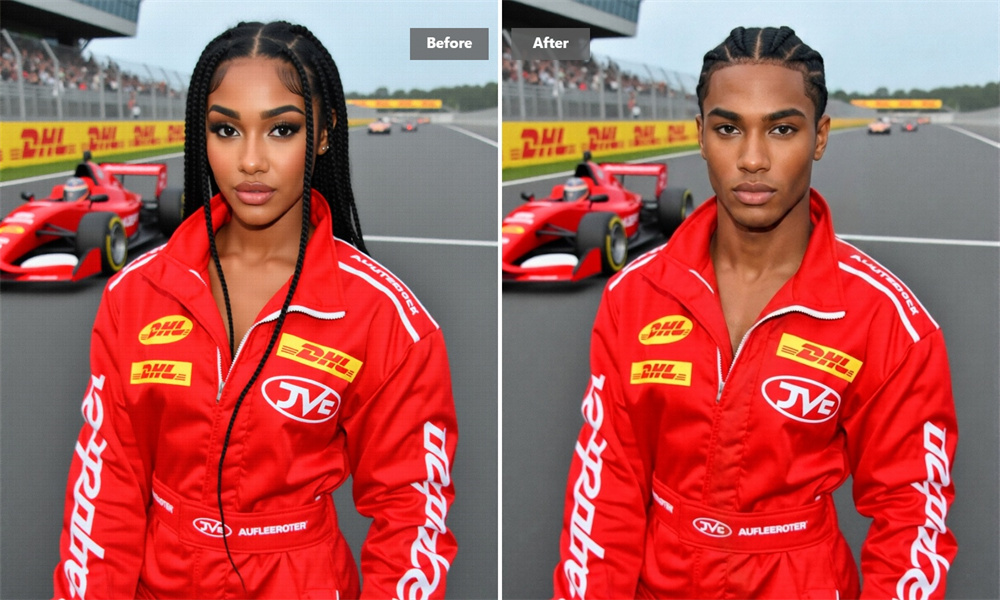
How to Find a Gender Swap Effect on TikTok
If you want to record the transformation directly in TikTok, start from the Create screen and open the Effects library next to the camera controls. Search for terms such as gender swap, gender switch, gender change, male to female, female to male, or face morph. Trying several related phrases is often more useful than relying on a single effect name.
When you discover the effect through another person’s video, look for an effect name displayed near the creator’s username or caption. Tapping that name may take you directly to the camera. However, some videos lead to a CapCut template rather than a native TikTok effect, while others use still images generated with an external AI tool.
If the same effect does not appear for you, it may be unavailable in your region, restricted to certain accounts, removed by its creator, or listed under a different name. Instead of spending too long searching for one exact effect, you can generate the transformed portrait online and bring the finished image back into TikTok.
How to Find a Gender Swap Effect on Instagram
Instagram generally refers to camera transformations as Effects. You can look for them from the Stories or Reels camera by browsing the effects shown near the capture button and opening the available search interface.
The same search variations used on TikTok can help here. Try gender swap, gender change, male, female, or face transformation. If you first see the effect in a Reel, tap the effect name shown on that video and check whether Instagram still allows you to try or save it.
Instagram effects can change over time, so an old tutorial may point to a name that is no longer searchable. If the effect has disappeared, the simplest alternative is to create a still portrait with an online AI tool and use that image in your Reel.
How to Use a Gender Swap Lens on Snapchat
Snapchat is often a better choice when you want the transformation to move with your face in real time. Open the front-facing camera, tap the smiley-face icon beside the capture button, and enter Lens Explorer. Searching for gender swap, gender change, male, or female should show several creator-made options.
It is worth testing more than one Lens. Some mainly add long hair, facial hair, or makeup, while others adjust the face shape more noticeably. A good Lens should continue following your eyes, mouth, and head movement without the added features drifting away from your face.
This approach works well for casual clips, reactions, and video calls. However, real-time face tracking can produce visible smoothing or lose detail around glasses, hair, and the edges of the face. If you want a clean profile picture or a more carefully composed before-and-after image, a generated still portrait is usually the better format.
How to Create a Gender-Swapped Photo Online with Guma AI
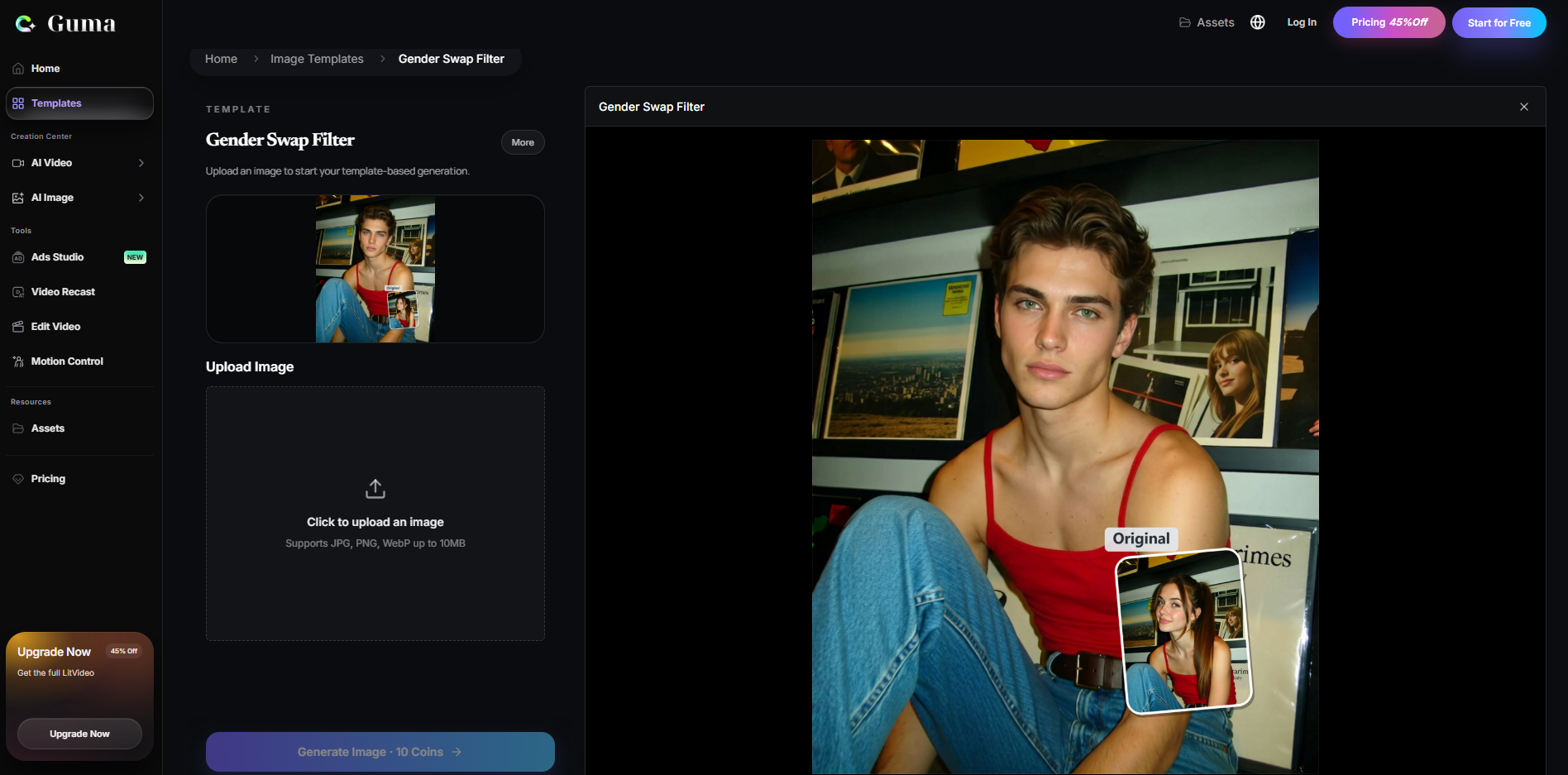
When you want a clear still image rather than a live camera effect, you can use a browser-based tool. The following example uses the Guma Gender Swap Filter, so there is no need to install another photo-editing app or write a complicated prompt.
Step 1: Upload a Clear Portrait
Start with a single-person photo taken in bright, even lighting. A front-facing camera angle and a relaxed expression make it easier to preserve the original eye spacing, nose shape, mouth, and overall facial proportions.
Try to keep the full hairstyle and the edges of the face inside the frame. Reflections on glasses, thick bangs, masks, hands covering the face, strong shadows, and extremely wide smiles can make the transformation less consistent. An original camera photo is usually a better starting point than an image that has already been heavily smoothed, reshaped, or compressed by another app.
Step 2: Generate the New Portrait
Upload the image, choose the available male-to-female or female-to-male direction, and start the generation.
The transformation may adjust the hairstyle, hairline, jawline, brow area, skin presentation, and overall facial contour. The goal is not simply to create an attractive new face, but to change the gender presentation while keeping enough of the original proportions and expression for the person to remain recognizable.
Step 3: Review and Download the Result
Before downloading, look beyond the first impression. A portrait can appear convincing at a glance while still containing small problems around the hairline, teeth, ears, neck, clothing, or background.
Pay particular attention to whether the eyes, nose, and mouth still resemble the source photo. If the core facial proportions have changed too much, uploading a different original image is often more effective than repeatedly processing the same unsuitable one.
Which Gender Swap Method Should You Use?
Each method creates a different type of result. Rather than looking for one universal filter, it is easier to choose according to what you eventually want to publish.
| Method | Best For | Output | Main Trade-Off |
|---|---|---|---|
| TikTok or Instagram Effect | Recording a quick social video without leaving the platform | Real-time camera video | Effects may be temporary, difficult to find, or inconsistent in quality |
| Snapchat Lens | Live reactions, video chats, and casual clips | Real-time face tracking | Convenient for motion, but the result may include visible smoothing |
| Web AI tool such as Guma | Profile pictures, before-and-after images, and transition assets | High-resolution still image | Does not transform a live camera feed |
| CapCut template or AI video tool | Transformation videos with music, text, and motion | Edited or generated video | Requires more steps and consistent source images |
In practical terms, an Effect or Lens is the easiest route when you want to record yourself moving. A browser-based AI tool makes more sense when image quality matters, while CapCut or an AI video tool is useful after you already have the original and transformed portraits.
Why Does the Result Not Look Like You?
A good gender transformation should not feel like a completely unrelated face. Even after the hairstyle, jawline, brow area, and styling have changed, you should still recognize the original eye spacing, nose bridge, mouth shape, facial proportions, and expression.
When the result looks polished but unfamiliar, the source photo is often the cause. Heavy beauty editing may have already enlarged the eyes, narrowed the face, changed the nose, or smoothed away important facial detail. Once another AI tool processes those altered proportions, the identity can drift even further. Using an original camera photo usually gives the transformation a more reliable foundation.
The expression and camera angle matter as well. A relaxed face or slight smile tends to preserve the facial structure more consistently than a wide-open smile, an extreme side profile, a low-angle selfie, or a strongly tilted head. Teeth and cheeks are particularly likely to change when the original expression is too exaggerated.
Obstructions can create similar problems. Thick bangs, reflective glasses, masks, hands, dark shadows, and overexposed areas make it more difficult to interpret the actual shape of the face. When important details are hidden, replacing the source photo is usually more effective than generating the same image repeatedly.
One-click transformations are also better suited to a single visible subject. With a group photo, the tool may choose the wrong person, ignore background faces, or combine details from different people. Cropping the photo so that only one unobstructed face remains can prevent these issues.
Image quality is another factor. Screenshots, repeatedly forwarded images, and heavily compressed social media photos may not contain enough detail to reconstruct the hair, skin, eyes, and facial edges cleanly. Whenever possible, use the original full-resolution photo from your phone or camera.
A dramatically different hairstyle can sometimes make the portrait feel unfamiliar even when the facial structure is accurate. If you are satisfied with the face but want more control over the haircut, an AI Hairstyle Changer can be used as a separate follow-up step.
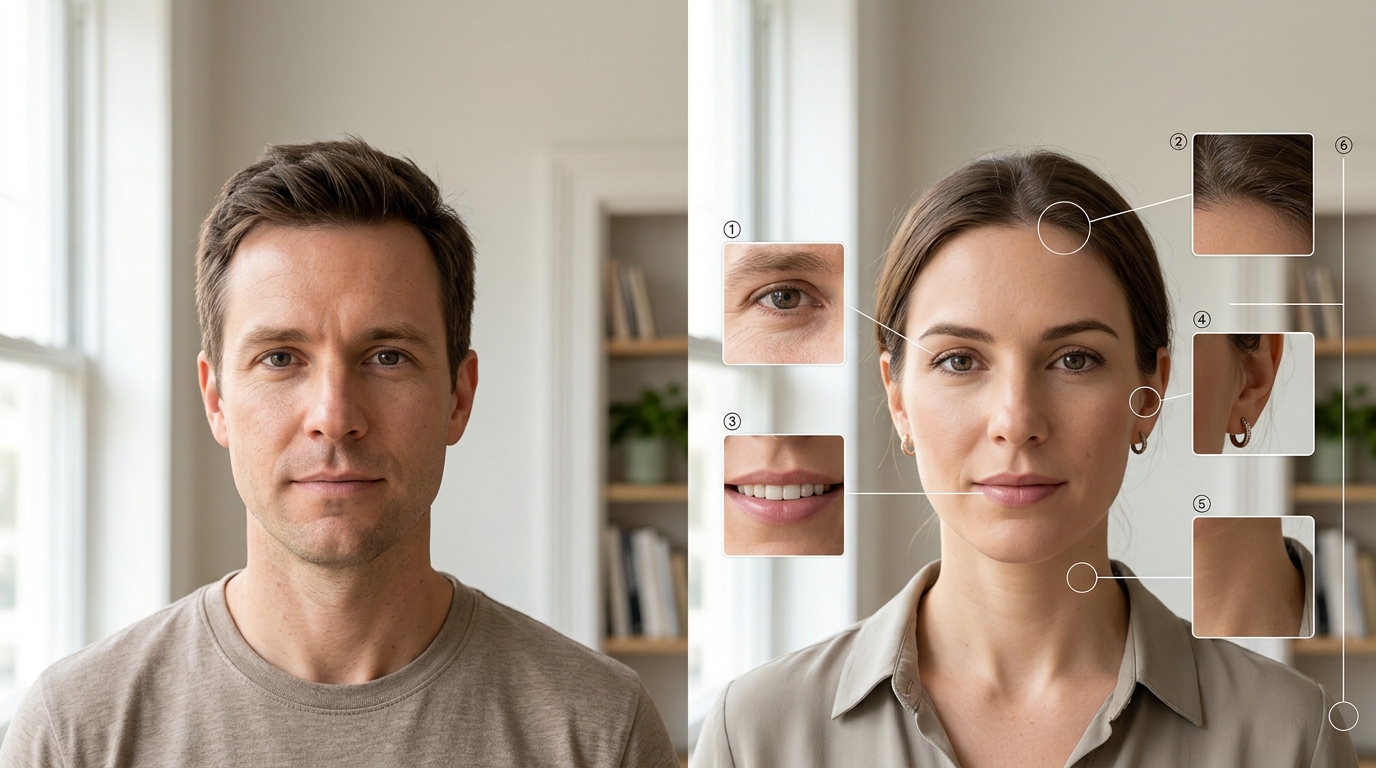
Six Details to Check Before Downloading the Photo
Do not judge the result only by whether it looks attractive. Start with the eyes and compare their shape and spacing with the source image. Then look at the hairline for broken strands, unnatural gaps, or sections of hair that appear to blend into the forehead.
The mouth is another area where small generation errors are easy to miss. Check for duplicated teeth, blurred lip edges, or a smile that no longer matches the original expression. Around the sides of the face, make sure the ears, earrings, and glasses have not been stretched, duplicated, or partially erased.
Next, inspect the transition from the face to the neck, collar, and shoulders. Clothing edges should remain clean, and the head should not appear disconnected from the body. Finally, look at straight objects in the background, such as walls, doors, shelves, or furniture. If they bend around the face or hair, the portrait may need to be regenerated from a clearer source image.
If several of these areas look incorrect at the same time, changing the original photo will usually produce a better result than trying to repair every detail individually.
How to Make a Gender Swap Transition Video
Once you have both the original selfie and the transformed portrait, you can turn them into a short transition video without using advanced editing techniques.
Begin by cropping both images to the same aspect ratio. Align the eyes, nose, and chin as closely as possible so the face does not suddenly jump when the image changes. A simple sequence of the original photo, a brief flash or obstruction, and the transformed photo is often enough to create the effect.
You can hide the change with a white flash, a quick zoom, motion blur, a camera push-in, or a hand moving across the lens. Placing the transformation on a strong beat in the music makes the result feel more deliberate. If the head angle, hairstyle, or background differs significantly between the two photos, crop closer to the face and shoulders to reduce visible movement.
CapCut works well for a straightforward before-and-after template. If you want the generated portrait itself to blink, move, or include camera motion, an Image to Video tool is a more suitable next step. The finished video can then be exported to TikTok, Instagram Reels, or another short-video platform.
Frequently Asked Questions
Why Can’t I Find the Same Gender Swap Effect Used in a Video?
The video may use a creator-made Effect, a Snapchat Lens, a CapCut template, or an image generated outside the social platform. Availability can also vary by account, region, app version, and date.
Try related searches such as gender swap, gender switch, gender change, male to female, female to male, and face morph. If the original effect is unavailable, you can create the portrait with a web AI tool and import it into your video.
Can I Still Use the Old Gender-Switching Feature in FaceApp?
The dedicated male-and-female switching feature that many users remember was removed in 2023. If it is not available in your version, use a currently available social media Effect, Snapchat Lens, or browser-based AI tool instead.
Can I Upload a Group Photo?
A single-person portrait is recommended. In a group photo, the tool may select the wrong subject, overlook background faces, or mix features from multiple people. Cropping the image so that only one unobstructed face remains generally produces a more consistent result.
Why Does the Generated Portrait No Longer Look Like Me?
Heavy beauty filters, an extreme head angle, a wide-open smile, dark lighting, reflective glasses, face coverings, and low image resolution can all change how the tool interprets your features. An original camera photo with a neutral angle and clearly visible face is usually the best starting point.
Why Do the Hair, Neck, or Image Edges Look Blurry?
The source image may be too small, the hair may extend beyond the frame, or the background may be too similar to the hair color. Dark lighting and reflective accessories can also make edge reconstruction more difficult. Try a higher-resolution image with even lighting and a complete head-and-shoulders composition.
What Usually Changes in a Male-to-Female or Female-to-Male Transformation?
The transformation may adjust the hairstyle, hairline, jawline, brow area, skin presentation, facial contour, and overall styling. A useful result should introduce these changes while preserving recognizable facial proportions and expression.
Can I Use the Generated Photo in a TikTok or Instagram Video?
Yes. Crop the original and generated photos to the same size, align the facial features, and hide the switch with a flash, zoom, blur, or hand-cover transition. You can then export the finished video to TikTok, Instagram Reels, or another short-video platform.