
AI Aging Filter
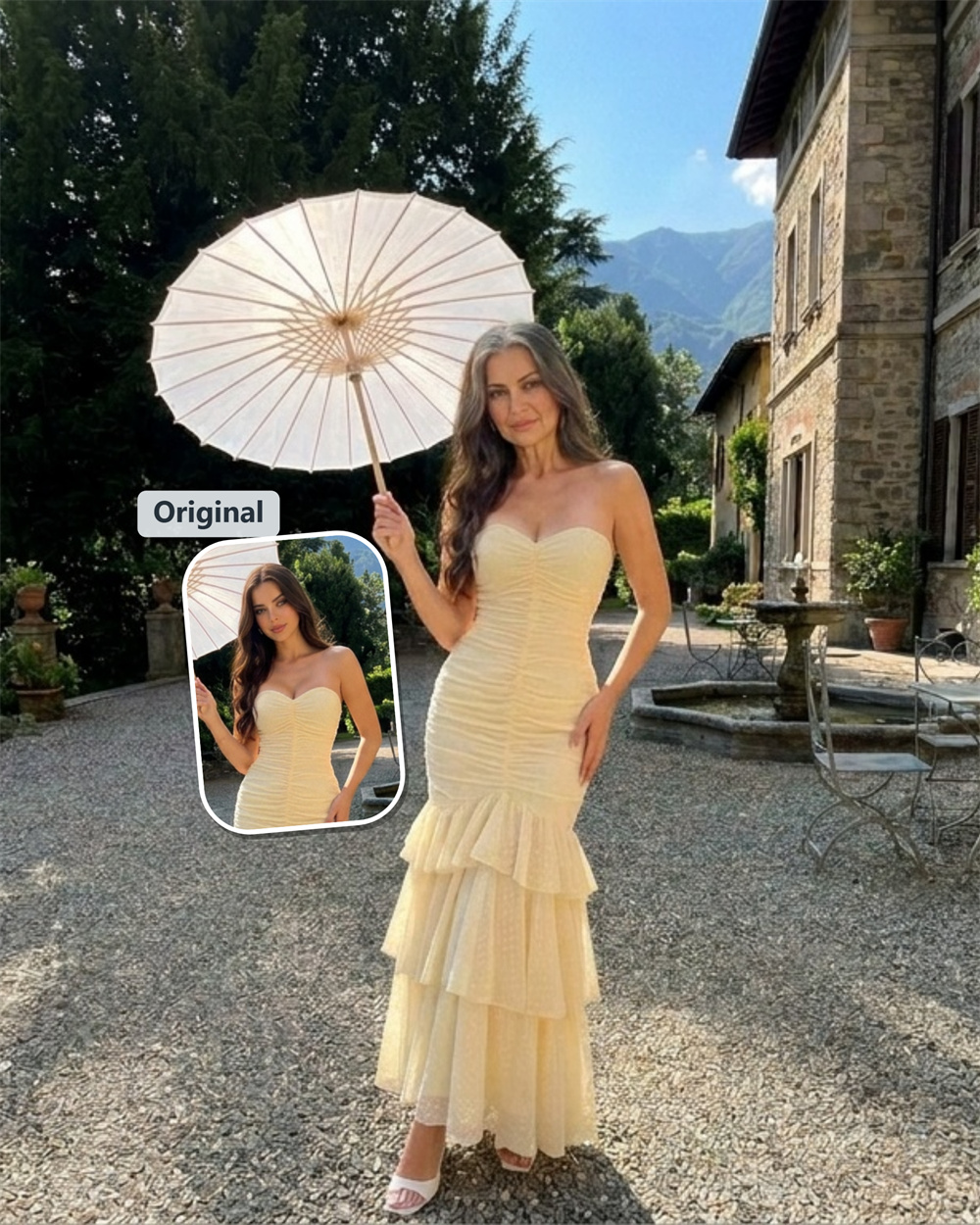
AI aging filter: see an older version of yourself
Want to know how your face might look with a few more years behind it? Upload one portrait to guma’s AI aging filter and get an older-looking image built from your own features. It is a quick, visual way to explore a future-you idea—without pretending to predict exactly what the future holds.
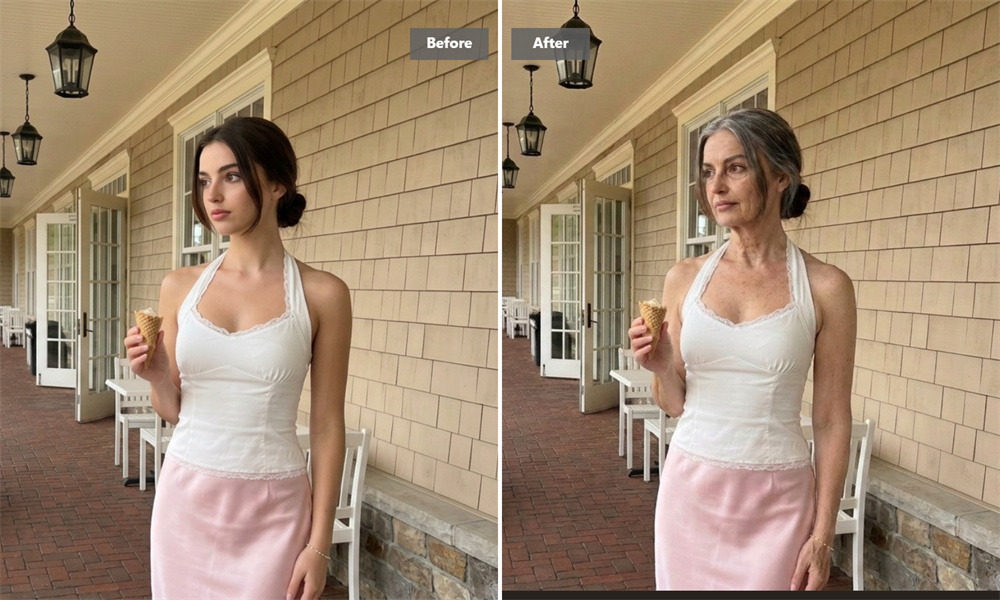
Add the details of an older look
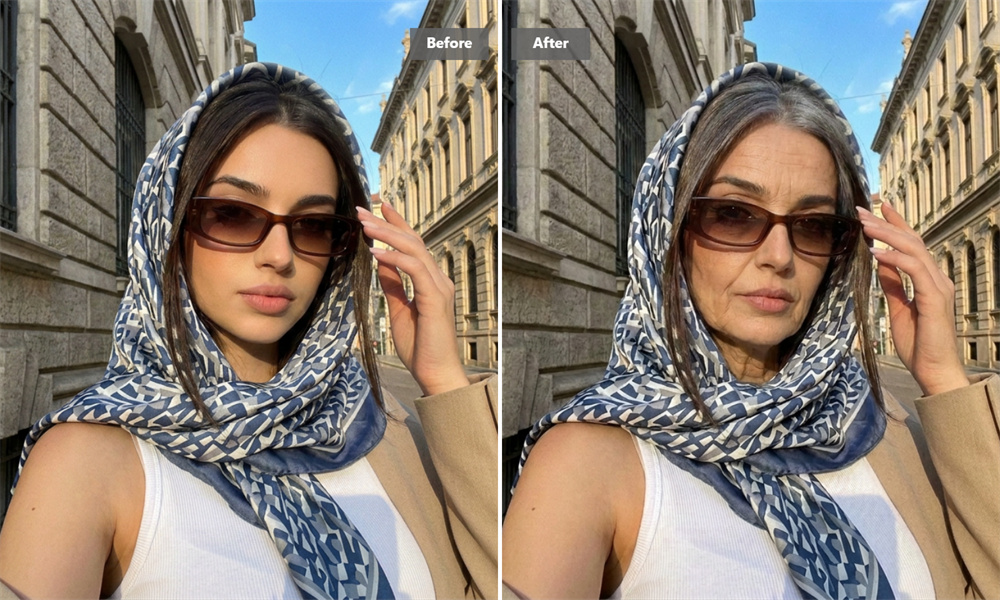
A good result is more than a few extra lines on the face. This old age filter online brings together mature-looking skin texture, fine lines, and subtle hair changes in one image. The goal is a believable older appearance that still feels connected to the person in the original photo, not an overdone costume effect.
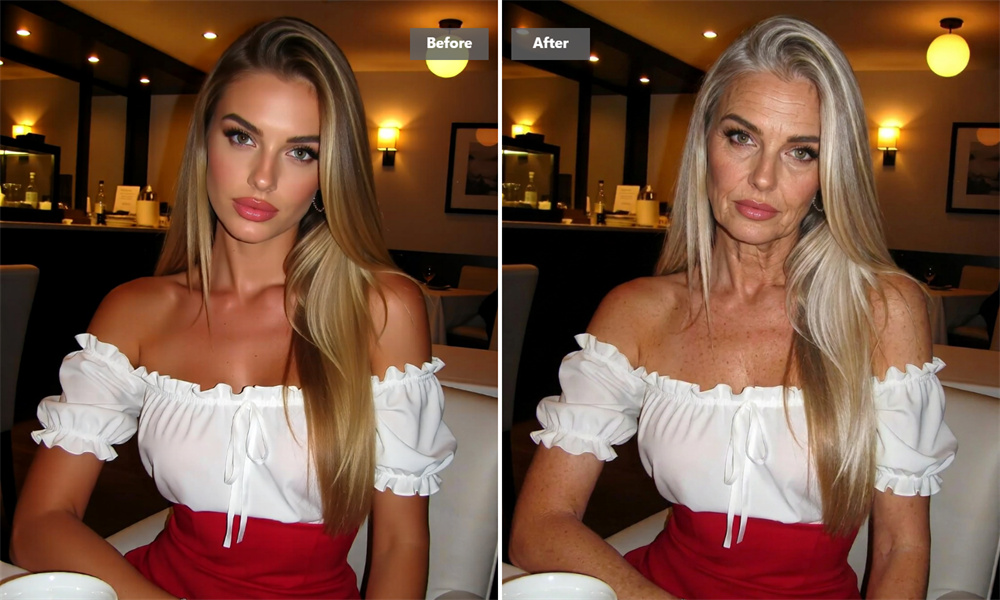
Start with the photo you already have
Looking for a “make me look older” filter? A clear portrait is usually enough. Choose a photo with good lighting, a visible face, and a relaxed expression; front-facing images tend to give the aging effect more to work with. Skip sunglasses, masks, or heavy shadows when you can.
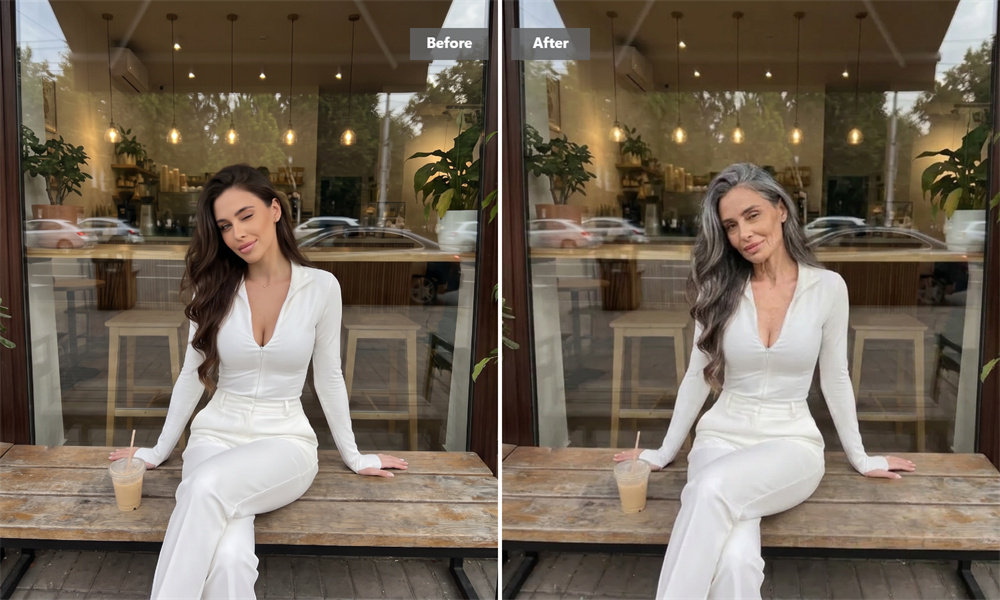
Create a before-and-after worth sharing.
A face-aging filter can turn an ordinary selfie into a conversation starter. Compare the original with your older-looking version, send it to friends, or use it in a creative post. The best reactions often come from the familiar details that remain—the expression, eyes, or face shape people recognize right away.
Keep the result in perspective.
An age progression photo is a creative interpretation, not a forecast. Real aging is shaped by genetics, lifestyle, health, and time—things a single image cannot know. Treat your result as a fun visual experiment, and only upload or share photos you have permission to use.
How to Generate Older-Looking Photos with Guma
Upload
Choose a clear portrait with the face visible.
Generate
Apply the aging effect to create an older-looking version.
Download
Review the result and save the image when you are ready.
Related recommendations
AI aging filter FAQs
What does an AI aging filter do?
An AI aging filter creates an older-looking version of a portrait by applying visual age cues such as skin texture changes, fine lines, and grayer hair while keeping the original face as its reference. The result is for creative exploration, not a medical or scientific prediction. To create a different portrait style, explore our image-to-image tool.
Can I use the AI aging filter for free?
Yes. After you create a guma account, you receive daily free credits to try AI image generation. If you need more generations or higher-level options, you can choose a premium plan when you are ready.
Does this page make faces look younger?
No. This AI old-age filter is designed for older-looking transformations only.
Which photo works best?
Use a sharp, well-lit portrait with one clearly visible face. A front-facing image without sunglasses, masks, or strong shadows usually gives the cleanest result.
Is the result an accurate prediction of my future appearance?
No. The generated image is an artistic age-progressed interpretation of your photo. It cannot account for the many personal and real-world factors that affect how someone ages.
Can I upload a photo of someone else?
Only upload images you own or have permission to use. Ask before sharing an older-looking version of another person, especially on public channels.