
Baby Filter
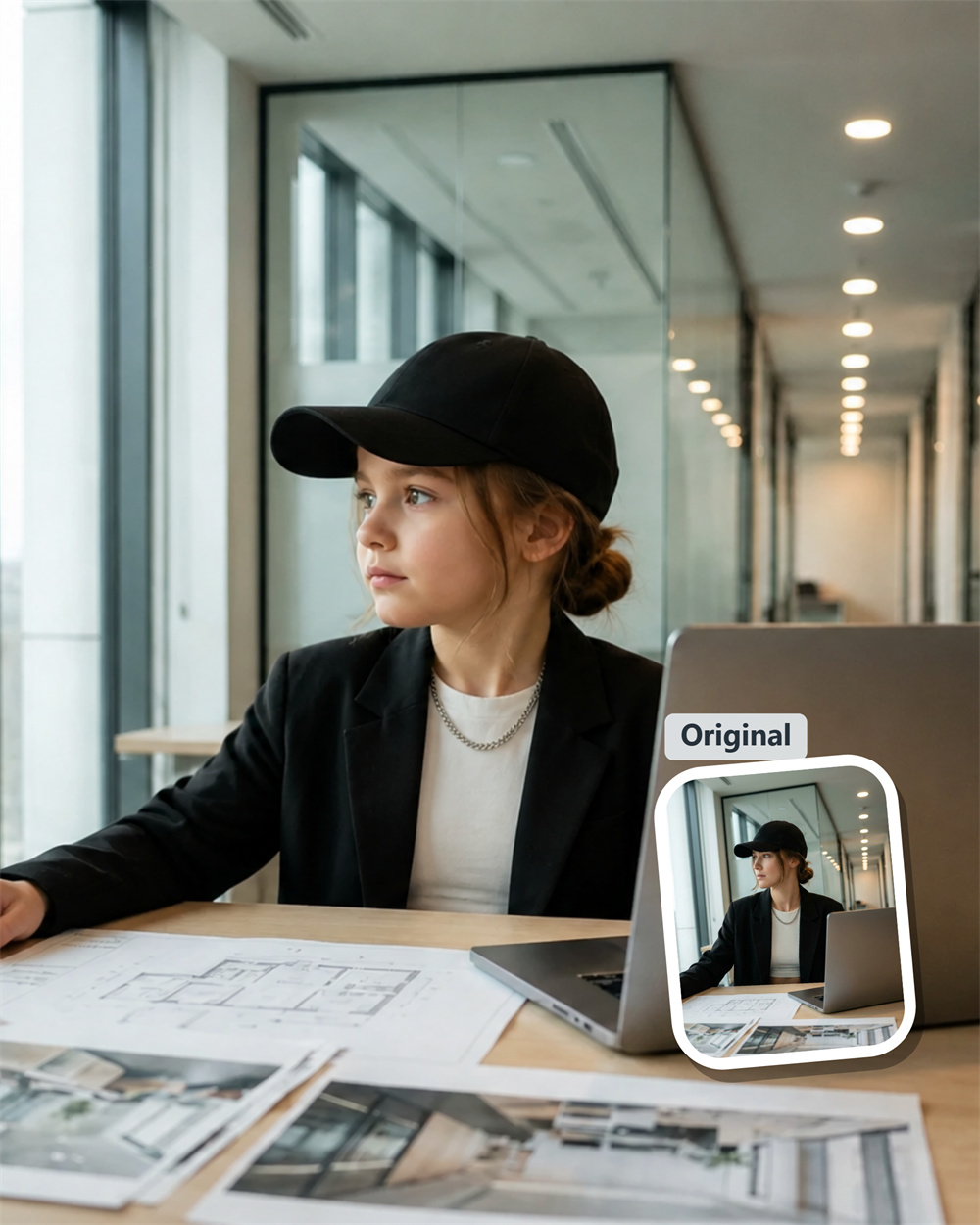
Meet the Little You Hiding in Your Camera Roll
Ever wondered how your features might read with round cheeks, bright eyes, and a much smaller face? Drop in one image and let Guma’s baby filter create the kind of reveal that makes people pause, smile, and say, “Okay, I can actually see it.”
AI Prompt
{Reference to the original image’s character identity and facial features: 1.8}, {Character consistency: 1.8}, {Clothing style fully preserved: 2.0}. Naturally transform the adult in the uploaded photo into their childhood version, preserving the same individual’s appearance from their younger years. Retain the most distinctive facial features—including eye shape, hair color, pupil color, skin tone, hairstyle, and expression—while softening and rounding the face, slightly plumping the cheeks, shortening the chin, refining the nose to a small and natural size, and making the eyes clear and bright. The skin should appear smooth, healthy, and youthful, with wrinkles, makeup, and any signs of adulthood removed. Adjust the proportions of the head, shoulders, neck, arms, and body naturally to reflect those of a real child. Strictly preserve the original image’s background scene, including flowers, plants, buildings, lighting, shadows, depth of field, color tone, lens perspective, shooting distance, character positioning, pose, movement, and overall composition—without moving or adding/deleting any environmental elements. Strictly maintain the original clothing’s style, color, pattern, material, collar, cuffs, and details; only allow the clothing to naturally shrink and fit the child’s smaller body shape. Aside from the character’s age and necessary adjustments to child-like body proportions, all other elements in the image remain completely unchanged. The result is photo-realistic, natural, and authentic, with no trace of editing, maintaining high fidelity to the original image. {Reference to the protagonist’s key facial features, gender, hair color, and hairstyle from the original image; biological characteristics remain unchanged}, {Realism: 1.6}.
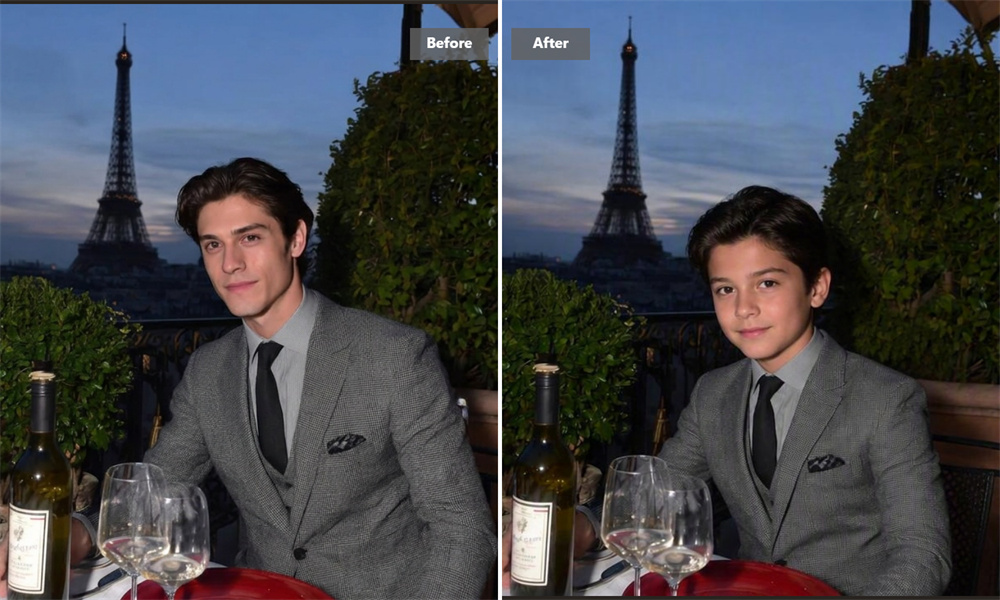
Same Eyes, Smaller Cheeks
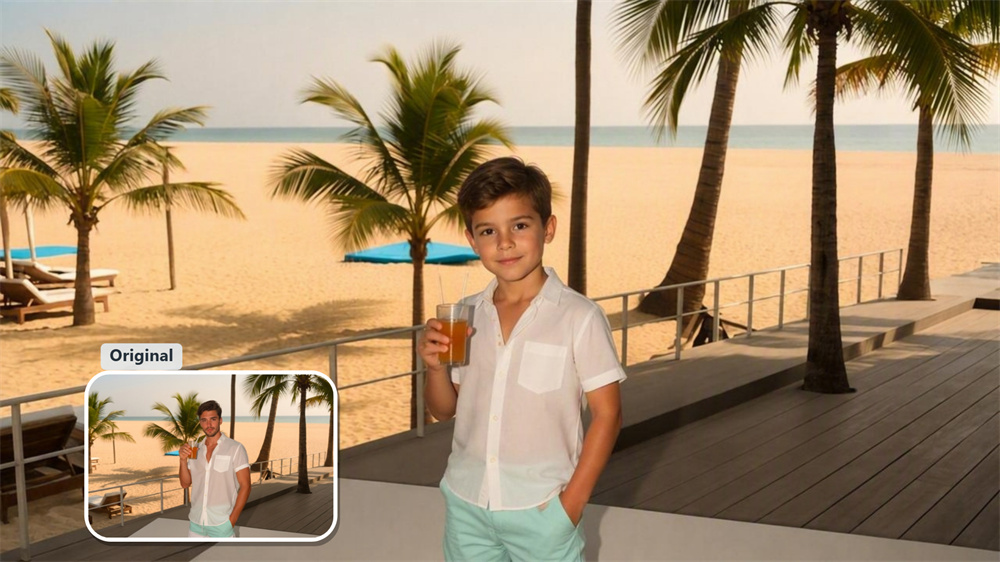
The fun is in the details. Your smile, gaze, and face shape become the starting point for a softer, younger look—not a random child’s face pasted onto your image. It is a playful spin on your appearance, with enough character left in the result to make the comparison interesting.
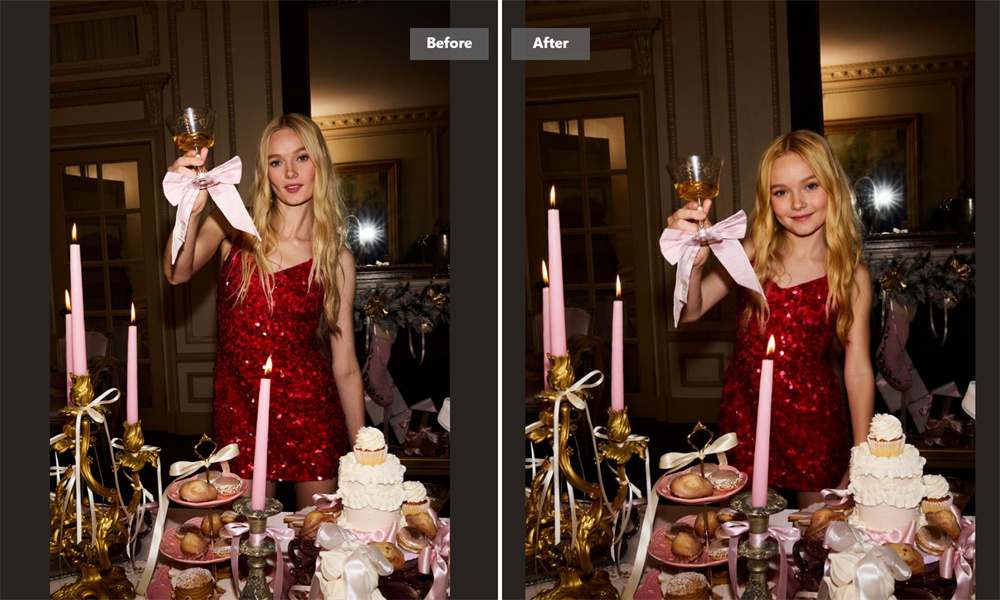
Your New Favorite Family-Chat Drop
Some images need an explanation. This one usually does not. Send it to siblings, parents, or friends and watch the guesses begin: “You had the same eyes,” “That smile is exactly you,” or “Why is this weirdly accurate?” It is made for lighthearted reactions, not serious editing.
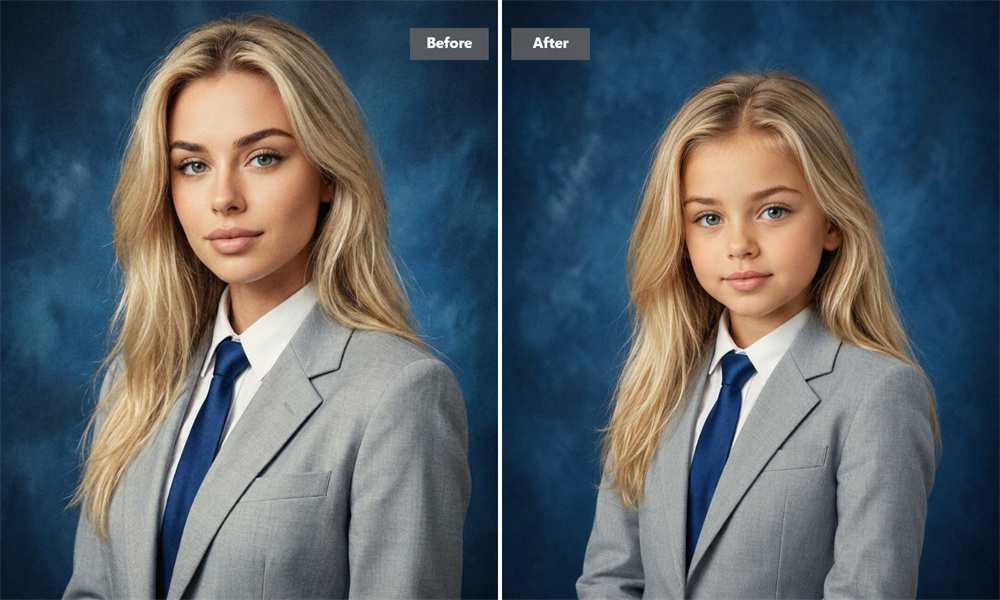
Good Light Makes the Difference
A simple, well-lit head-and-shoulders shot is usually the best choice. Keep the face visible, skip strong beauty effects, and use an image where the subject is looking toward the camera. A clean starting image gives the AI more useful detail and avoids results that feel overworked.
A Fresh Take on a Familiar Face
This is not meant to recreate a real childhood photograph. Think of it as a photo-to-baby transformation: a creative answer to a question people naturally ask when they look at an old selfie. Save it for yourself, use it as a playful post, or make it part of a before-and-after collage.
How to Generate Childhood Photos With Guma
Upload
Choose a clear image with one visible face.
Generate
Create your baby-style result with Guma.
Download
Save the finished image when it is ready.
Explore More Ways to Rework Your Images
Frequently Asked Questions
Is Guma’s baby filter free to use?
Yes. Create a Guma account to receive daily credits and start generating images with the baby filter. Users who want additional generation credits and advanced options can upgrade to a premium subscription. If you would like to keep working on the same image, explore our Image to Image Generator..
What kind of image should I use?
Choose a clear, front-facing image with natural or even lighting. One visible subject works better than a busy scene, and photos without sunglasses, face coverings, or heavy filters tend to give cleaner results.
Does the result recreate my real childhood appearance?
No. The tool creates an AI-generated, baby-inspired interpretation from the image you provide. It may retain traits such as your eyes, smile, or face shape, but it is not a historical reconstruction.
Can I use an image with several people?
You can try, though a single-person image gives the AI a clearer subject to work with. In a group shot, the output may be less predictable.
Is this different from an age filter?
Yes. A general age filter can make a person look younger or older. A baby face filter is designed specifically for an infant-style transformation.
Can I use someone else’s image?
Only upload images that you own or have permission to use, especially if you plan to download or share the generated result.