
Template
Digital Art Photo Filter
Upload an image to start your template-based generation.
Upload Image
Digital Art Photo Filter
Turn Your Photo Into Digital Art
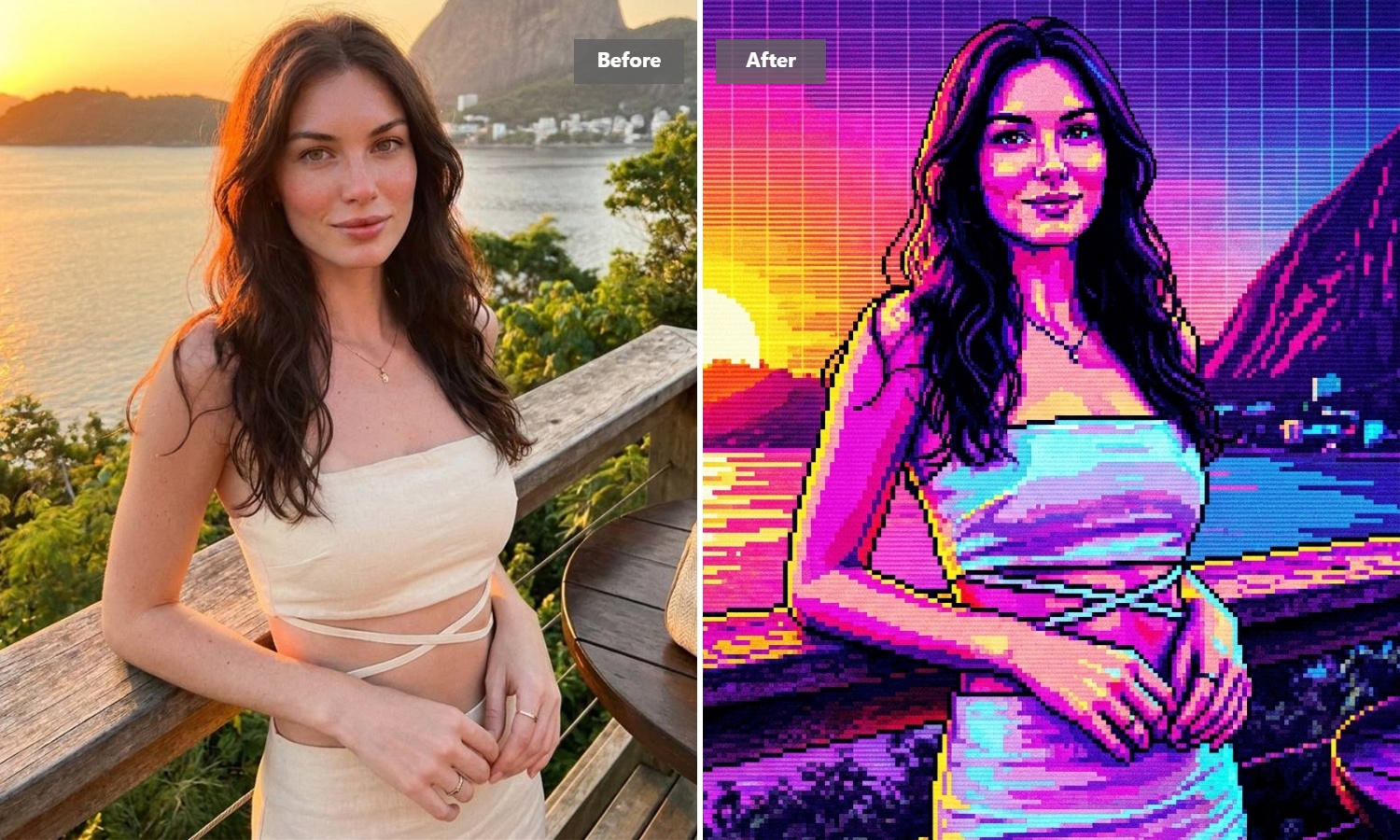
Bring a more artistic point of view to the photos you already care about. Guma’s AI Digital Art Filter reshapes portraits, travel scenes, pets, and everyday details into polished digital artwork with richer color, cleaner form, and an illustrated finish—without a complicated editing workflow.
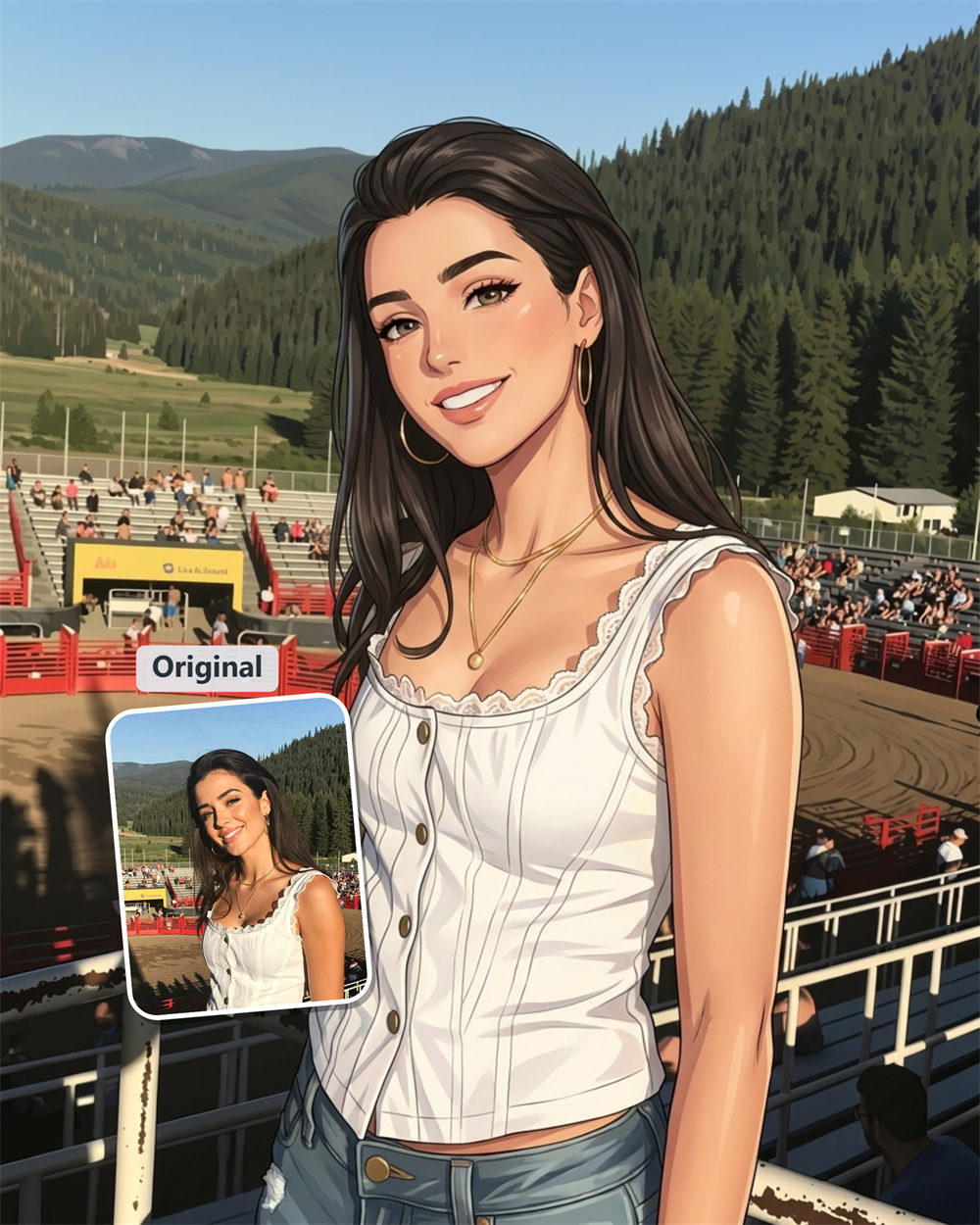
Add Cleaner Lines and Richer Color
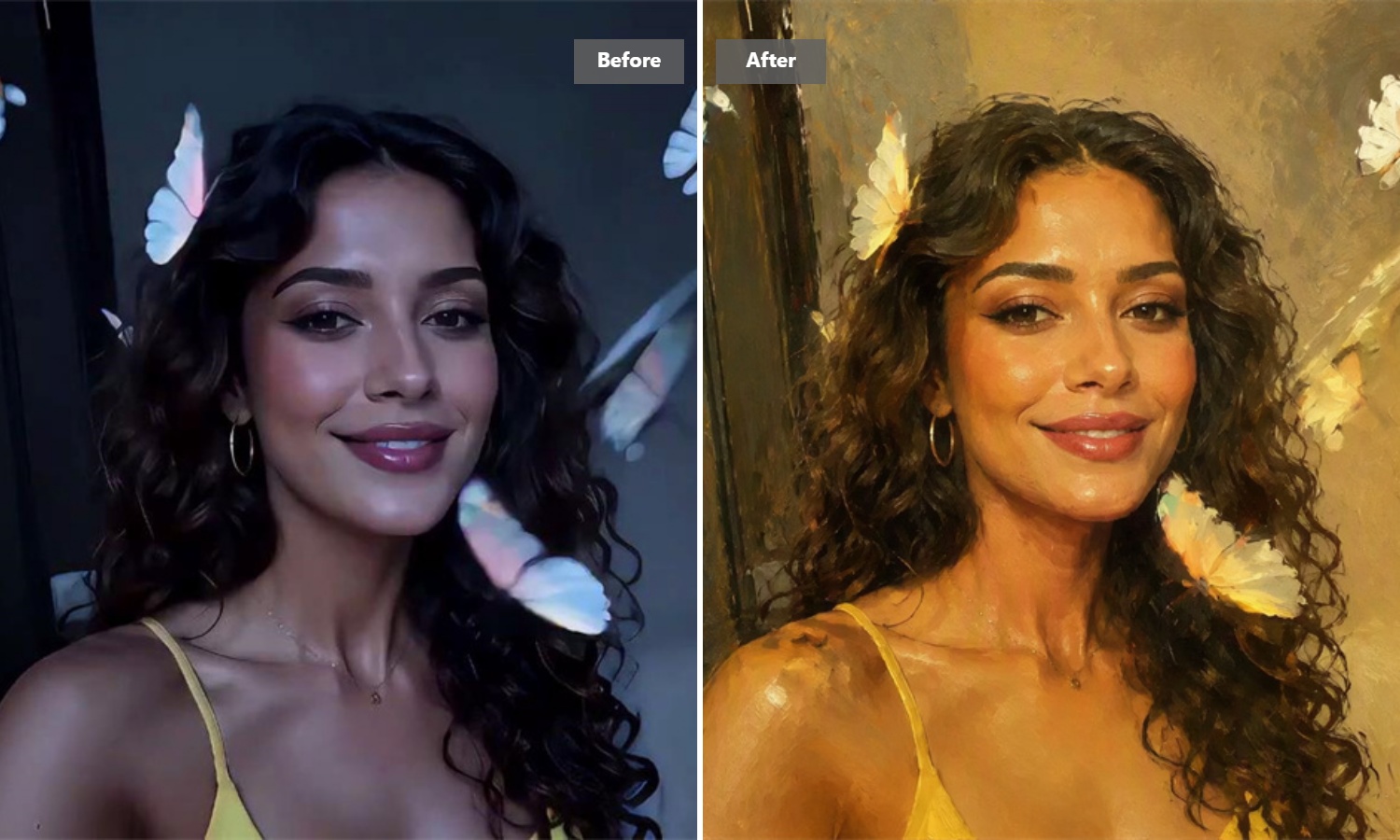
Some images need only a stronger visual treatment. Guma reshapes the tonal balance and surface detail of your photo into crisp outlines, fuller color blocks, and a smooth digital-art finish. It works particularly well with clear subjects, expressive faces, animals, and scenes with distinct shapes.
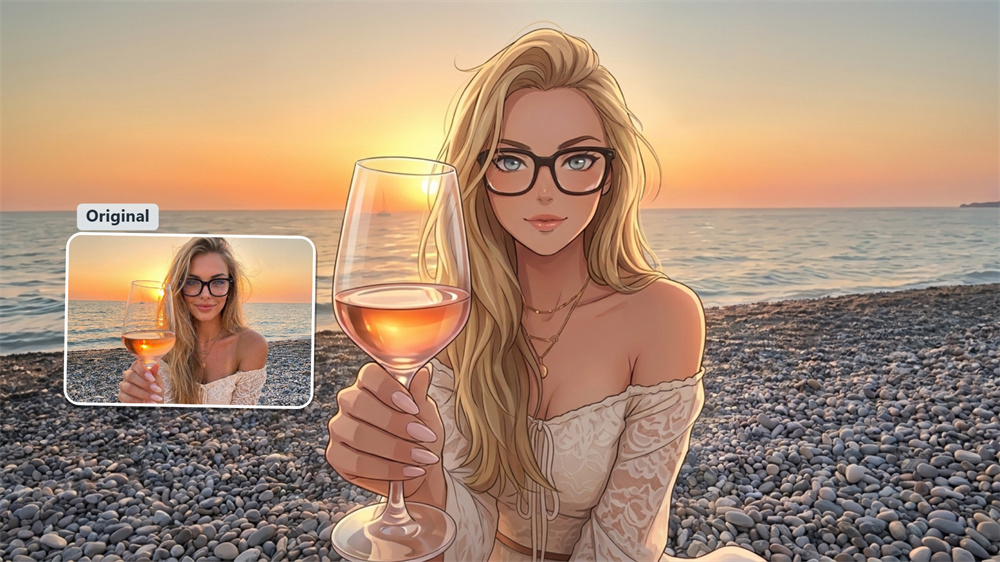
Give Content a More Recognizable Look
A standard photo can feel interchangeable in a busy feed. An illustrated version creates a stronger visual signature for profile images, post covers, video thumbnails, blog graphics, and presentation slides. Guma helps you create that change without building the artwork manually.
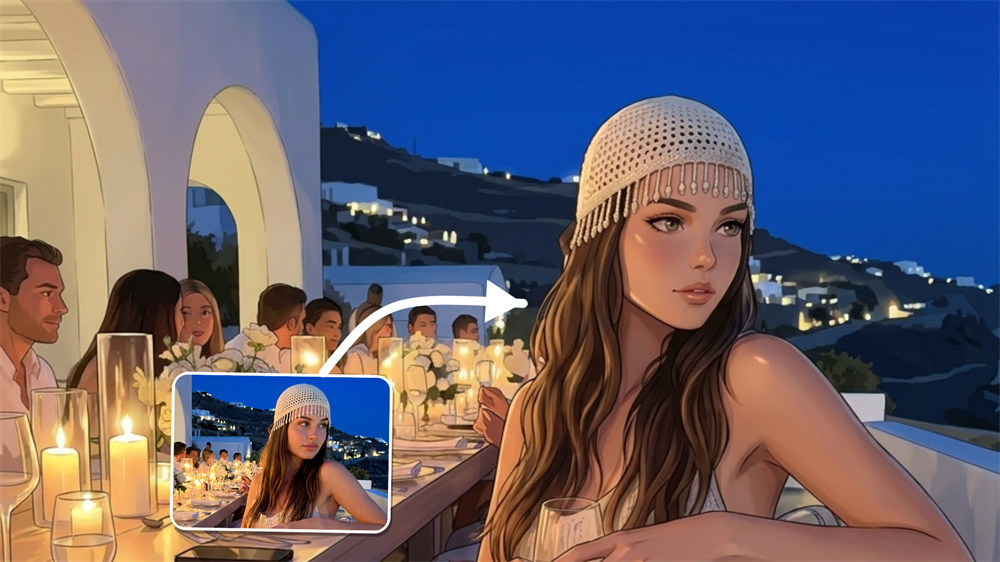
Retouch a Photo Without Losing Its Character
The filter changes the presentation, not the story behind the image. A family portrait remains a family portrait; a street view keeps its sense of place. The difference comes from the treatment—more graphic edges, adjusted color relationships, and a finish that feels closer to a digital illustration.
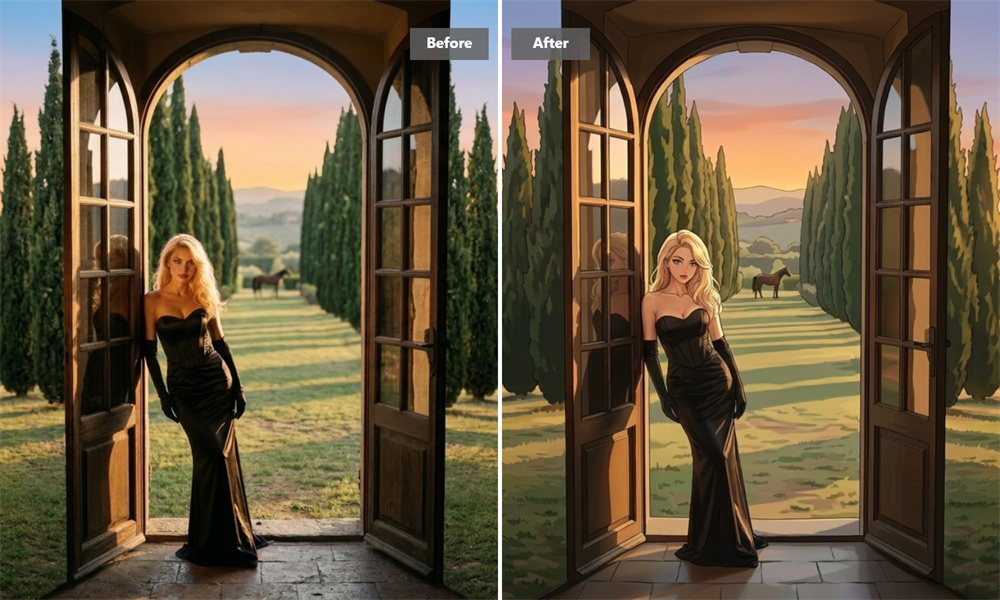
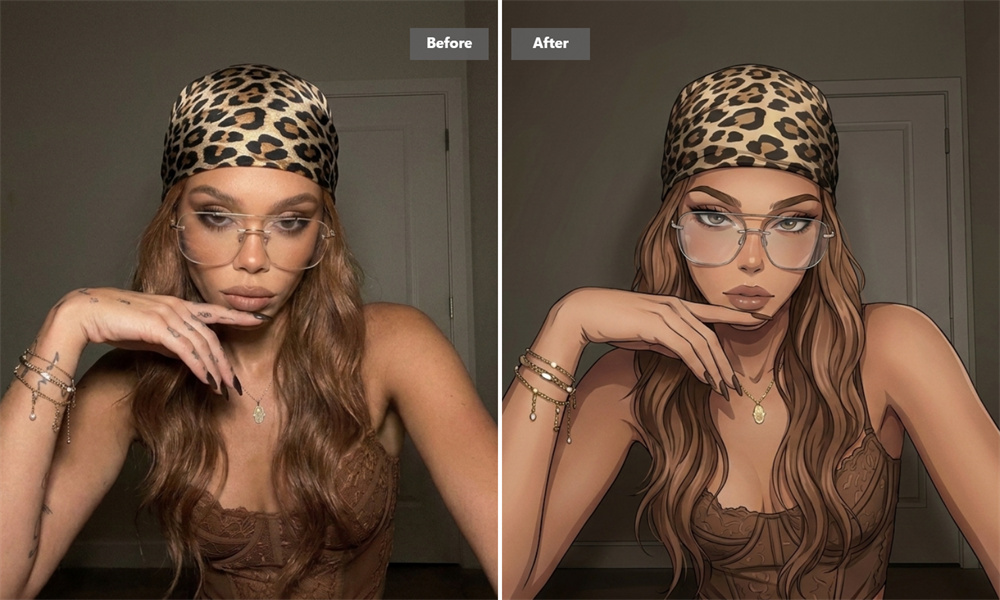
Develop Visuals for Brand and Creative Work
A consistent illustrated look can make campaign ideas, landing-page graphics, product concepts, and social content feel more considered. Start with an image from your own project and use Guma to develop a visual direction that leaves space for your typography, layout, and brand colors.
How to Turn a Photo Into Digital Art
Upload Your Image
Choose a clear photo with a visible subject and balanced lighting.
Generate the Artwork
Guma analyzes the image and applies its digital-art treatment.
Download the Result
Review the finished image and use it in your personal or creative work.
Explore More AI Image Tools
Frequently Asked Questions
What does an AI digital art filter do?
It converts an existing photo into a stylized digital-art image by interpreting its subject, colors, edges, lighting, and texture. It is designed for transforming a photo you already have. For another visual direction, explore our image to image.
Which photos usually work best?
Start with a reasonably sharp image, good light, and one clear focal subject. Portraits, pets, buildings, landscapes, and product photos are all suitable. Busy backgrounds, heavy blur, and very dark images can reduce fine detail.
Do I need drawing or editing experience?
No. Guma handles the visual treatment automatically. You only need to choose an image; there is no need to adjust layers, brushes, masks, or complicated settings.
Does the tool have multiple art styles?
This page focuses on one dedicated digital-art treatment. The appearance will still vary with the source image—for example, a close-up portrait, a colorful landscape, and a monochrome building will each create a different composition.
Where can I use the finished image?
The artwork is suitable for profile photos, social media posts, article illustrations, presentation graphics, campaign concepts, and branded content. It’s particularly useful when a regular photograph feels too ordinary for the surrounding design.
Can I try Guma for free?
Yes. Registered users receive daily free credits to try Guma’s AI image tools. A premium subscription provides additional generations and access to advanced capabilities.
How long does generation take?
Most images are ready shortly after processing begins. File size, image detail, and current demand can affect the exact time.
What if my photo is dark or blurry?
The filter can still process it, but the result may have softer edges and less visible texture. A brighter, sharper source image gives the AI more information to work with.