
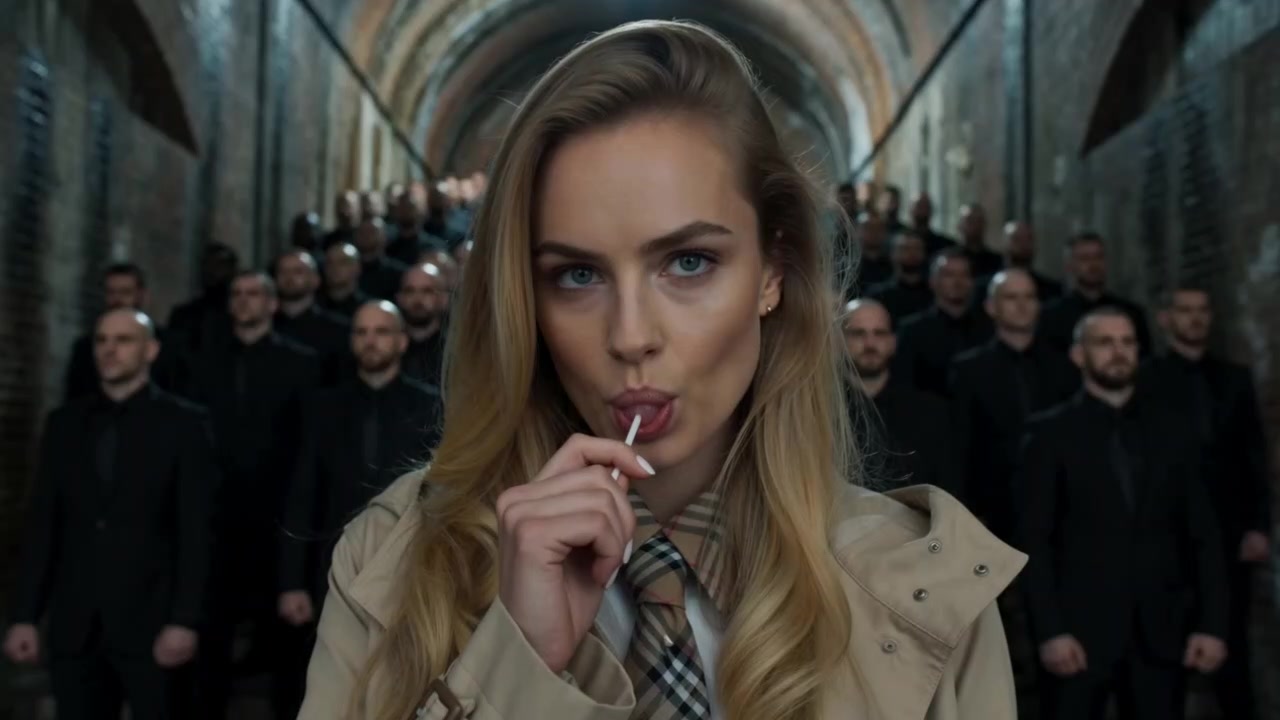
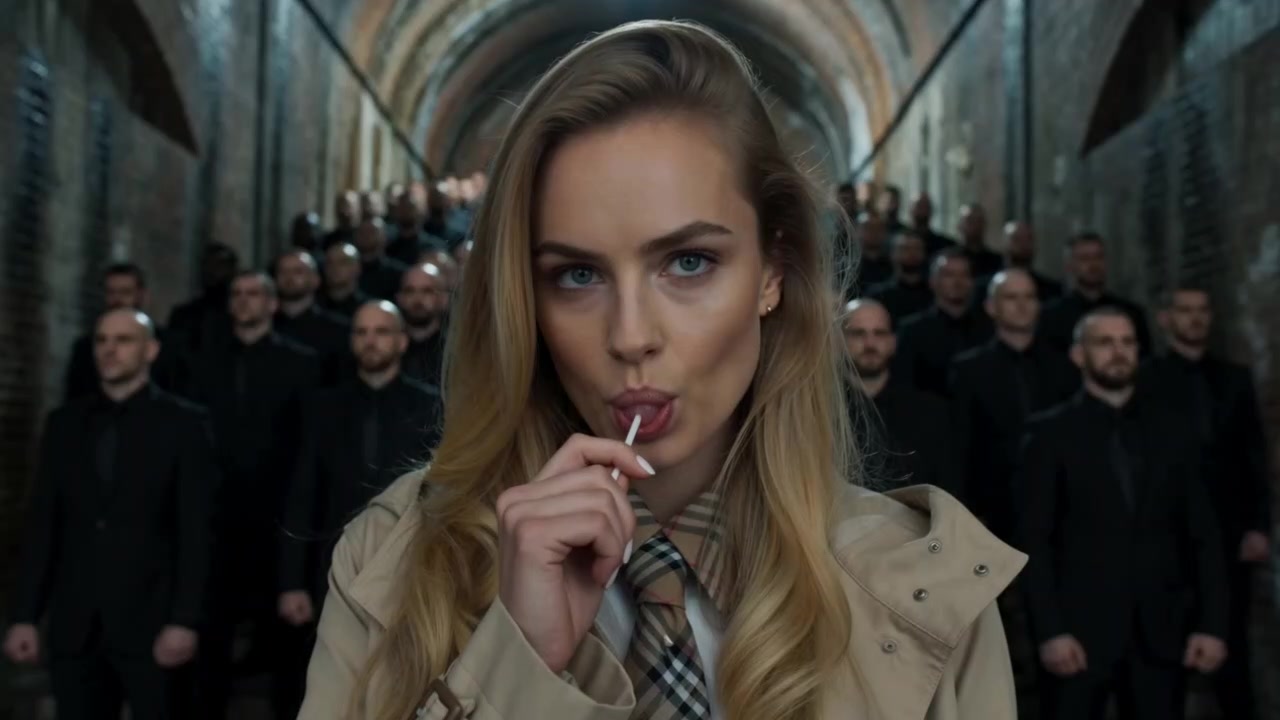
STORM II AI Dance Generator
Explore STORM II dance effects, preview synchronized crowd scenes, and choose a style to continue to the generator and create your own dance video.
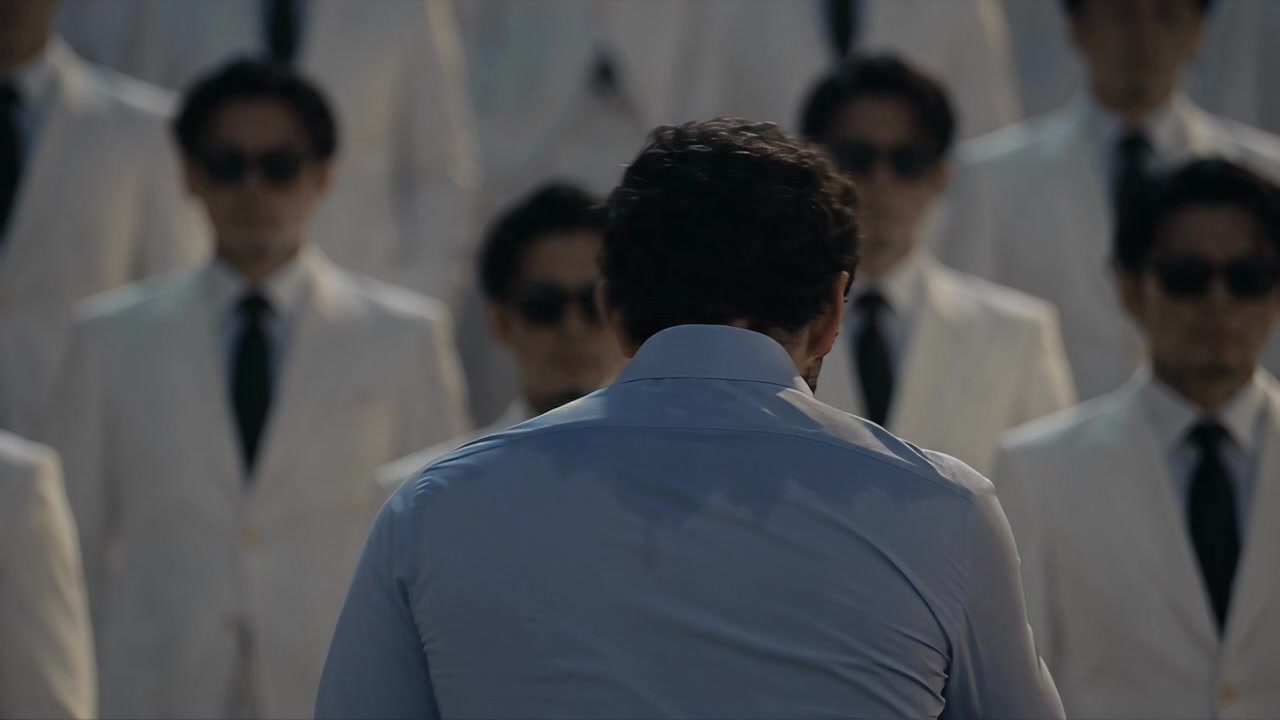
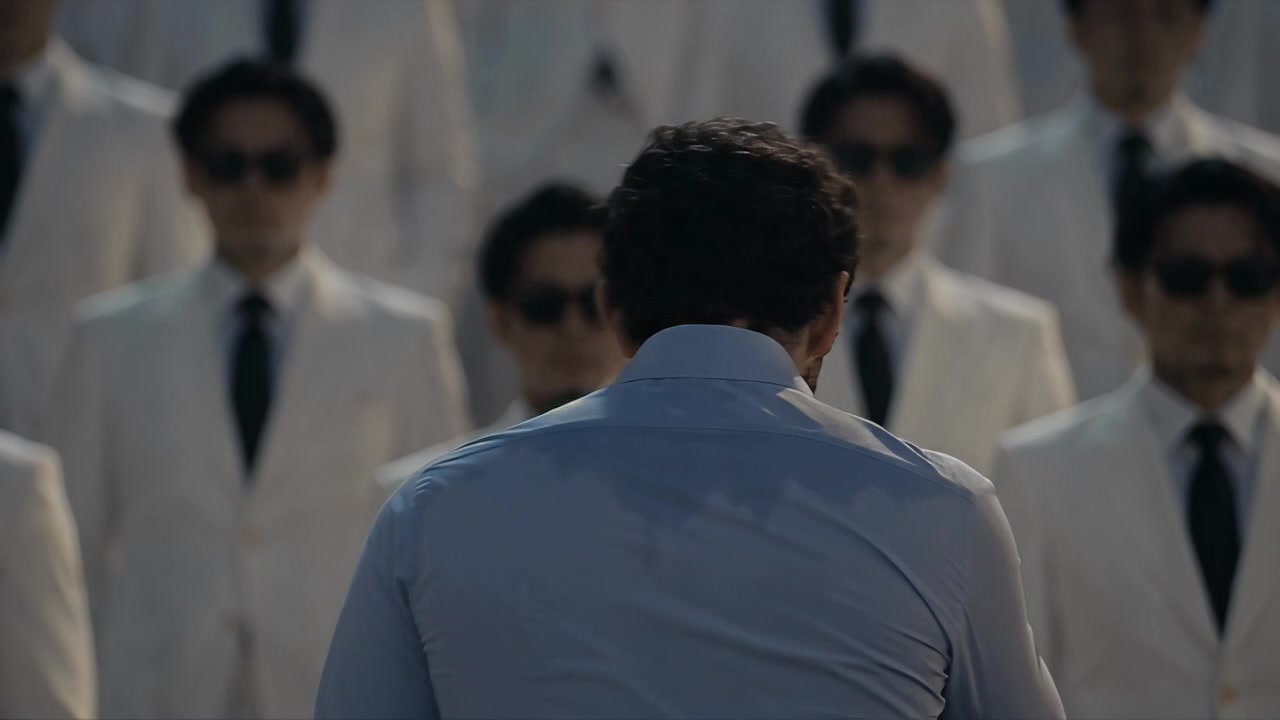
Put Your Photo at the Center of a STORM II Crowd Dance
This page brings together STORM II crowd dance effects so you can compare the main character’s position, crowd movement, and camera rhythm before choosing one. Select an effect to open its creation page, upload your photo, and continue in your browser. The final movement and character details can vary with the source photo and the settings available in the selected tool.
Create a STORM II Crowd Dance Video in Three Steps
1
Upload a Clear Photo
Choose an effect, open its creation page, and upload a photo you own or are authorized to use. Check the input guidance shown in the tool before continuing.
2
Generate the Crowd Dance Video
Review the settings available in the tool and start generating. The selected effect guides the scene, while the source photo can influence the person’s appearance and movement.
3
Preview and Download
Watch the full result and check the face, body, and crowd movement. If needed, try another suitable photo or an available setting before downloading the version you want to keep.
Why Choose Guma AI for a STORM II Crowd Dance Video?
Guma AI brings STORM II crowd dance effects together so you can compare the composition and movement before opening a creation page. Preview where the person appears, how the crowd moves, and whether the camera rhythm suits your idea before deciding which effect to use.
Preview the Scene Before Creating
Consider the main character's position, crowd arrangement, and camera movement before selecting an effect. The preview provides a clearer understanding of the scene without relying solely on a text description.
Match the Effect to Your Photo
Use the preview to judge whether the framing and visible body area in your photo fit the composition of the scene. Exact input requirements are shown after you open the selected effect.
Keep the Main Character Easy to See
Compare crowd density, character placement, and movement intensity to find a scene where the group creates the atmosphere without making the main character difficult to follow.
Move From Preview to Creation
Once you find a suitable scene, open its creation page without searching for the effect again. You can then review the available options and continue with your photo.
Explore Different AI Video Models
AI video models can differ in how they render people, movement, and visual texture. Review the sample and information on each model page, then choose one according to your source material and the type of video you want to make.


Discover More AI Creation Ideas
Want to explore a different visual direction? Browse other Guma AI category pages and choose an option that fits the material you have and the result you want to create. Each recommendation opens a separate page with its own examples and creation path.
Frequently Asked Questions About STORM II AI Dance Generator
What Is the STORM II AI Dance Generator?
On this page, STORM II AI Dance Generator refers to a photo based crowd dance effect that places a main character within a coordinated group scene. You can browse the available previews, choose a scene, and open its creation page to generate your own version. The final appearance and movement may vary with the source photo and the selected settings.
Can I Generate a Video Directly on This Page?
No. This page is designed for browsing and comparing STORM II crowd dance effects. After choosing a scene, open its creation page to upload your photo, review the available settings, generate the video, and download the result.
What Do I Need to Prepare Before Creating a Video?
Prepare a clear photo that you own or are authorized to use. The supported file formats, number of required images, and available settings can vary, so check the guidance shown on the selected creation page before generating.
What Kind of Photo Should I Use?
Choose a photo with clear lighting, an unobstructed face, and enough of the person visible to match the composition shown in the effect preview. Avoid heavy cropping and distracting backgrounds when possible. A clear source photo can provide a better reference, but it does not guarantee a particular result.
Can I Use a Group Photo?
Support for group photos depends on the selected effect and creation tool. If you want one person to remain the clear focus, a photo with a single subject usually provides a simpler reference. Check the input guidance on the creation page before uploading a group photo.
Why Might the Face or Movement Change After Generation?
AI video generation creates new frames from the source photo, so facial details, body shape, and movement can vary during the sequence. A clearer photo and a simpler composition may help reduce visual changes, but different generations can still produce different results.
Are the Video Length, Aspect Ratio, and Resolution Fixed?
No. Available duration, aspect ratio, resolution, and other options can differ between creation pages and video models. Review the settings currently shown in the selected tool before starting the generation.
How Long Does It Take to Generate a Video?
Generation time is not fixed. It can vary with the selected model, video length, available settings, and current processing conditions. Refer to the progress information shown on the creation page.
What Should I Do If Video Generation Fails?
Check whether the photo type and file size match the requirements shown in the tool. You can also try a clearer photo, reduce unnecessary visual distractions, or choose a source image with a simpler pose. Follow any error message displayed on the creation page before trying again.
Do I Need to Install Any Software?
No separate software installation is required. Guma AI is a Web service accessed through the website. You may be asked to sign in before using some creation features, and feature availability can vary by page.
Can I Use My Own Photos?
Yes. You can upload photos that you own or are authorized to use. Guma AI’s terms state that users retain ownership of their uploaded content, while users remain responsible for ensuring that the material does not violate another person’s copyright, privacy, or publicity rights.
Can I Publish the Generated Video?
You can publish an AI generated output when your use complies with Guma AI’s terms and you hold the necessary rights to the source photo, music, and any other included material. Review the complete video before publishing and follow the content, labeling, and copyright requirements of the destination platform.