
AI Genjutsu
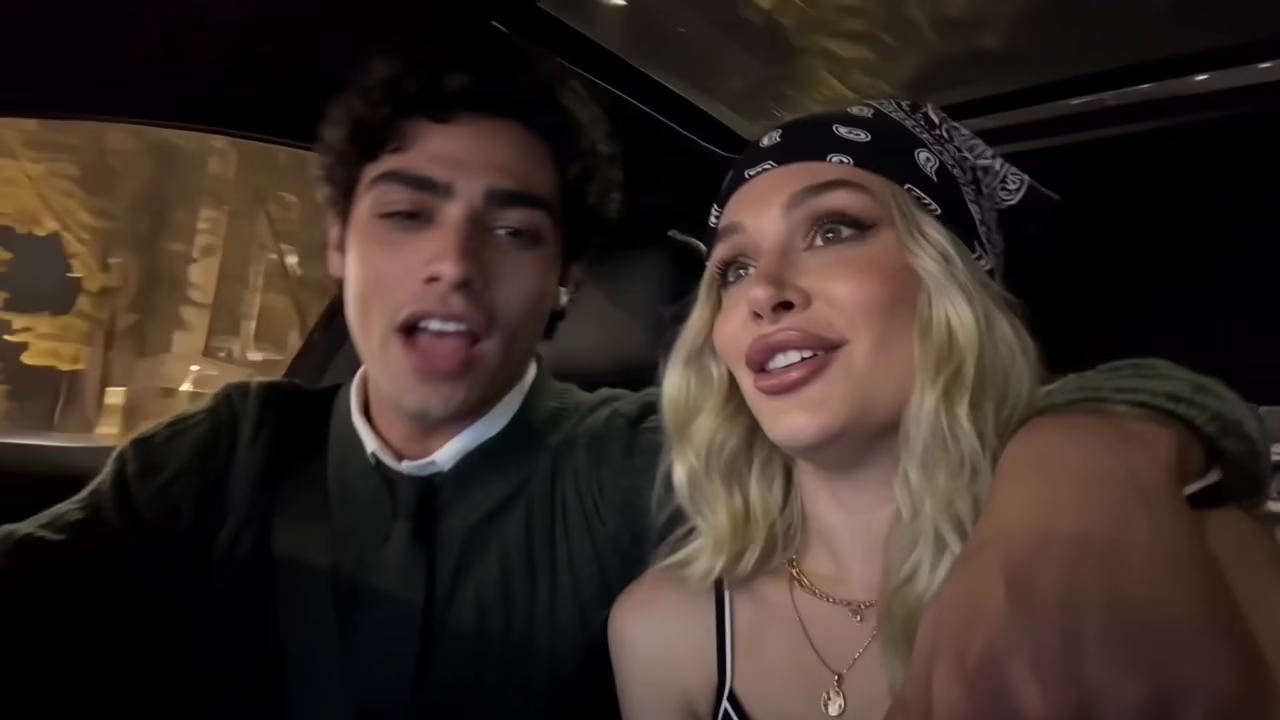
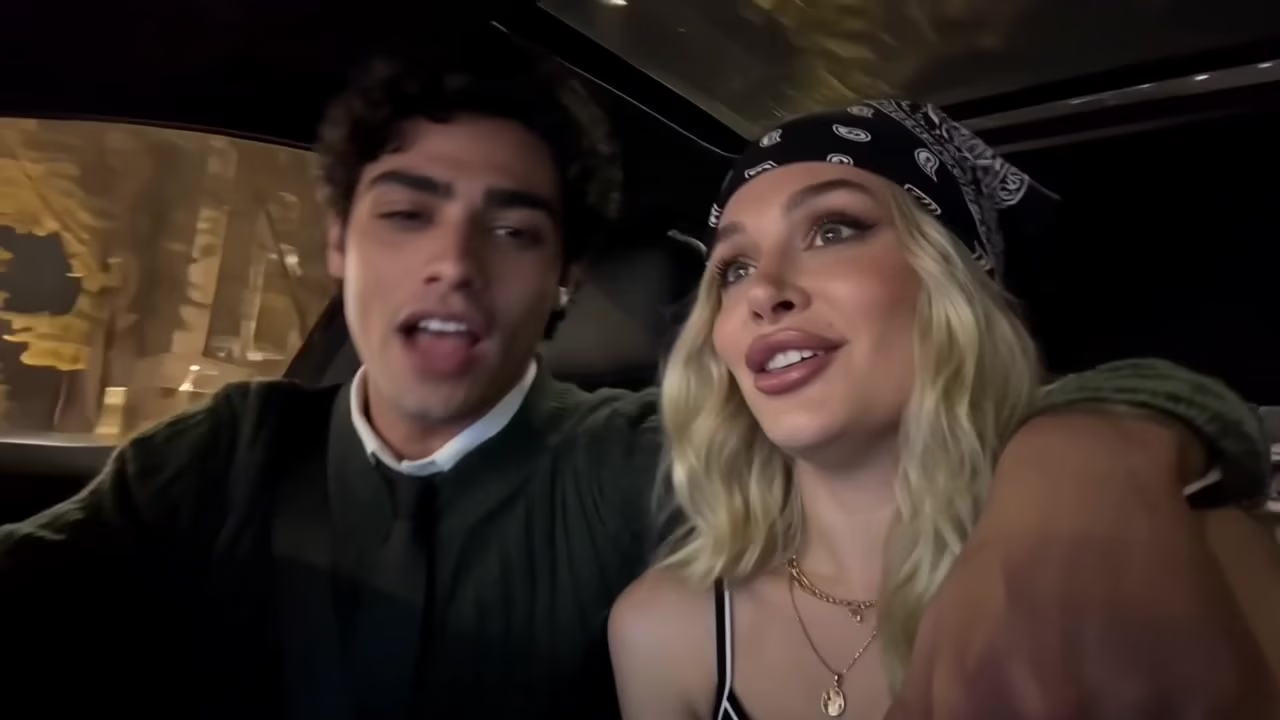
Upload a viral video and replace the people, products, outfits, or scenes. AI Genjutsu keeps the original motion and camera work to create your own version.
Flying kick
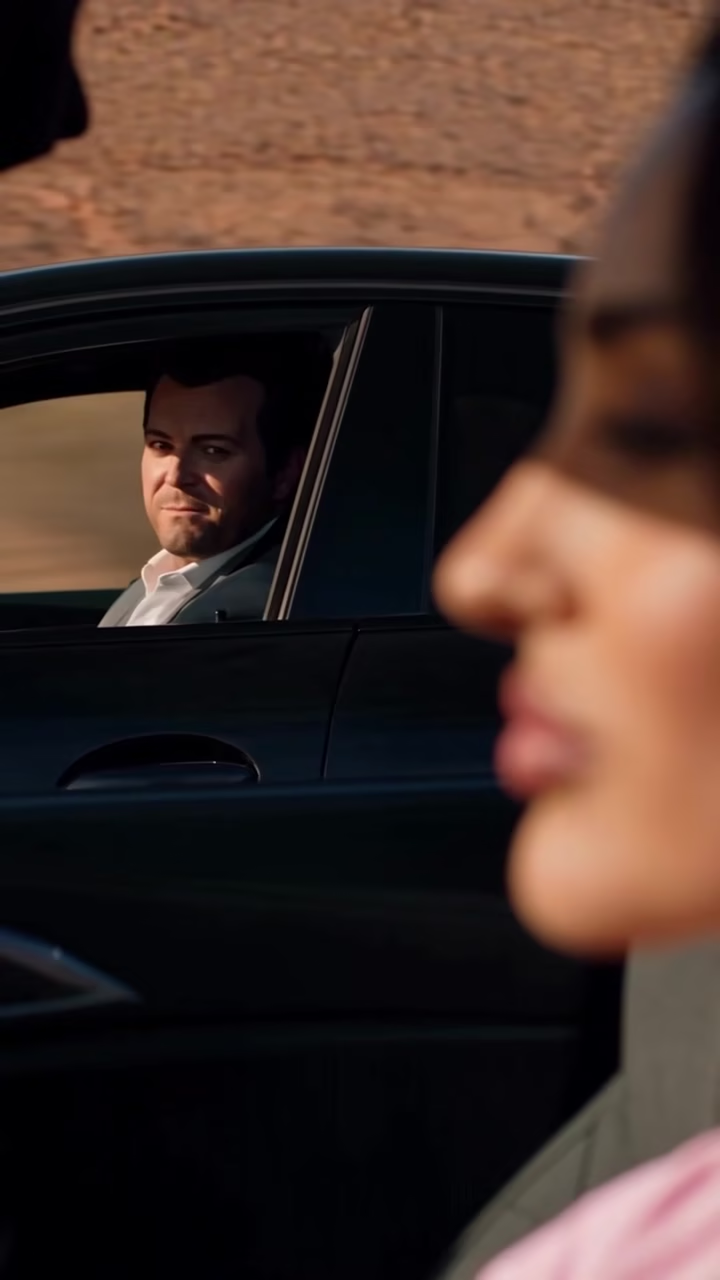
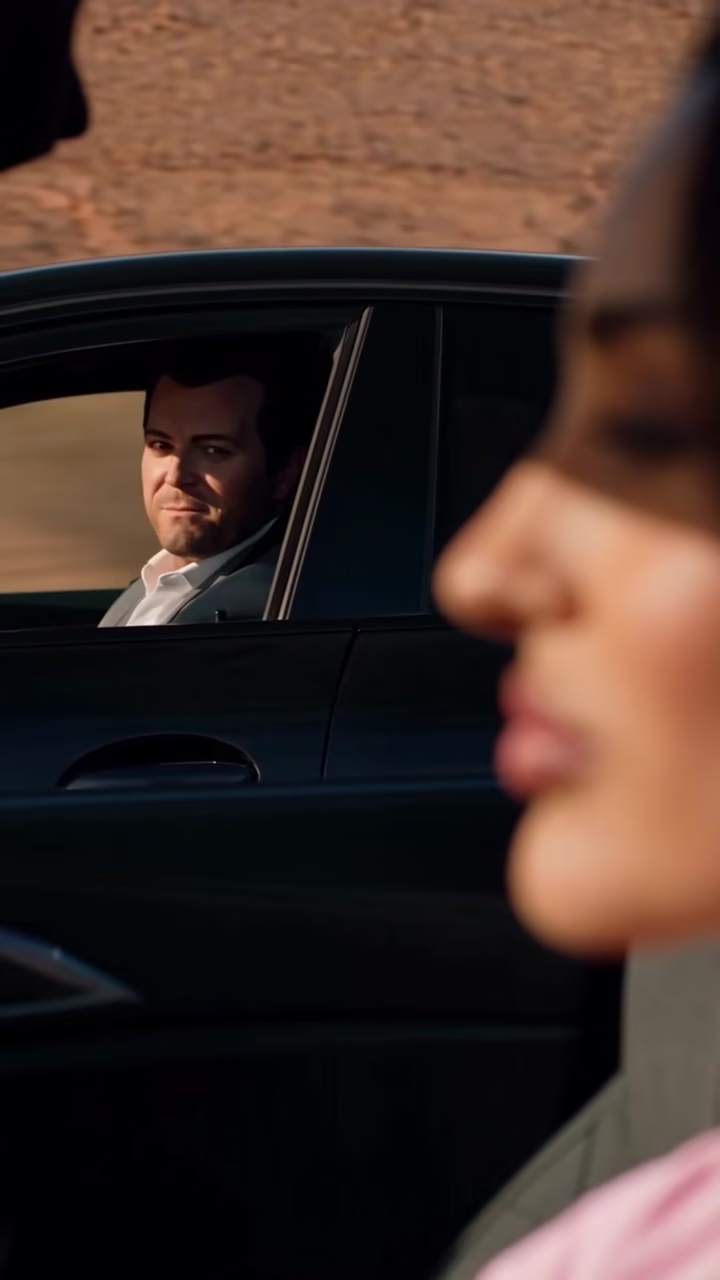
Goodbye Los Santos
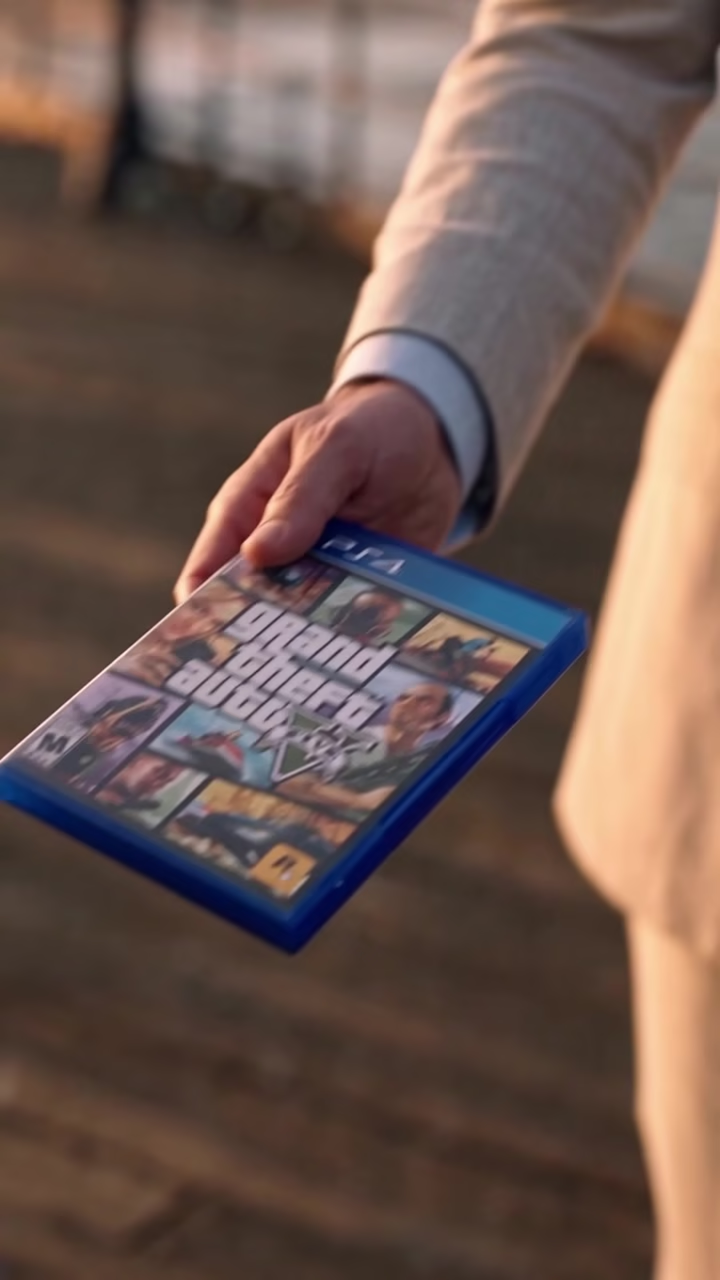
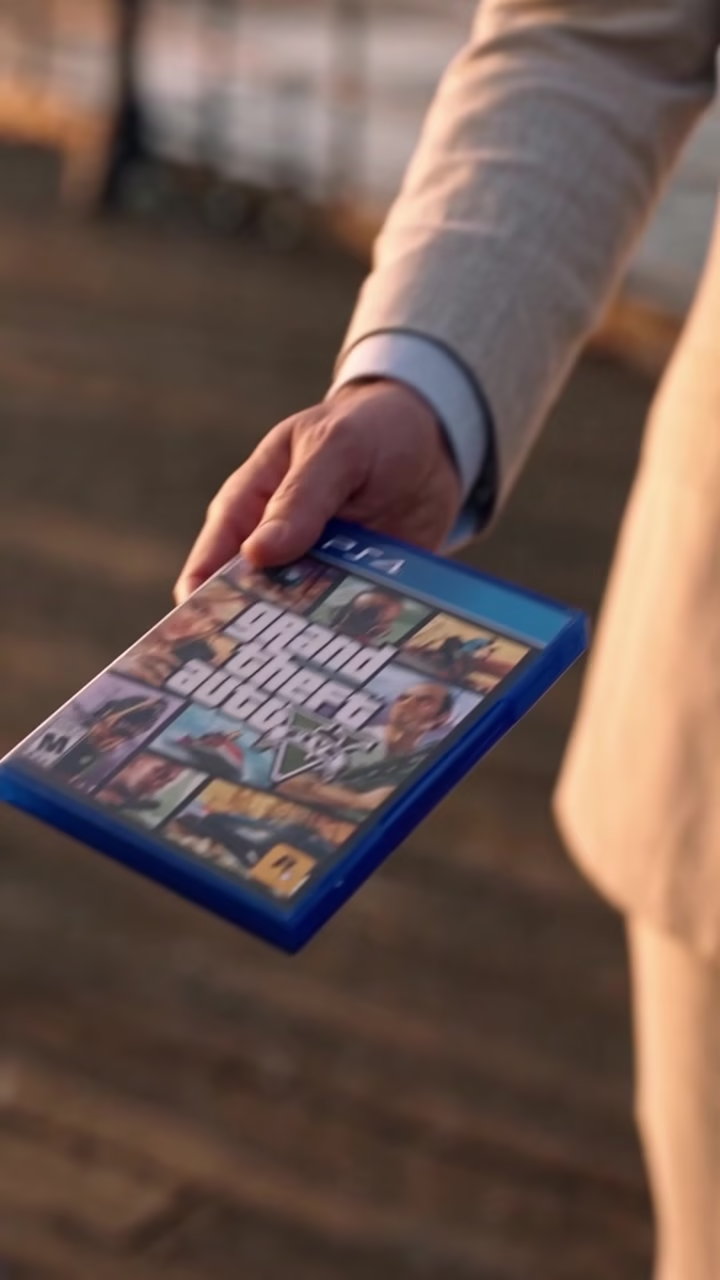
The Final Mission
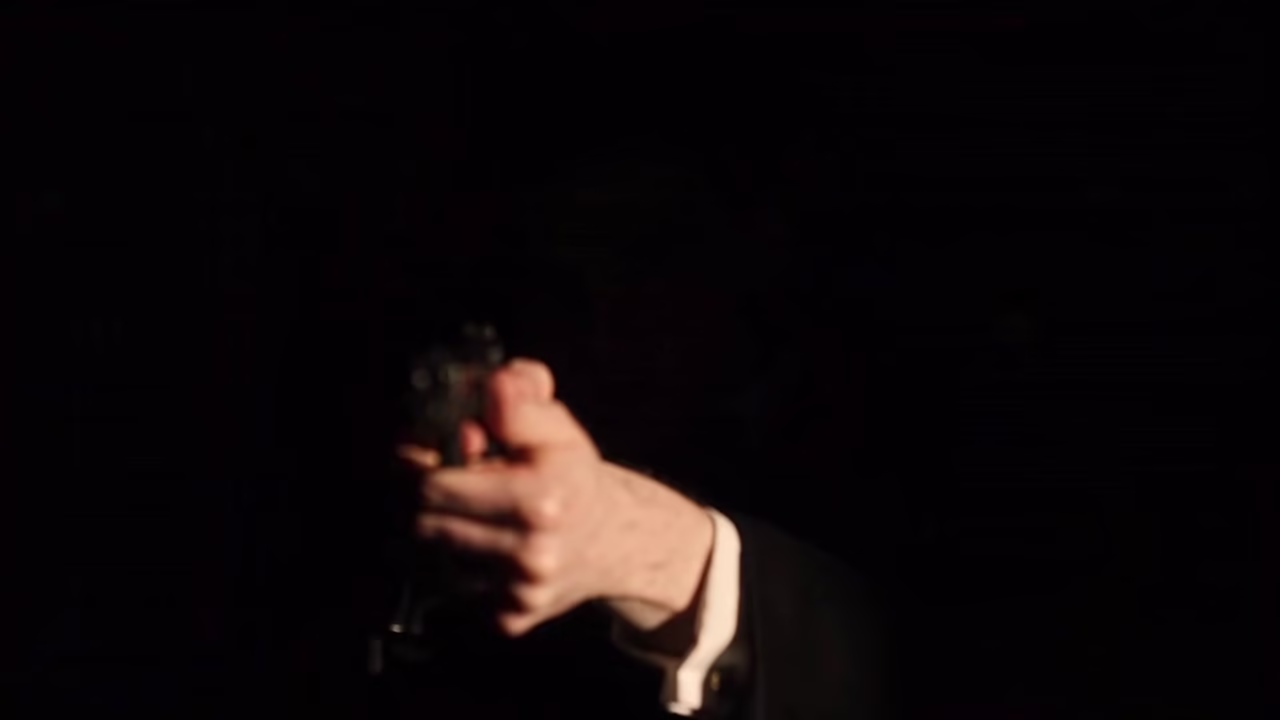
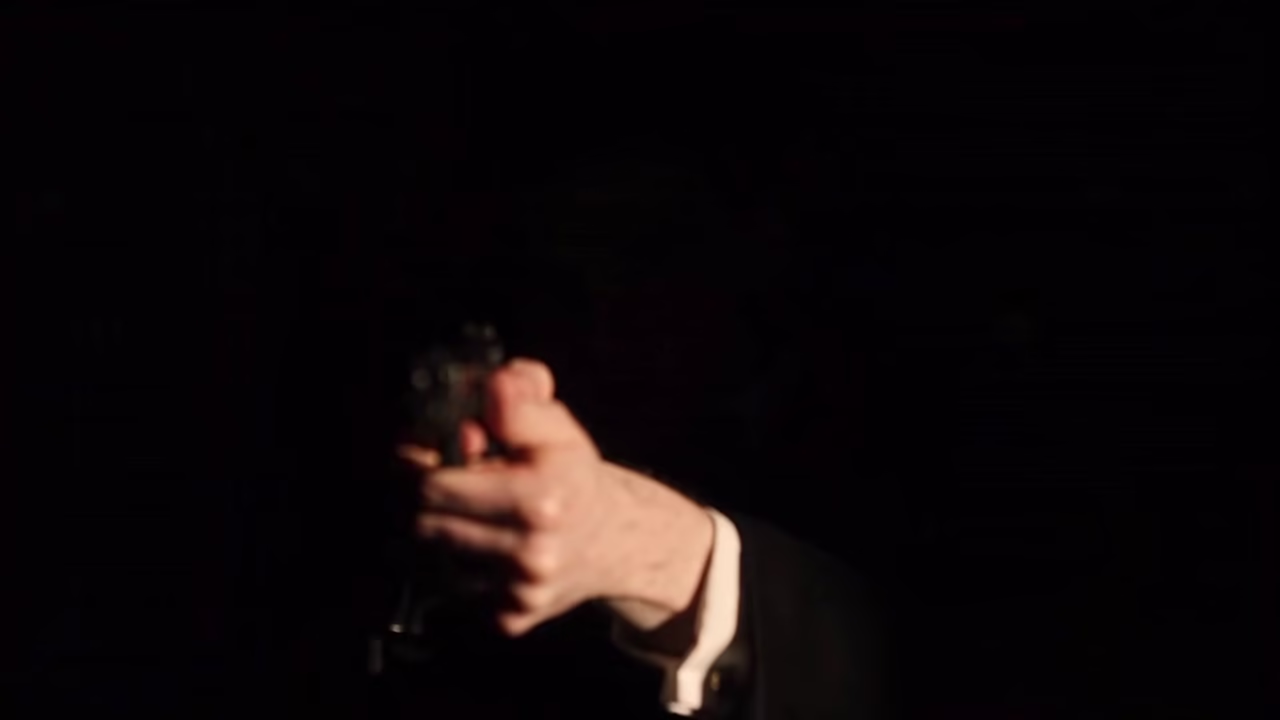
Code name 007
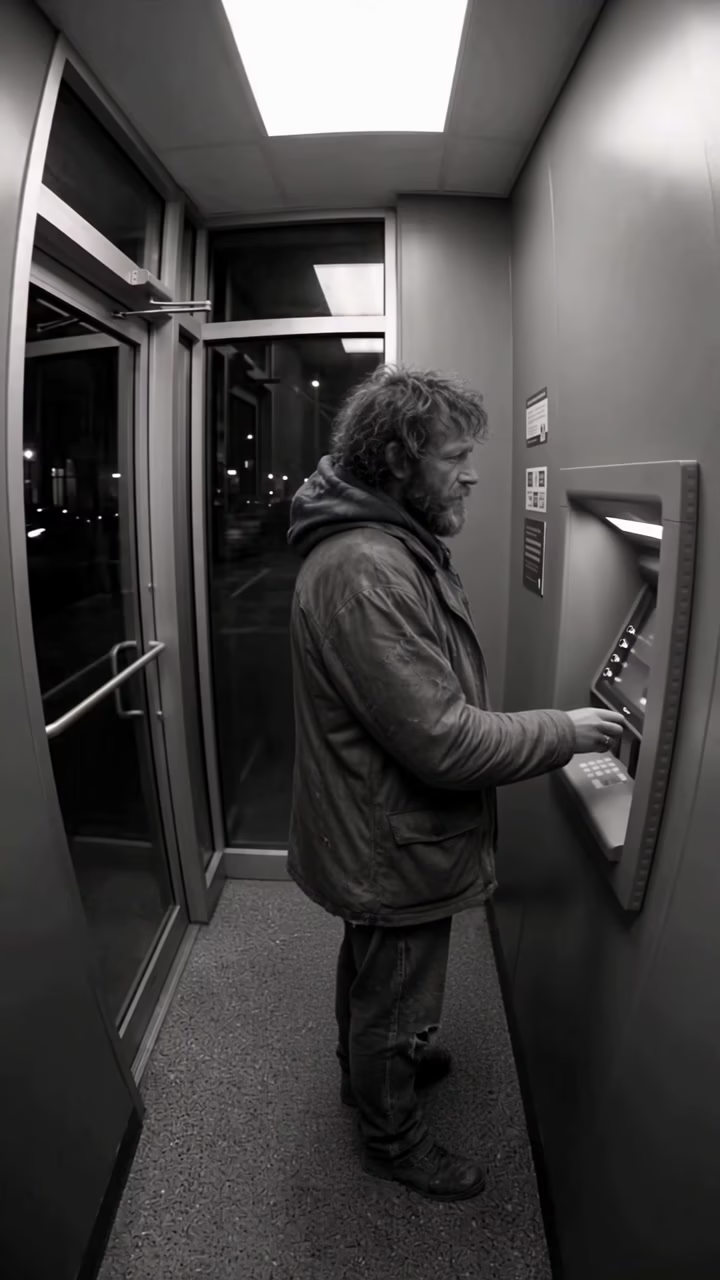
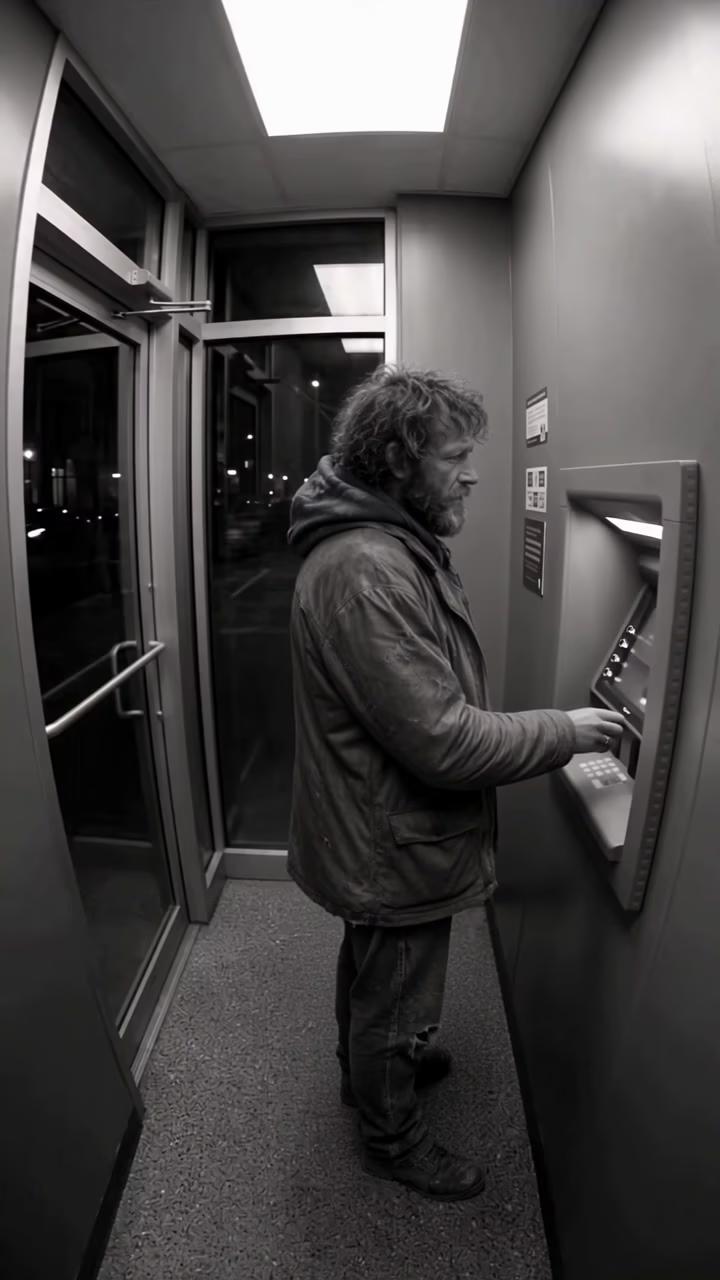
Cash Storm
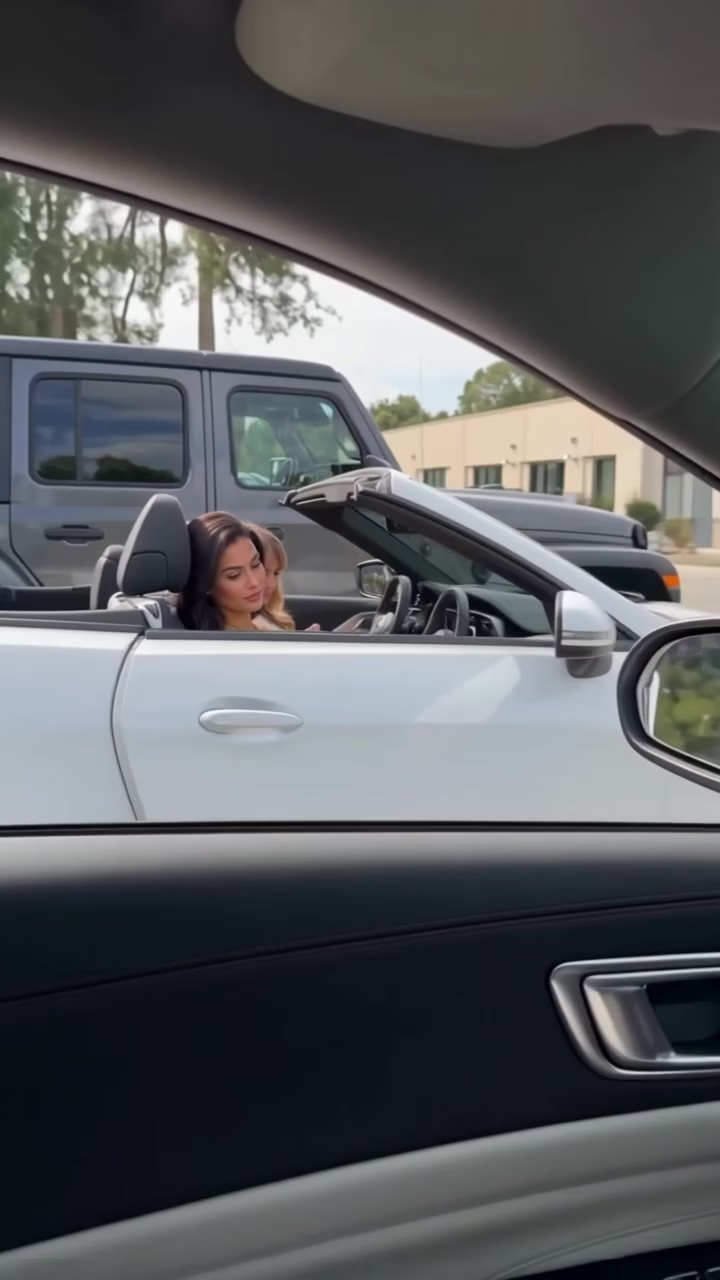
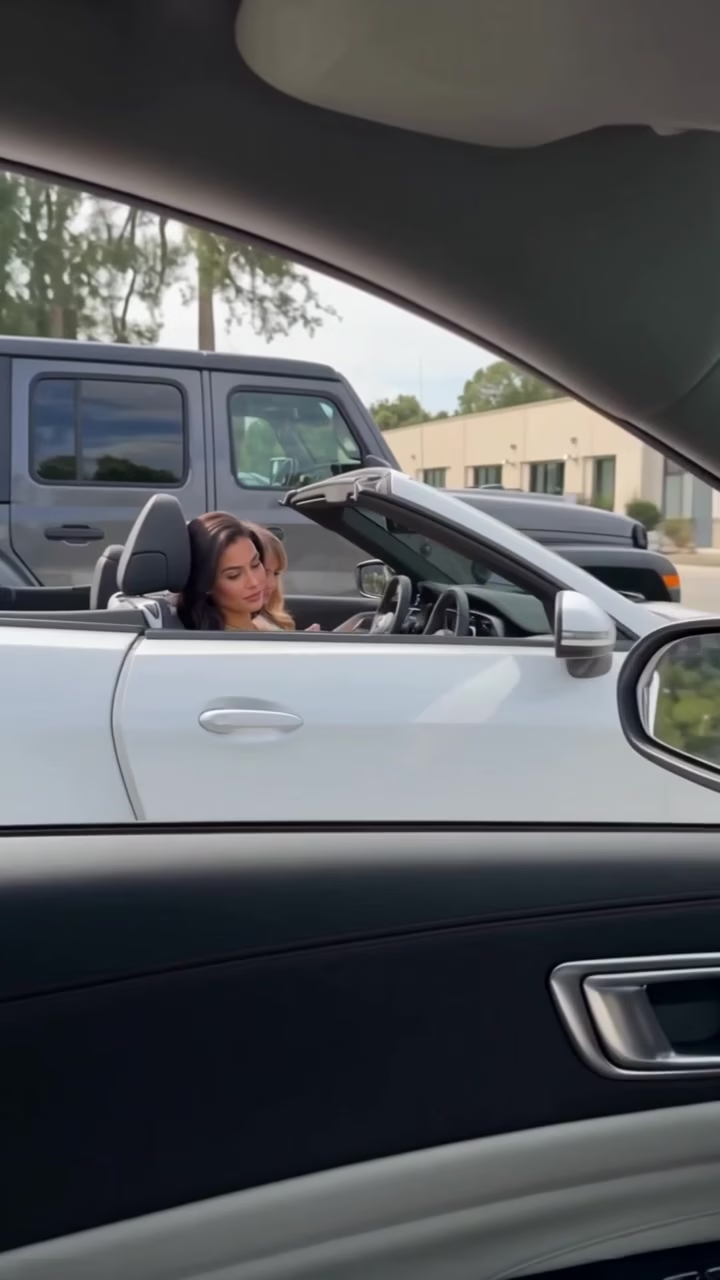
Car Crush
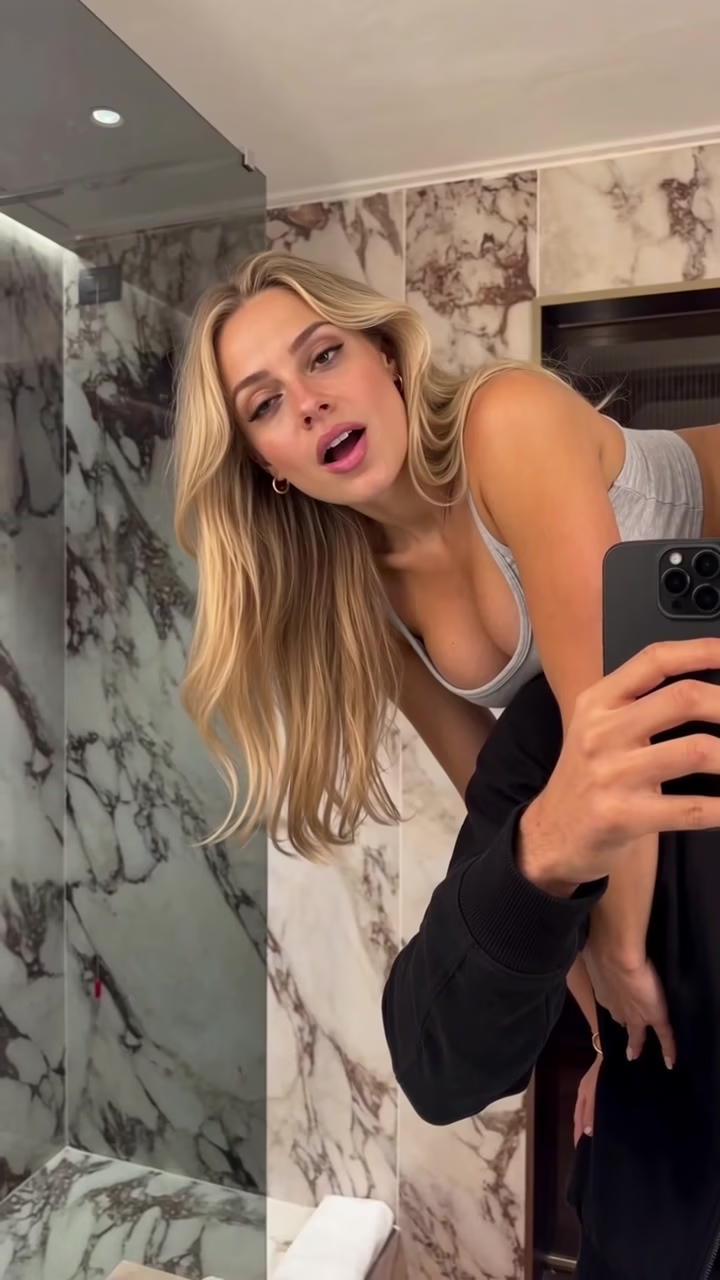
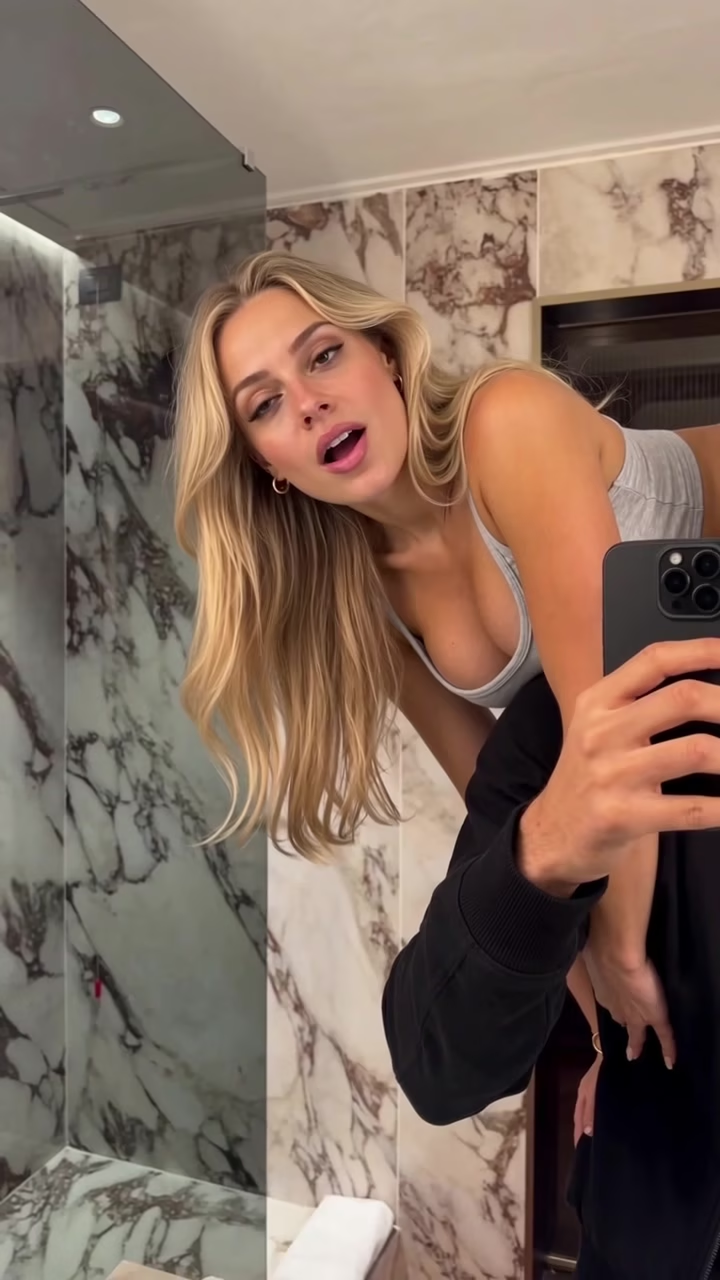
Lifted
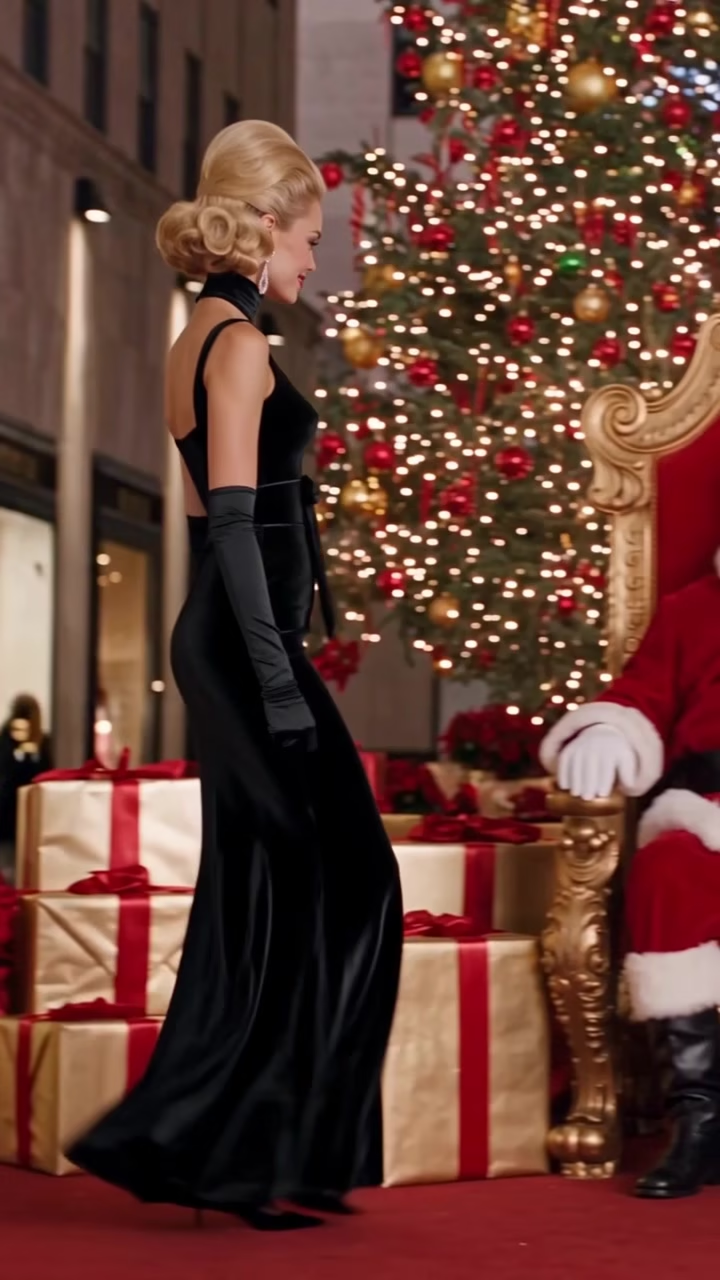
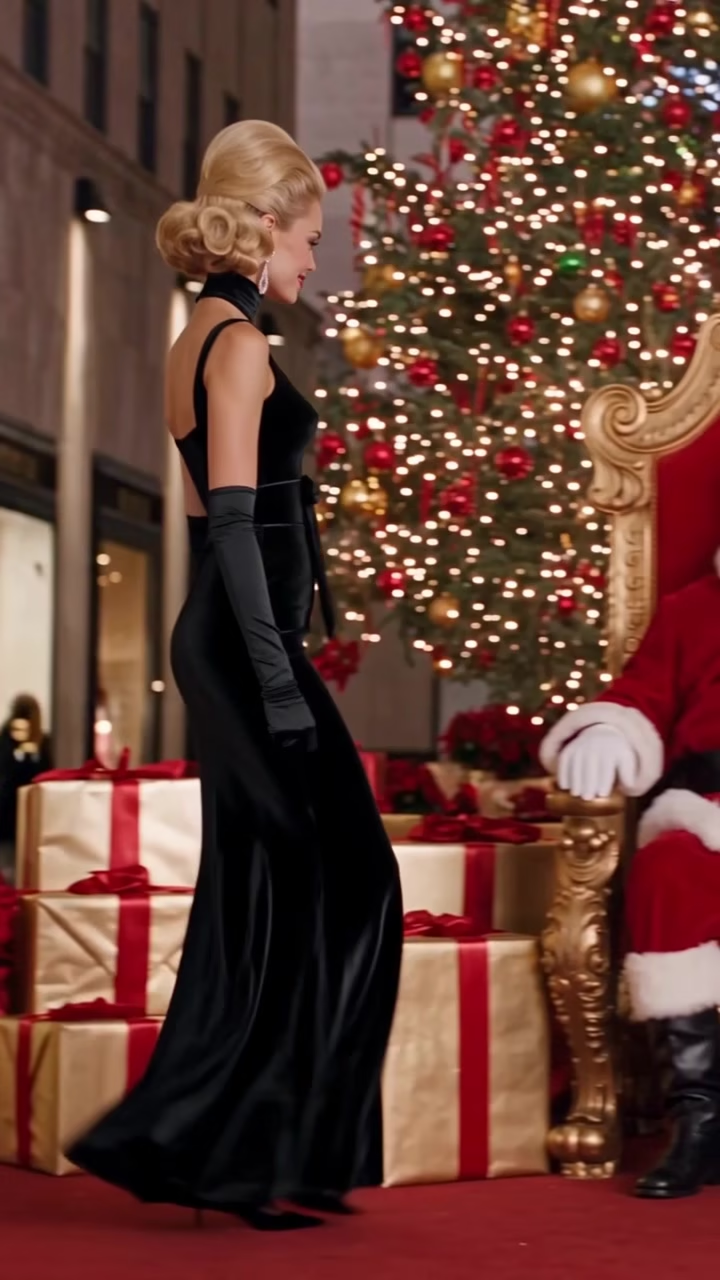
Santa’s Deal
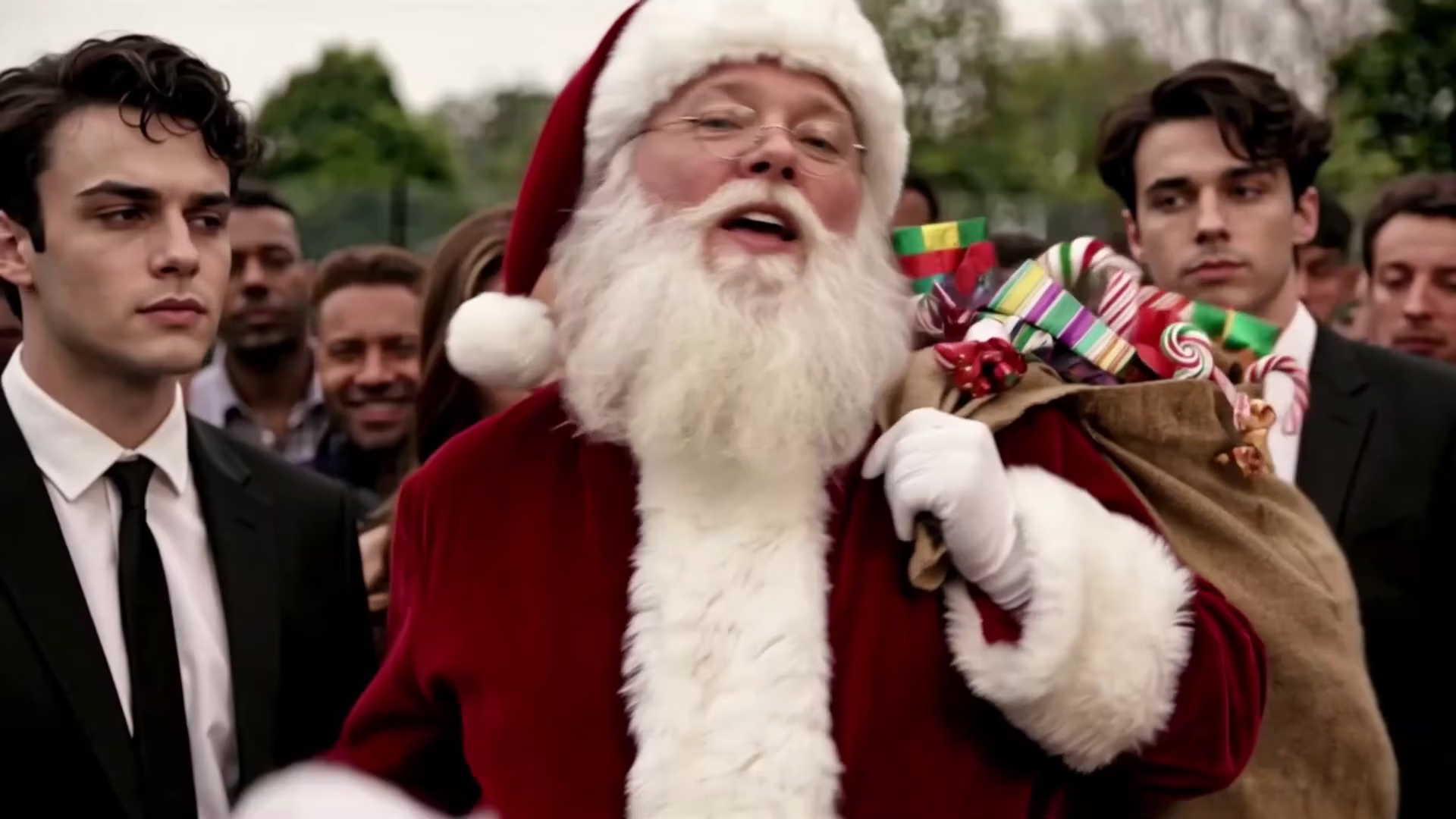
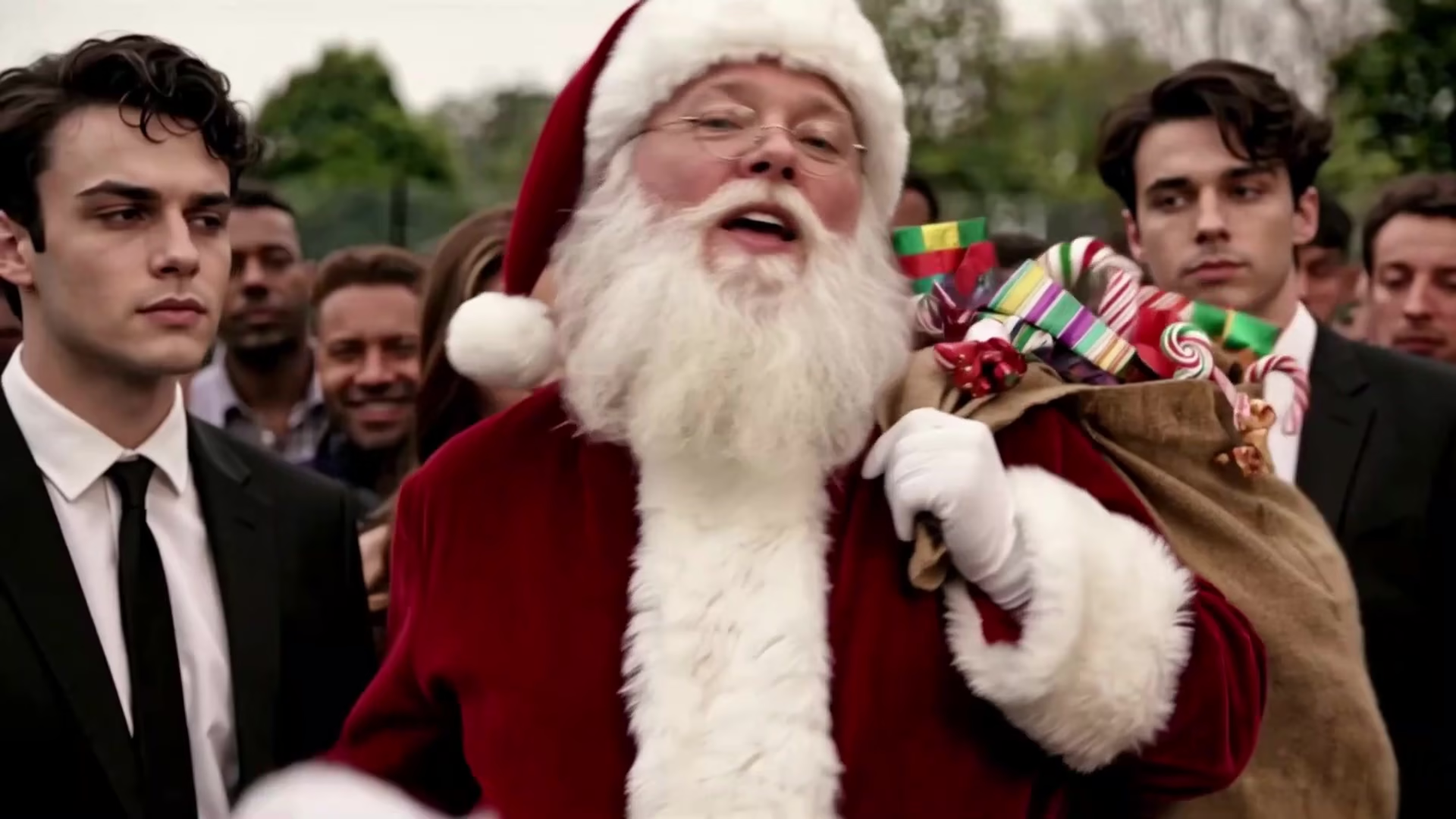
Shut up
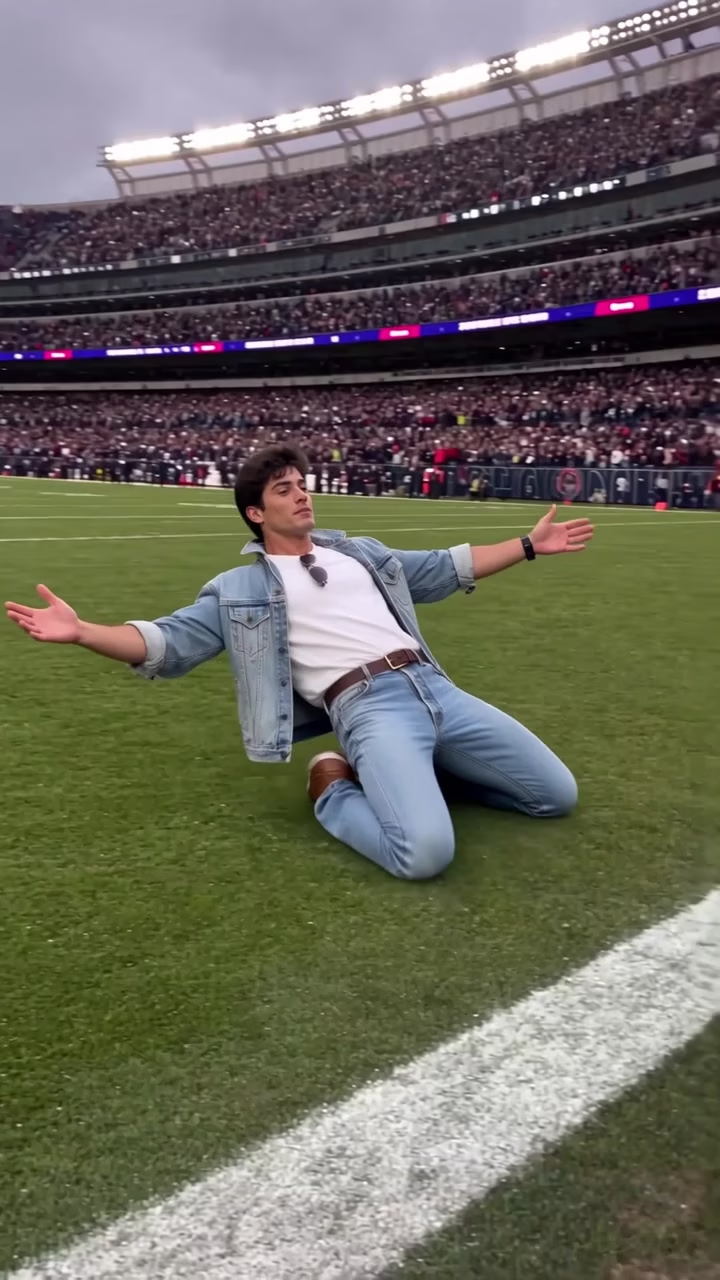
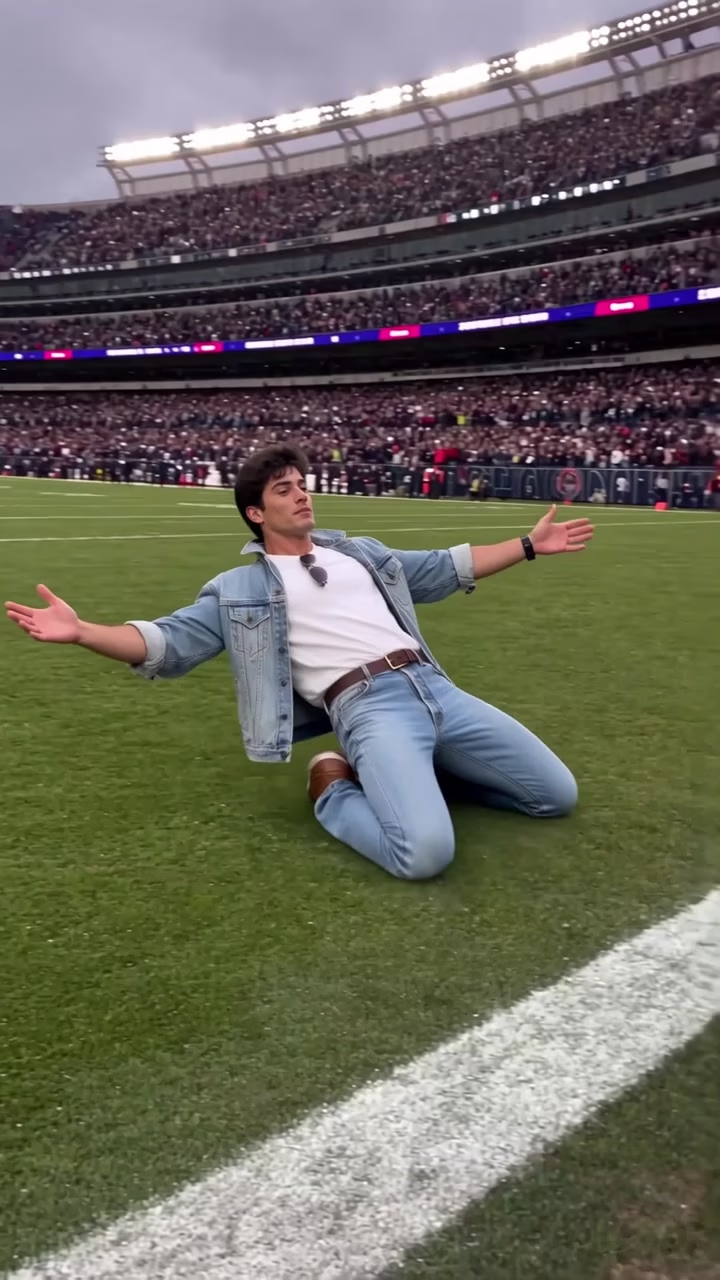
Knee Slide
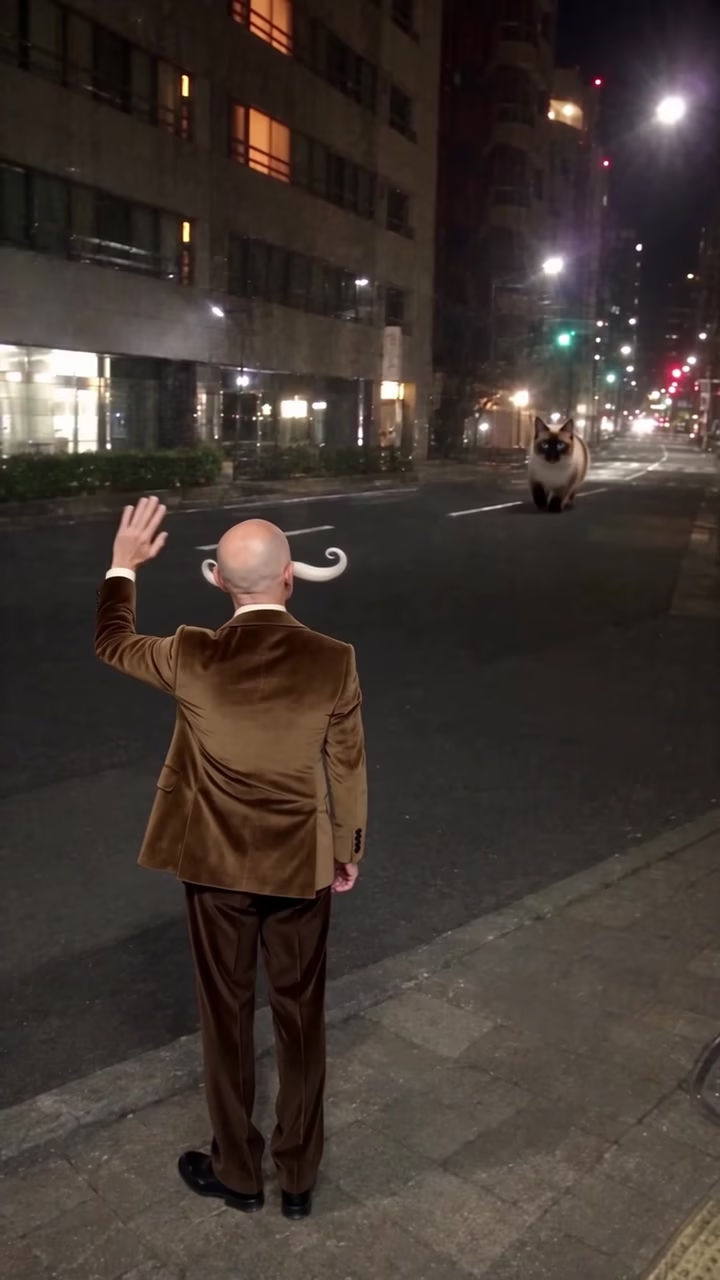
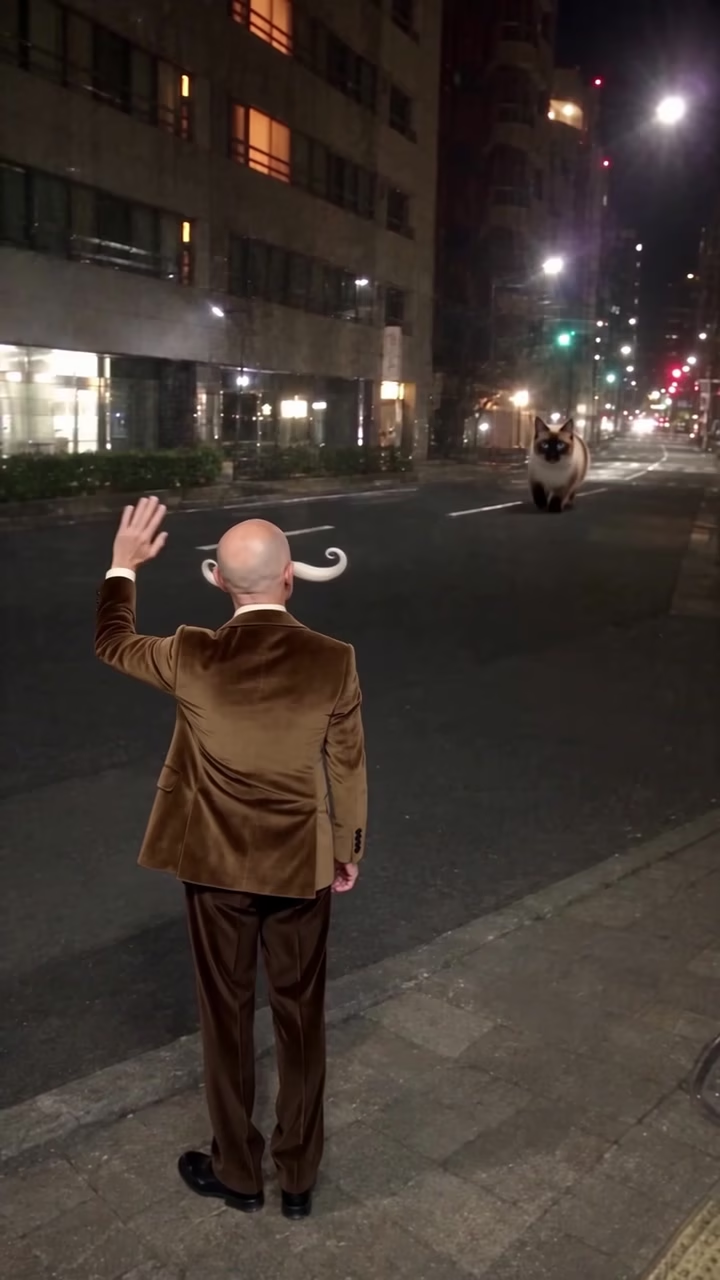
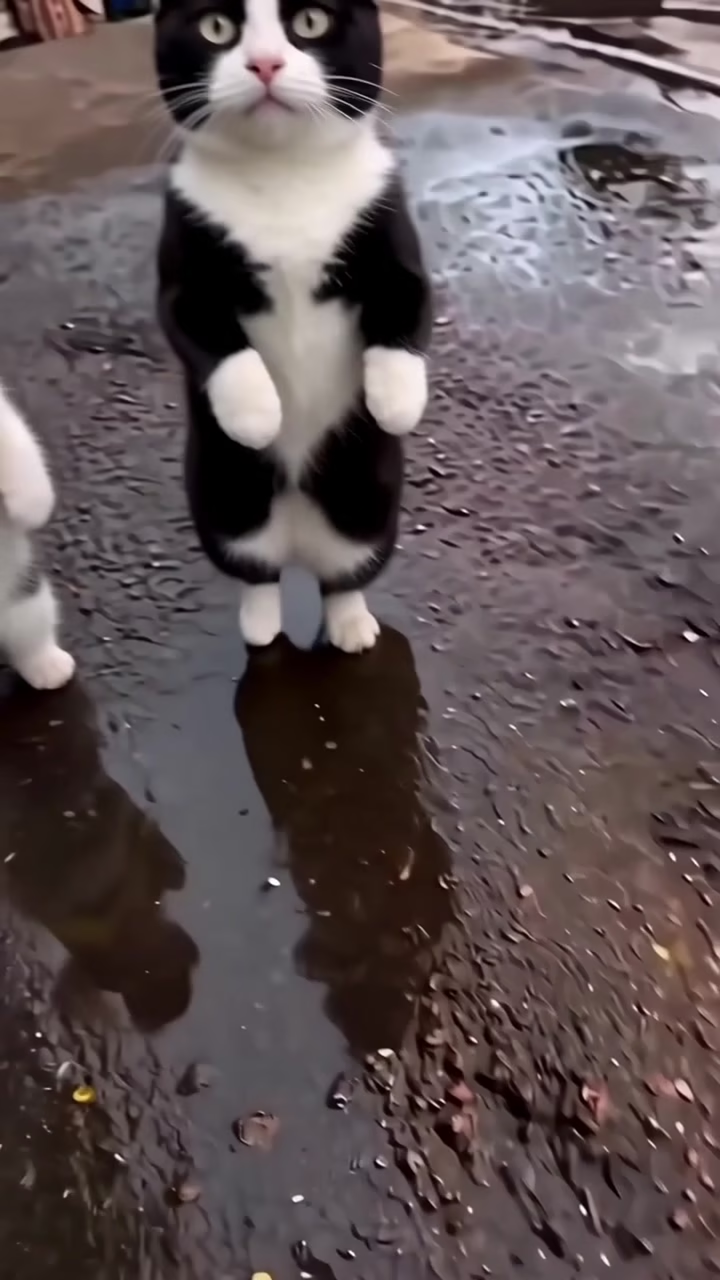
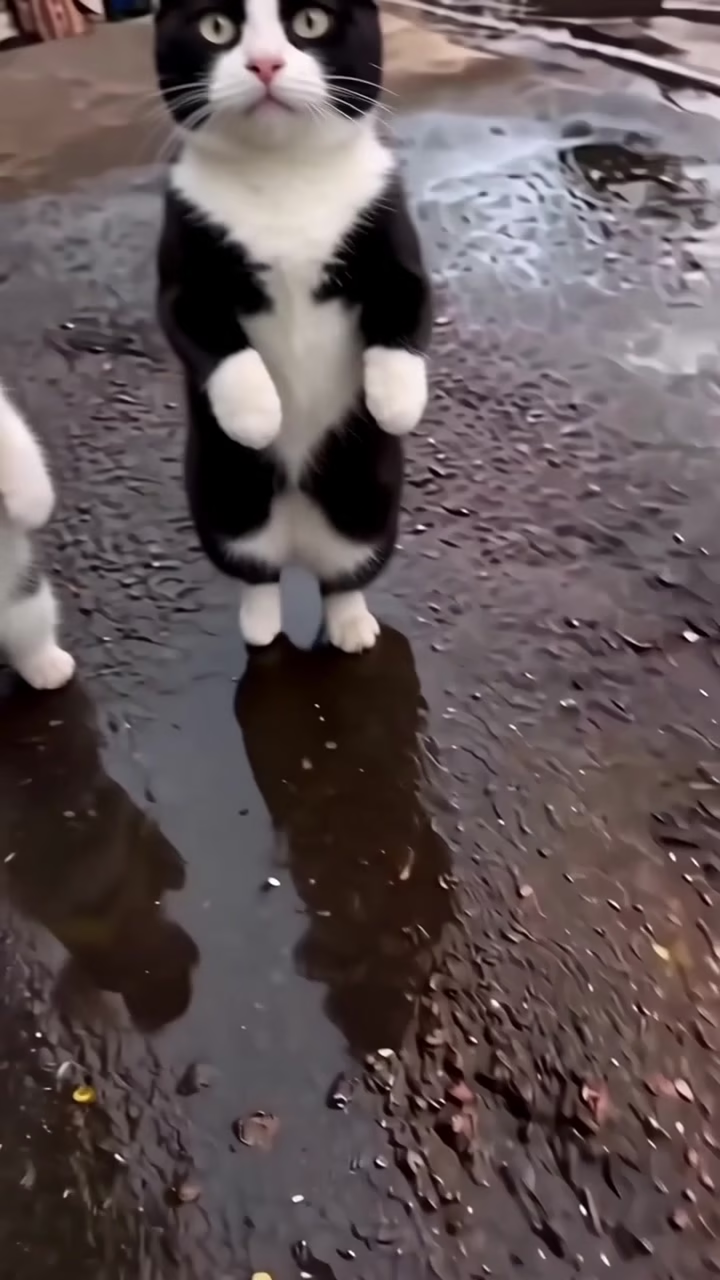
Cat Bus
Bullet Rush
Dribble
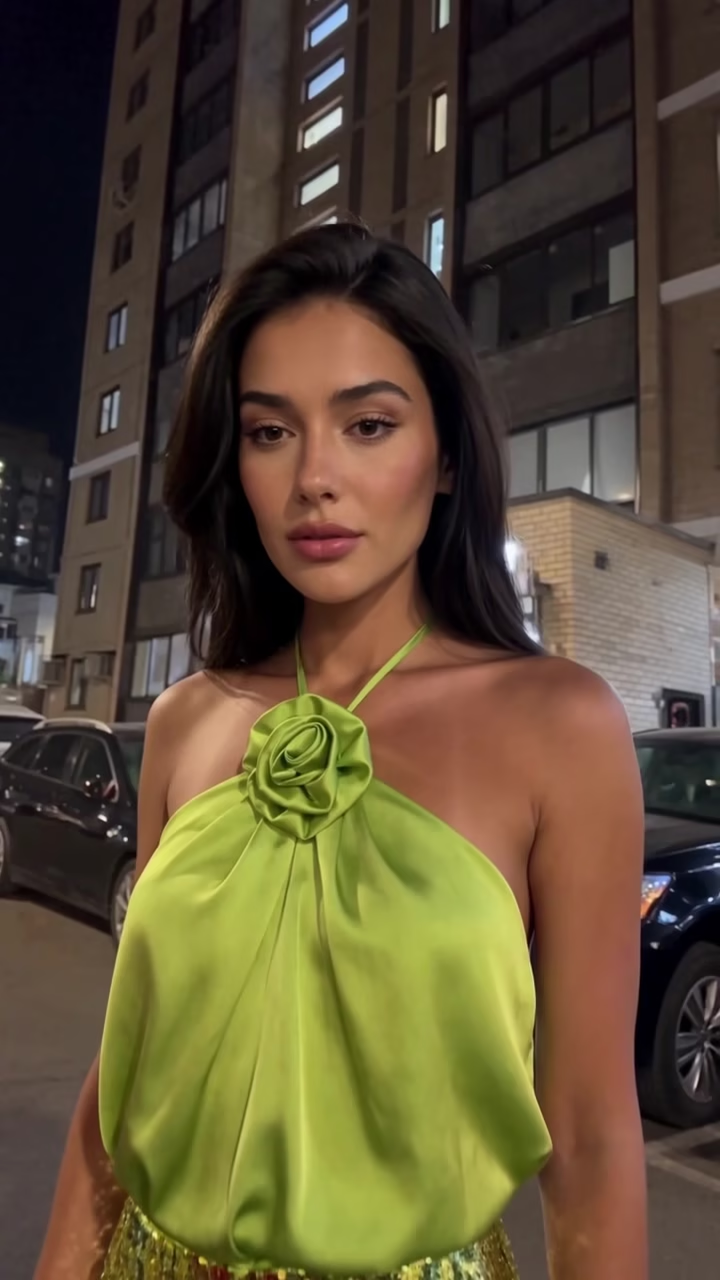
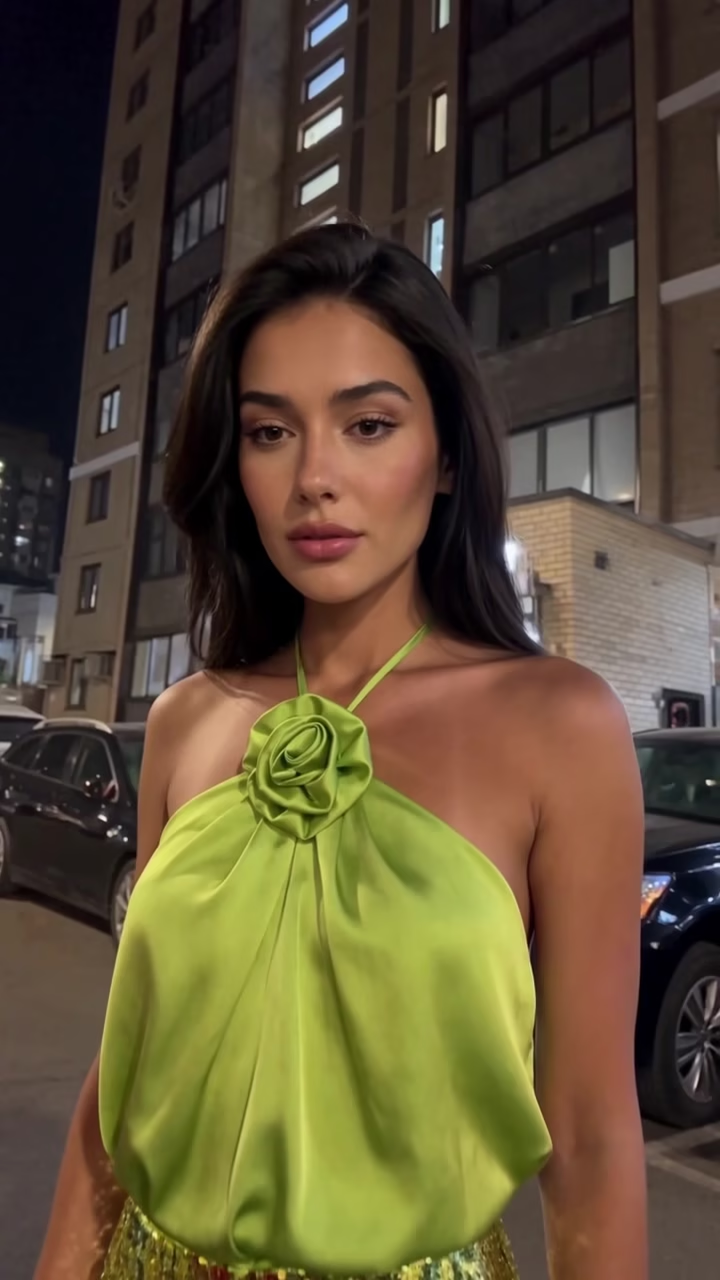
Tension
Use AI Genjutsu Generator to Turn Trending Videos Into Your Own Version
See a dance, camera move, or story clip you like? You do not have to recreate it from scratch. Use AI Genjutsu Generator to follow the motion and camera direction of a reference video, then build a new version around your own character, outfit, or visual idea. Choose an effect you like, then open the matching tool to start creating. Available inputs and options may vary by tool and model.
Create Your Genjutsu Video in Three Steps
1
Upload the Video You Want to Reference
After choosing an effect, open the matching tool and upload your reference video and character image.
2
Generate Your New Version
Choose the character, movement, or visual details you want to carry into the new version, then start generating.
3
Preview and Download
Check whether the character looks stable, the motion feels smooth, and the new version appears natural. When you are satisfied, download the finished video.
Why Choose Guma AI to Create AI Genjutsu Videos
The hardest part of creating this type of video is often not generating it, but deciding which effect to start with. Here, you can explore different result styles first, understand what you can create, and then open the right tool based on your reference video, character image, and creative goal.
See the Result Before You Start
Check whether the character, motion, and overall look match what you want before uploading your own assets. You do not have to rely on text alone to imagine the result.
Find the Right Direction for Your Assets
Dance videos, character photos, story clips, and full body movement may require different approaches. Choosing based on the assets you already have makes the creation process easier.
Start Without Learning a Complex Workflow
You do not need to understand every technical term before you begin. Choose the look you want, then follow the instructions to upload your assets and generate the video.
Create Different Versions From One Reference Video
The same movement can take on a different feeling with a new character, setting, or visual style. Once you find a result you like, you can keep exploring new directions without recording the performance again.
Choose the Right AI Model for Your Project
Choose a model based on the reference assets you have, the complexity of the movement, and the visual style you want to create. Supported inputs, duration, resolution, and generation options can differ between models, so check the model page before starting your video.


Explore More AI Creative Ideas
Halloween AI PromptsAI TikTok Dance GeneratorBirthday GeneratorAI Hug GeneratorAI Avatar GeneratorAI Age FilterAI Hairstyle PromptMagazine Cover AI PromptsAI Fantasy Art GeneratorAI Pet Portrait GeneratorAI Bangs FilterAlbum Cover PromptsVirtual Try-OnHotel Lobby AI Video GeneratorSTORM II AI Dance Generator
AI Genjutsu Generator FAQ
What Is AI Genjutsu Generator?
AI Genjutsu Generator uses a reference video to guide movement, timing, and camera direction, then creates a new version with a different character or visual direction. Depending on the selected Guma AI tool, you can transfer motion to a still character image or recast a person in an existing video.
What Videos Can I Create With AI Genjutsu Generator?
You can create AI dance videos, trending video recreations, character recasts, outfit changes, motion controlled character clips, and new versions of story or performance videos. The available options and final result depend on the reference assets, selected tool, and model.
What Assets Do I Need to Create a Genjutsu Video?
You generally need a reference video and a clear character image. Motion Control uses the video as a movement reference and the image as the character reference. Video Recast uses the original clip together with a photo of the person or character you want to place into the scene.
What Is Motion Transfer?
Motion Transfer uses movement from a reference video to animate a still character image. Depending on the selected model and source material, the result may follow body movement, gestures, facial performance, timing, and camera direction from the reference clip.
What Is Character Swap?
Character Swap is a general term for replacing a selected person, outfit, product, or visual element while keeping the parts of the original video that do not need to change. Available replacement options depend on the tool and model you choose.
How Do I Choose Between Motion Control and Video Recast?
Choose Motion Control when you want a character image to follow the movement from a reference video. Choose Video Recast when you already have a video and want to replace its actor, clothing, or complete character while keeping the surrounding scene.
How Is AI Genjutsu Different From Regular Face Swapping?
Regular face swapping mainly changes a person’s face. AI Genjutsu workflows can work with full characters, clothing, body movement, and the visual direction of a scene, depending on the selected tool and model.
How Can I Replace the Main Character in a Trending Video?
Prepare a clear reference video and a character image. Use Video Recast when you want to replace the actor in the original scene. Use Motion Control when you want a still character image to follow the movement from the reference performance.
What Type of Reference Video Produces More Natural Results?
Choose a clear clip with steady lighting, a visible subject, and limited background clutter. For Motion Control, a stable single person shot with continuous movement and a clearly visible upper or full body generally provides a stronger starting point. Fast cuts, heavy motion blur, and subjects leaving the frame can reduce stability.
What Type of Reference Image Should I Use?
Choose a clear image that shows the character’s face, hairstyle, clothing, and body shape. Match the framing to the reference video when possible. Use a full body image for full body movement and a closer portrait for videos focused on the face or upper body.
How Long Can the Reference Video Be?
For Guma AI Motion Control, the action reference video can be between 3 and 30 seconds and up to 100 MB in MP4 or MOV format. Other tools and models may use different limits, so check the upload requirements before generating.
Do I Need to Write a Long Text Description?
Not always. In Motion Control, the text prompt is optional because the reference video already guides the movement. Add a short description when you want to shape the scene, atmosphere, lighting, camera feel, or background.
Why Does the Generated Video Look Different From the Reference?
The model interprets the reference instead of copying every pixel. Differences in framing, character orientation, image quality, hidden body parts, motion speed, and background complexity can affect the result. Try a better matched character image or a shorter, clearer reference clip.
Do I Need to Install Software?
No. Guma AI works in your browser. Choose an effect, open the matching tool, and follow the upload instructions to begin creating.
Can I Download the Generated Video?
Yes. After generation is complete, preview the character, movement, and overall result. If the video looks right, download the finished version from the tool you used.
Choose a Video You Like and Make Yourself the Main Character
Start with a movement, camera direction, or story clip you like, then use AI Genjutsu Generator to create a new version built around your own character.