
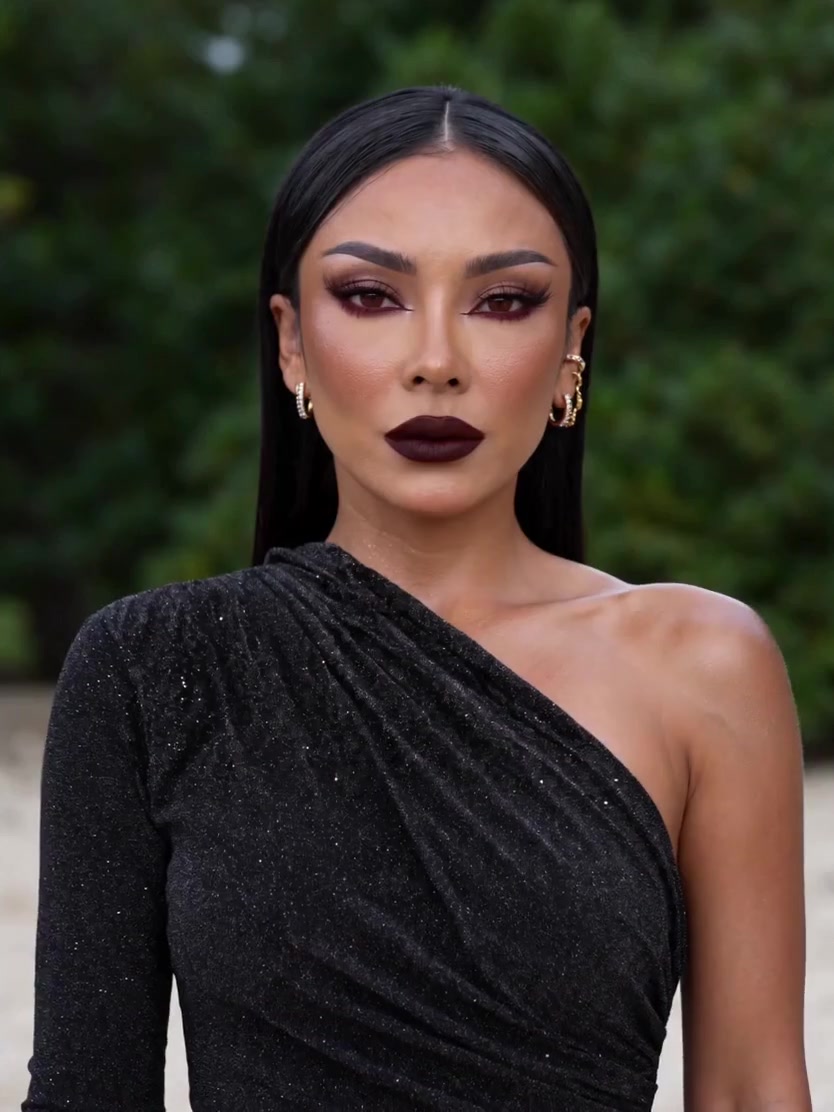
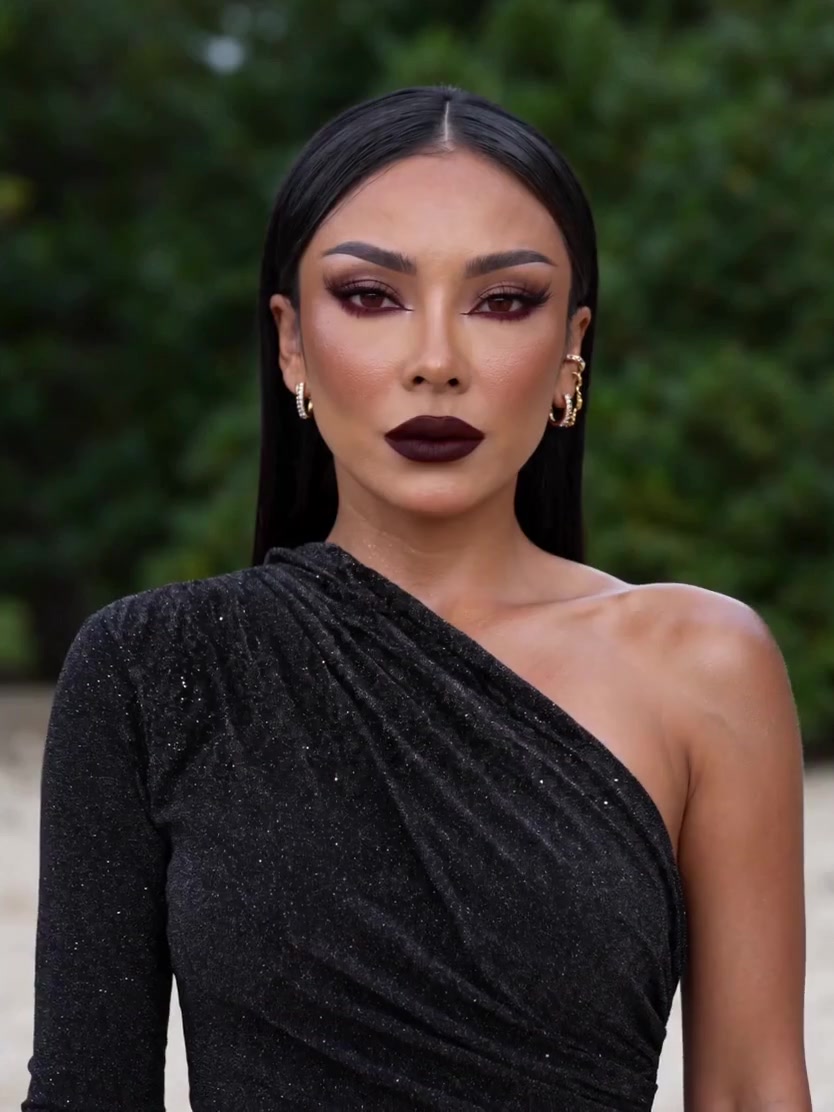
Face Expression Changer
Explore Face Expression Changer effects for smiles, sadness, surprise, and more. Choose one expression for your photo, then continue to the AI tool to turn your image into a video.
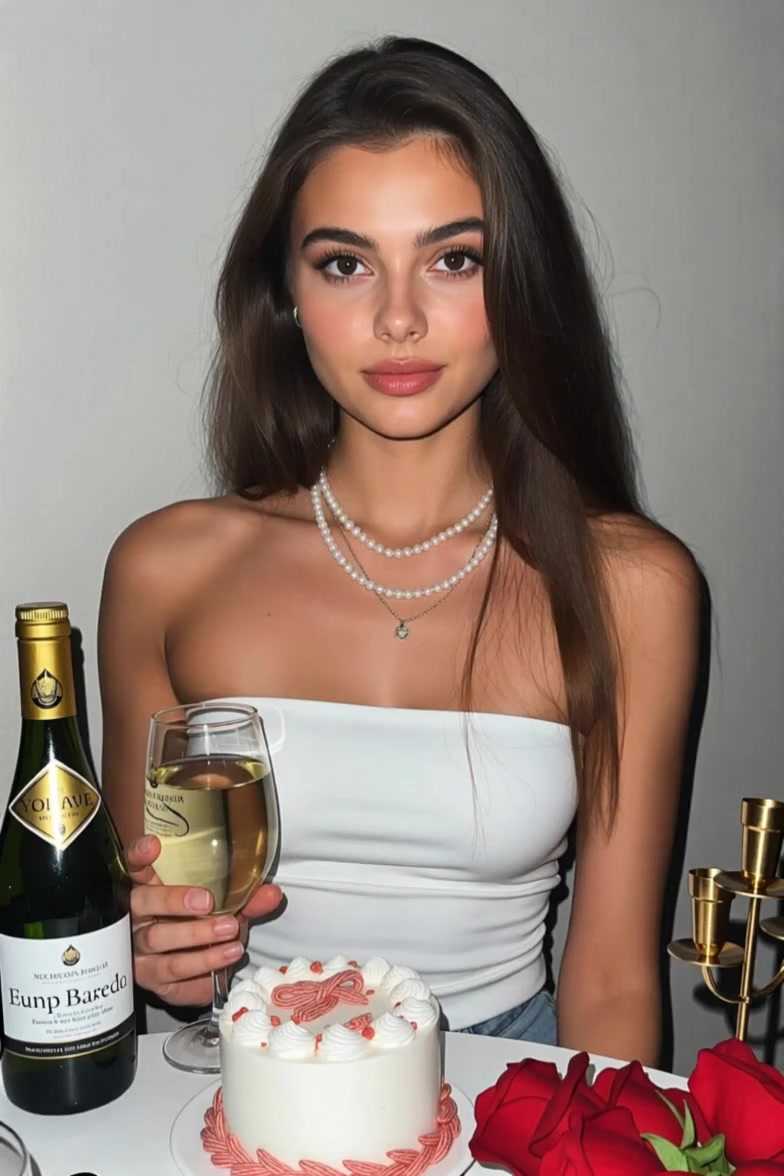
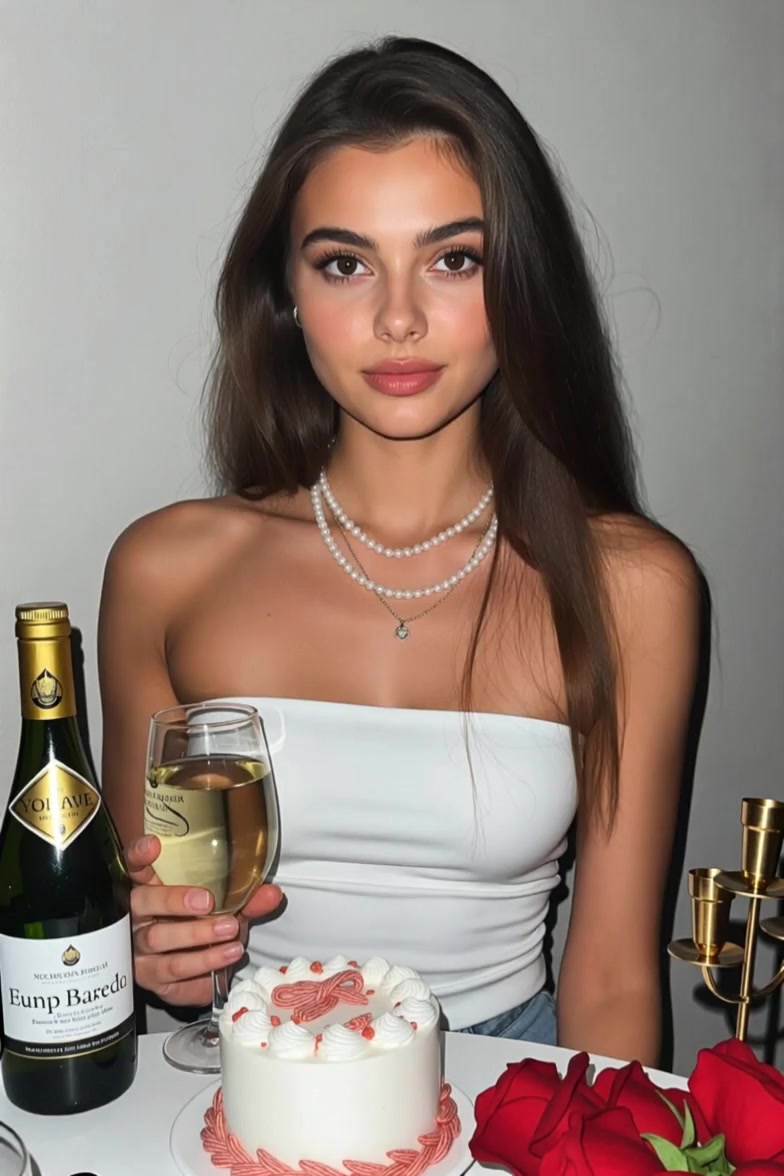
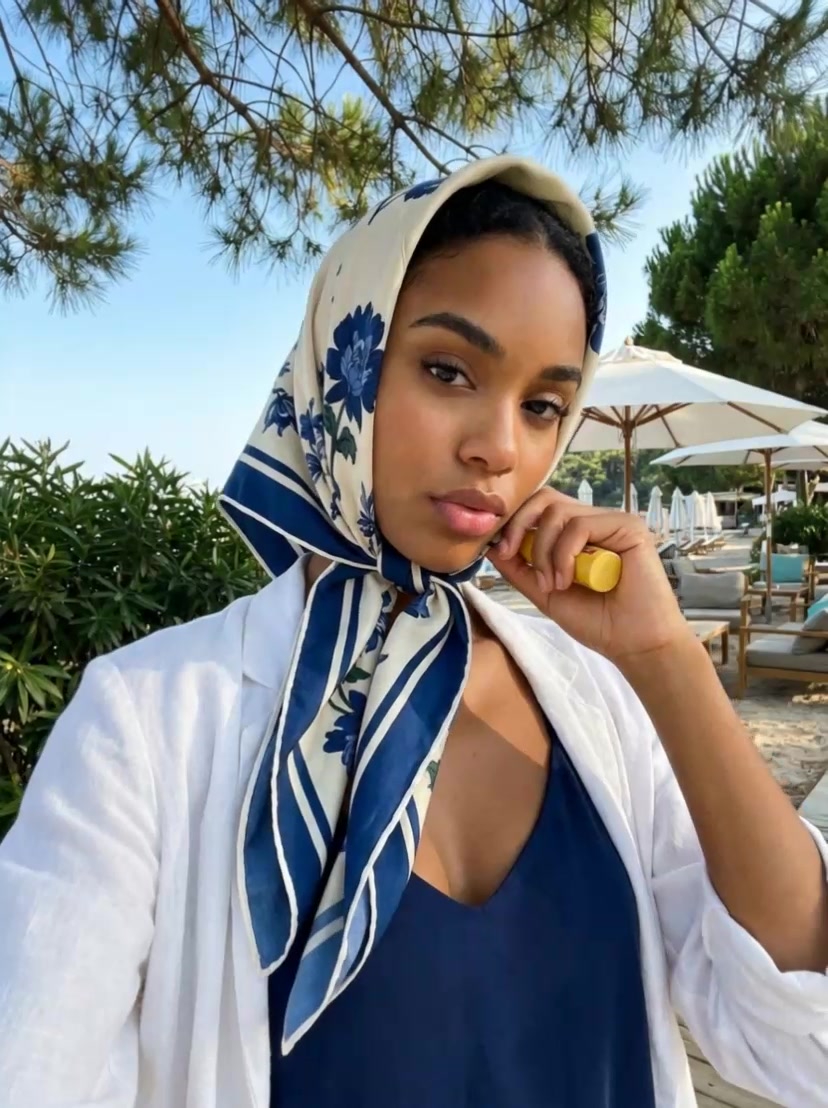
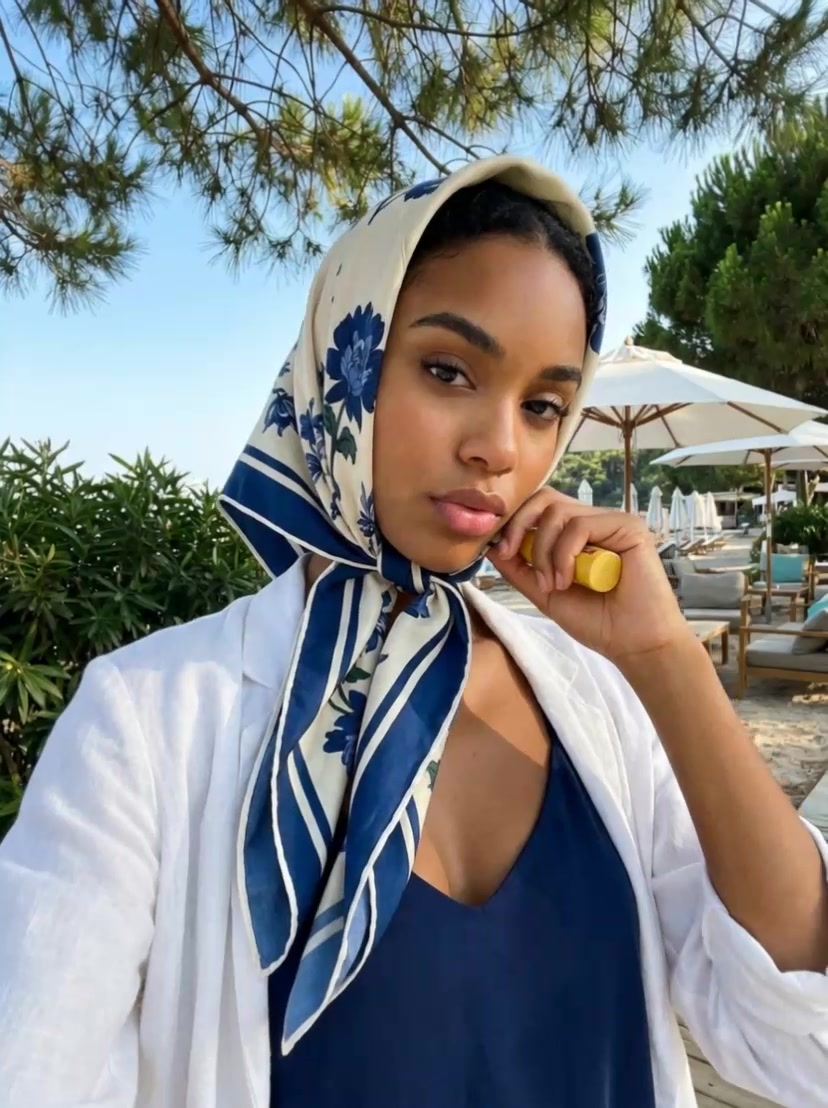
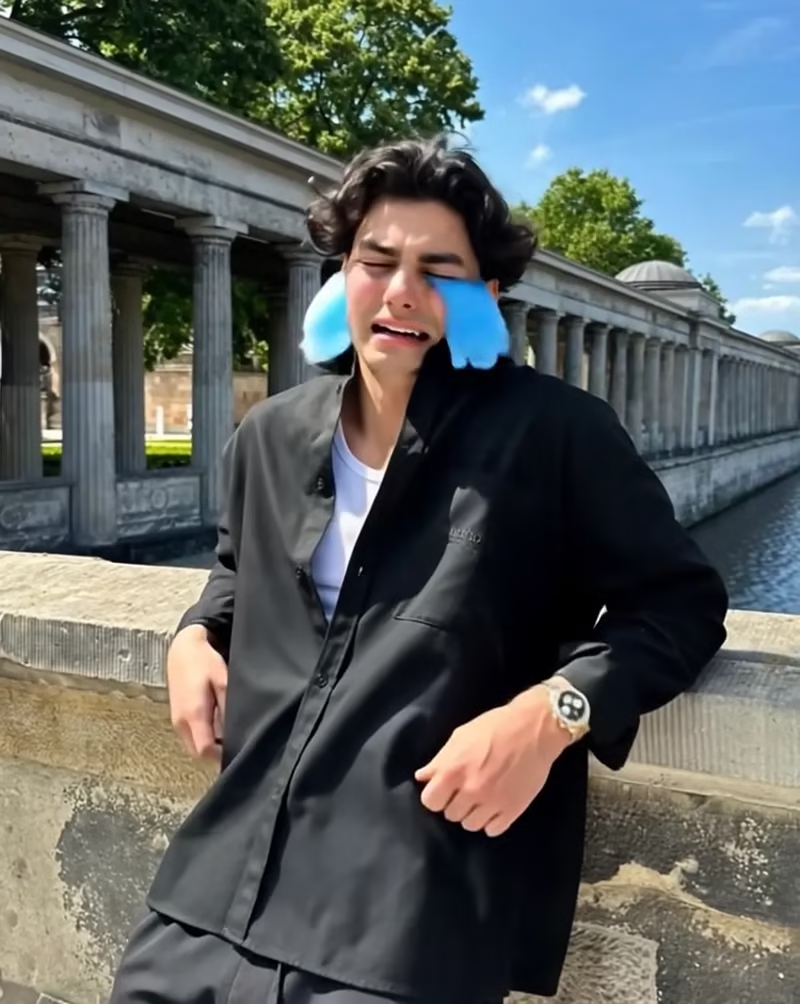
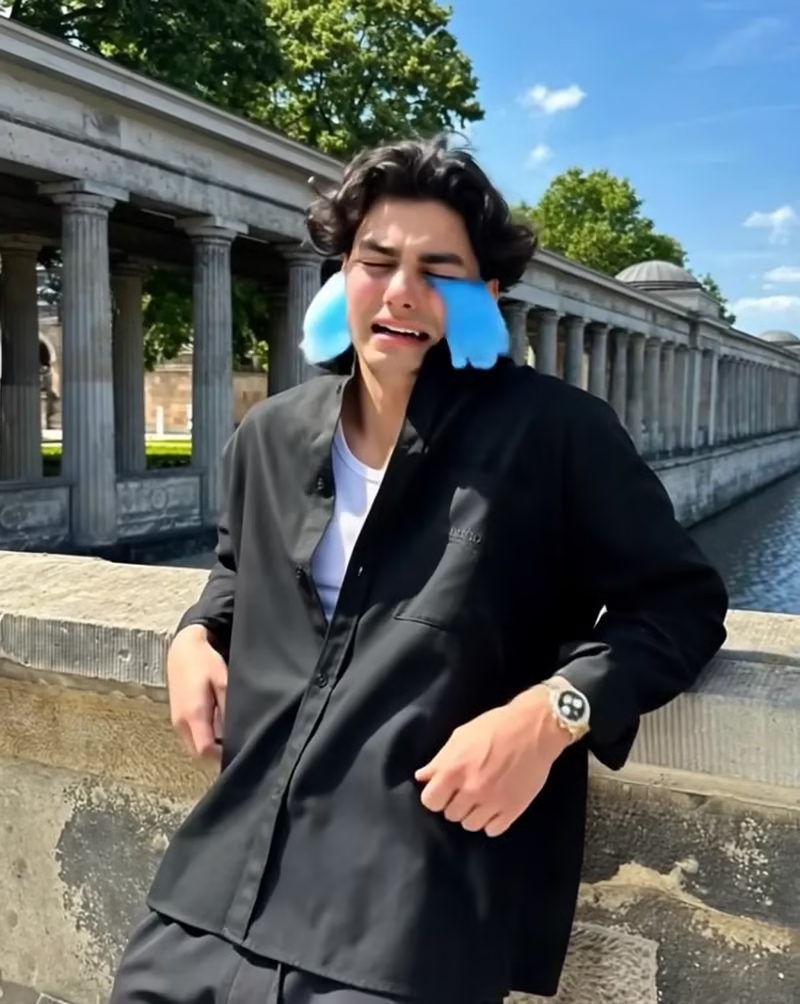
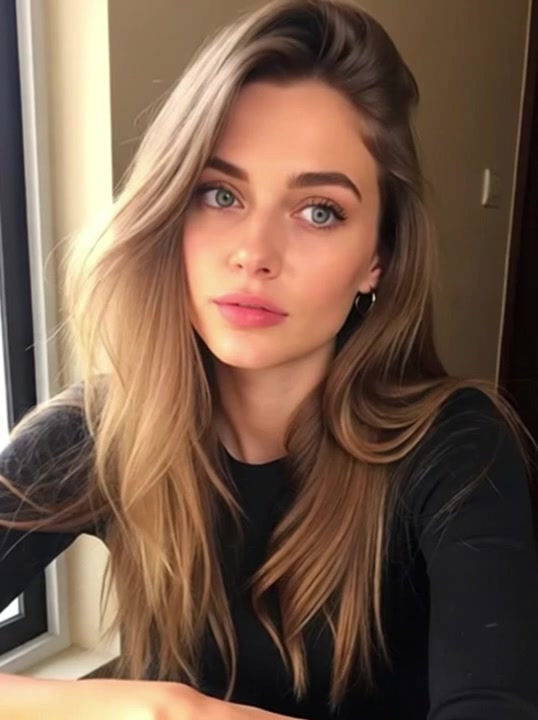
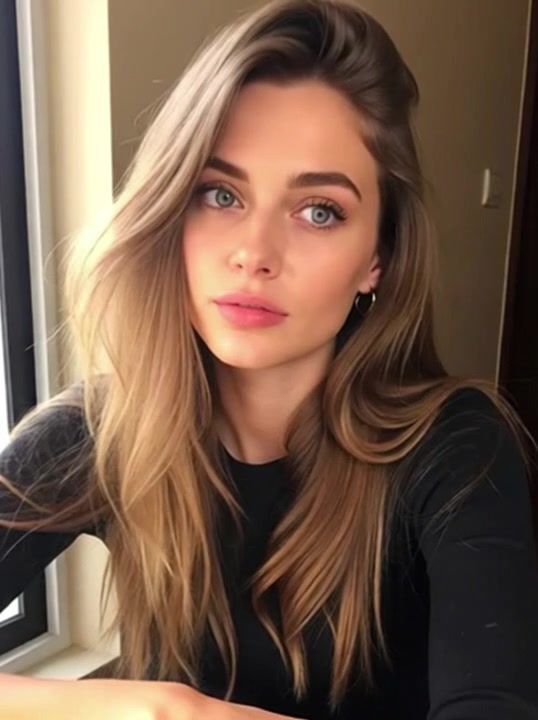


Bring Natural Expressions to Life in Your Photos
Face Expression Changer brings together expression effects that turn a static portrait into a video with changing facial expressions. Compare different looks, choose the expression that fits your idea, and continue to the generation tool with your own photo.
Create a Facial Expression Video in Three Steps
1
Upload a Clear Portrait
After choosing an expression effect, open the generation tool and upload a photo where the face is clear, well lit, and easy to recognize.
2
Generate the Expression Video
Confirm the expression you want to use and start generating. Your portrait becomes a video that shows the selected facial movement.
3
Preview and Download the Video
Watch the generated video and check the expression, facial movement, and overall appearance. Download the result when it looks right, or try another photo if the face is difficult to see.
Why Use Guma AI for Facial Expression Videos
Creating a facial expression video should feel straightforward. You can compare expression ideas first, choose the one that suits your photo, and then continue to the video tool. The process keeps each step clear without asking you to prepare complicated source material.
Compare Expression Ideas First
A smile, surprised reaction, or dramatic look can completely change the mood of a portrait. Comparing different directions first helps you choose an expression that suits the scene.
Start with One Portrait
Begin with a photo you already have. A clearly visible face gives you a better starting point for turning a still portrait into an animated expression video.
Stay Focused on Facial Movement
When viewing the result, pay attention to the eyes, mouth, eyebrows, and head movement. These details help you decide whether the expression feels right for the person and scene.
Review the Video Before Saving
Review the complete result before downloading it. If the expression is unclear or the face looks difficult to follow, try a clearer portrait or choose a different effect.
Continue with a Video Creation Tool
Choose the entry that fits your source material and creative goal, then continue in a focused workspace for the next part of your video.


Explore More AI Creation Categories
AI Halloween EffectAI TikTok Dance GeneratorAI Birthday Photo GeneratorAI Hug GeneratorAI Avatar GeneratorAI Age FilterAI Hairstyle PromptMagazine Cover AI PromptsAI Fantasy Art GeneratorAI Pet Portrait GeneratorAI Bangs FilterAI Album Cover PromptsAI Virtual Try OnHotel Lobby AI Video GeneratorSTORM II AI Dance Generator
Face Expression Changer Frequently Asked Questions
What Is a Face Expression Changer?
Face Expression Changer is an AI expression changer that animates facial expressions in a static portrait and produces a video. You choose an expression effect, open the generation tool, upload a photo, and create a video with visible facial movement.
Does It Generate an Image or a Video?
It generates a video rather than a new static image. The uploaded photo provides the starting portrait, while the generated result shows changes in facial expression and movement over time.
How Do I Create a Facial Expression Video from a Photo?
Choose an expression effect, open the generation tool, and upload your portrait. Start generating, preview the facial expression and movement, and download the video when you are satisfied with the result.
What Kind of Photo Should I Use?
For a clearer starting point, use a portrait with a visible face and balanced lighting. Try to avoid photos where hair, hands, sunglasses, or other objects cover the eyes or mouth.
Can I Use a Side Profile Photo?
Support may vary depending on the generation entry you select. If the page does not specifically confirm side profile support, start with a portrait where the eyes, mouth, and overall face shape are easy to see.
Can I Use a Group Photo?
Handling of group photos may vary across generation entries. Unless the selected page confirms support for multiple people, start with a portrait featuring one clearly visible person and verify the displayed information before generating.
What Is the Difference Between Face Expression Changer and Face Swap?
Face Expression Changer animates the expressions of the person already shown in a photo and produces a video. Face Swap is designed to replace one face with another, so the two experiences serve different creative purposes.
Do I Need to Install Software Before Using It?
No. Guma AI runs in a modern web browser, so no additional software installation is required. Open the selected generation page and continue online.
Can I Choose Different Video Models?
The Guma AI Video page currently lists model options from Seedance, Kling, and MiniMax. The models available after opening a specific expression effect may vary, so check the choices shown on the generation page.
Which Image Formats and Video Settings Are Supported?
The Guma AI Image to Video page lists JPG and PNG as common supported image formats. Video duration, aspect ratio, resolution, and model options may vary, so review the settings shown after opening the selected generation tool.