
Cry Me a River
Turn a Portrait Into a Crying Video
Upload a clear portrait to apply the Cry Me a River AI Video Effect and create a dynamic crying video with flowing tears and changing expressions. You do not need to write a prompt or choose a style. Add your photo and start generating.
AI Prompt
Cry hard
How to Generate a Crying Video in 3 Steps
Upload a Photo
Choose a clear portrait with even lighting, visible eyes, and minimal facial obstruction.
Generate the Crying Effect
Confirm your photo and start generating. The page applies the established crying effect without requiring a written prompt or style selection.
Preview and Download
Review the facial expression, flowing tears, and overall motion. Download the video when the result meets your needs.
Why Create With Guma AI?
Guma AI brings different creation paths into one website, helping you choose an option based on the material you have and the result you want. Each page shows its upload requirements, credit cost, and main actions before you begin.
Clear Upload Requirements
See supported file formats and size limits before you upload, so you can confirm that your image is ready for generation.
Straightforward Creation Steps
Add your material, start generating, and review the result in a clear sequence without reading complicated instructions first.
Credits Shown Before Generation
The required credits are displayed before generation, helping you decide whether to continue. Cry Me a River currently requires 75 credits for each generation.
Accessible Generation History
Use the generation history entry to return to content you created earlier and review previous results.
Explore More Ways to Create
Start from an idea or continue working with an existing image or video. Choose the creation path that matches the material you have and the result you want.


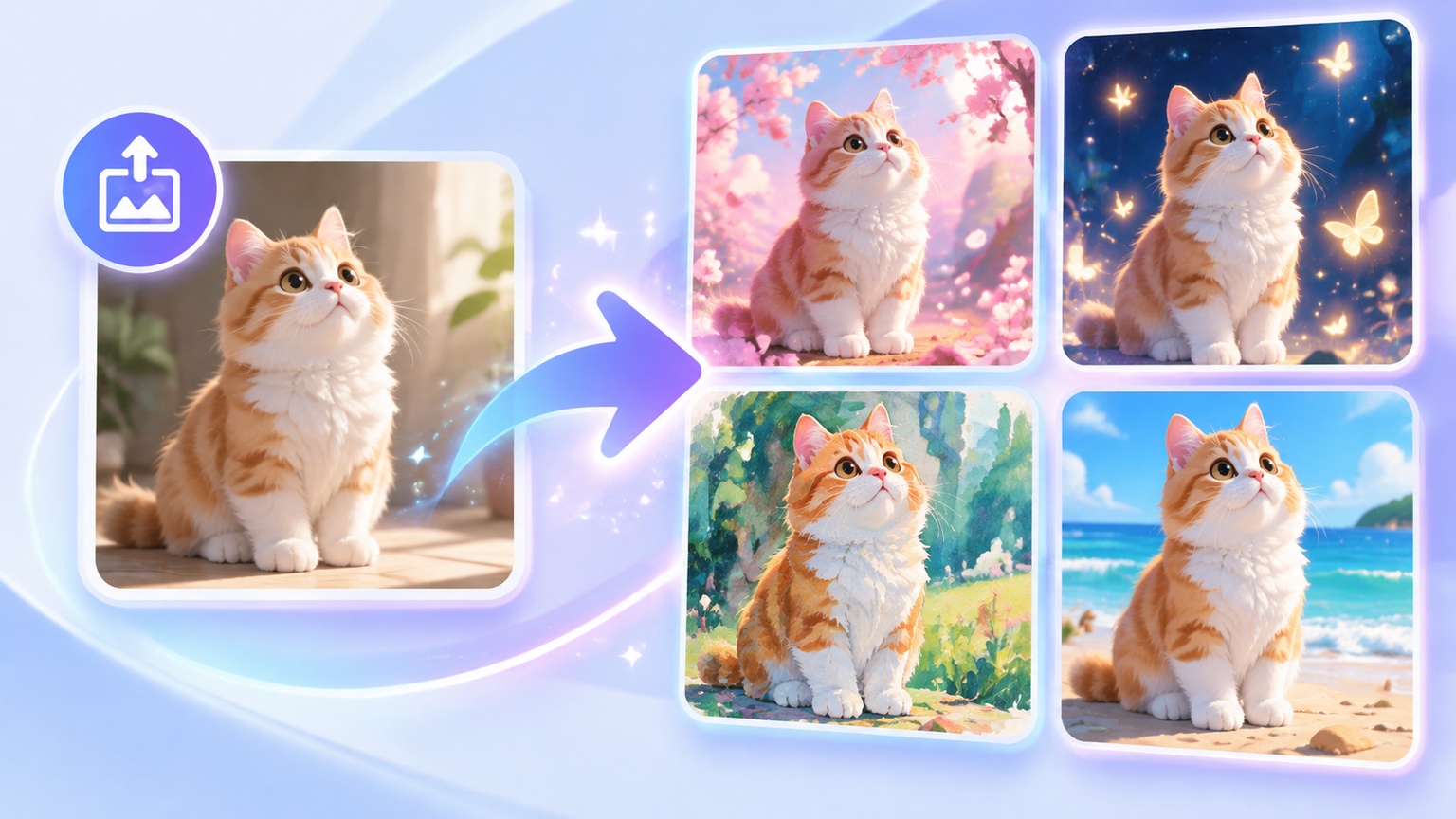
Explore Related AI Video Effects and Portrait Tools
Frequently Asked Questions About Cry Me a River AI Video Effect
What Is the Cry Me a River AI Video Effect?
The Cry Me a River AI Video Effect turns a portrait into a dynamic crying video. The result shows flowing tears and changing facial expressions instead of adding static tears to a photo.
Which Image Formats Can I Upload?
The page supports JPG, PNG, and WebP images. Each uploaded file must be no larger than 10 MB.
Do I Need to Write a Prompt?
No. The crying effect is already established on the page. Upload your portrait and start generating without entering a written description.
Can I Choose a Different Crying Style?
No. The current page does not provide options for changing the scene, tear style, or emotional style. Each uploaded portrait is processed with the established Cry Me a River effect.
What Type of Photo Works Best?
Use a clear portrait with visible eyes, even lighting, and minimal facial obstruction. A front facing or nearly front facing photo usually shows the tears and expression changes more clearly.
Can I Upload a Group Photo?
A single person portrait is recommended. A group photo contains several faces and may prevent the crying effect from focusing on the person you want.
Why Does the Result Look Different With Each Photo?
Image clarity, camera angle, lighting, facial expression, and facial obstruction can affect the result. Applying the same AI crying effect to different portraits may produce different tear movement and expression changes.
Does the AI Crying Video Generator Create an Image or a Video?
The AI crying video generator creates a video. The result shows continuous tear movement and facial expression changes rather than a static image with tears added to it.
How Long Does It Take to Generate a Crying Video?
The page does not provide a fixed generation time. The actual wait may depend on the uploaded image and the current generation queue. Follow the progress shown on the page.
Can I Download the Generated Crying Video?
Yes. Preview the result after generation and use the available download option to save the video.
Can I Use a Photo of Another Person?
Use your own photo whenever possible. Get the person’s consent before using someone else’s image, and do not use the generated video to impersonate, mislead, or harm another person.
What Should I Do if My Photo Cannot Be Uploaded?
Confirm that the image is a JPG, PNG, or WebP file and that it does not exceed 10 MB. If the file meets both requirements, select it again and retry the upload.
What Can I Do if the Crying Effect Does Not Look Right?
Try another portrait with a clearer face, more even lighting, and less obstruction. Heavy blur, a strong side angle, or covered eyes can make the portrait to crying video result less consistent.