
Template
AI Illustration Generator
Upload an image to start your template-based generation.
Upload Image
AI Illustration Generator
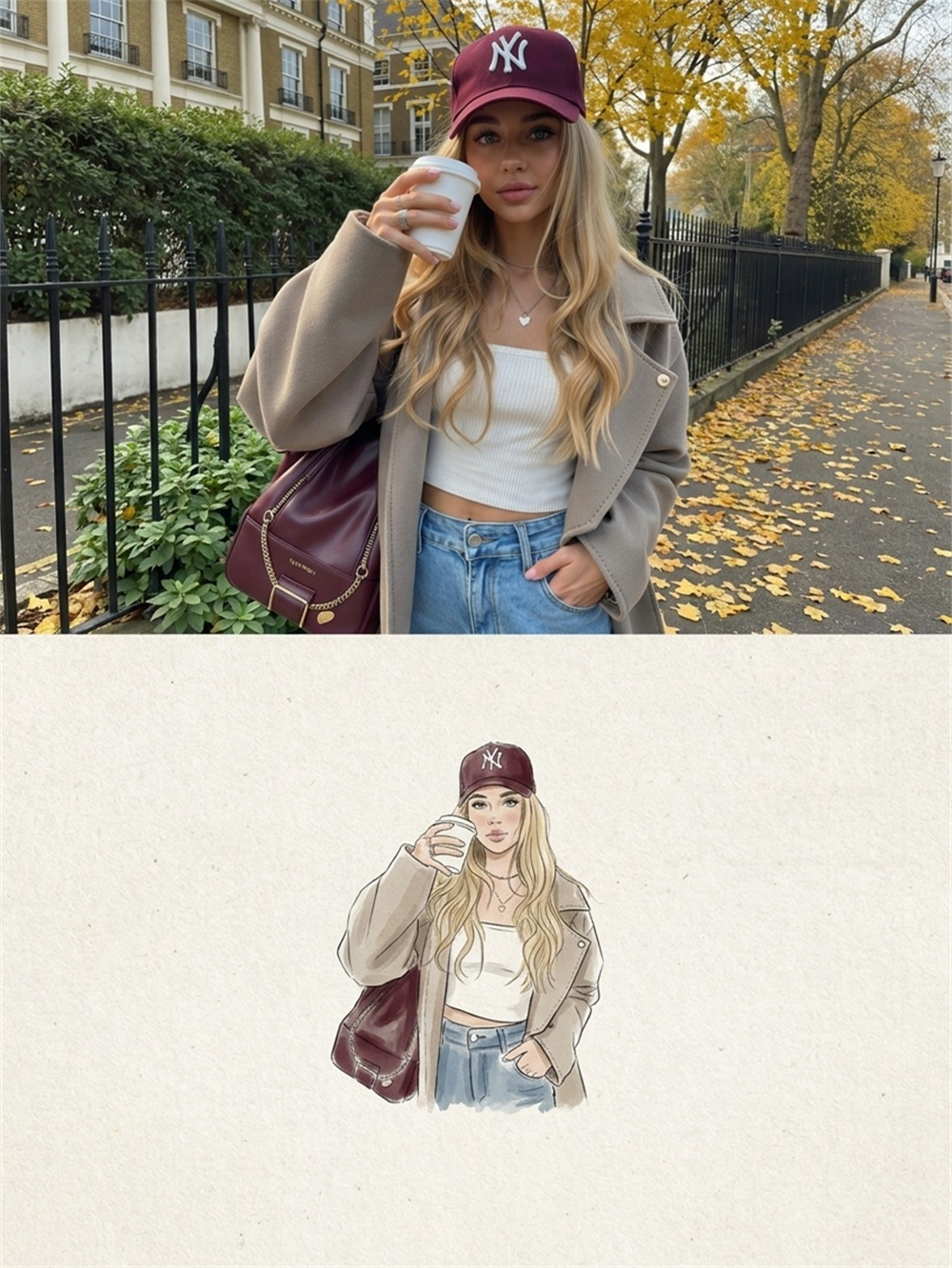
Turn One Photo Into an Illustration
Upload a portrait, pet photo, or any image with a clear subject, and Guma will transform it into illustration art. No prompts or complicated settings are required. Create illustrated profile pictures, social media visuals, and artwork for personal projects.
AI Prompt
“Reference the identity and facial features of the original image: 1.8}, {Character consistency: 1.8}. Generate a vertically oriented, top-and-bottom stitched image based on the user-uploaded photo. Upper section: Fully preserve the original image uploaded by the user—use it exactly as is, without any redrawing or enhancement. Do not alter the character’s identity, gender, facial features, hairstyle, makeup, expression, pose, body proportions, clothing, accessories, background, lighting, color palette, composition, or sharpness. The original image must not be cropped, stretched, distorted, or have irrelevant elements added. Lower section: Based on the main character from the upper section’s original image, create a corresponding artistic illustration. Accurately retain the character’s key facial features, gender, hairstyle, clothing, accessories, pose, and overall demeanor, ensuring that the illustrated character maintains a high degree of consistency with the original image. Adopt a minimalist, fashion-inspired hand-drawn illustration style, using delicate line drawings, natural and casual sketching strokes, and lightly applied watercolor or gouache in low saturation tones. The background should be made of off-white or warm-white textured paper, featuring natural paper grain, subtle texture, and a faint vintage printing effect. Pay special attention to the compositional proportions of the lower section: The illustrated character must be scaled down and placed precisely in the center of the lower half; it must not be positioned close to the edges, nor should it fill the entire frame. Avoid overly close-up or extreme close-up compositions. The character’s overall height should occupy approximately 45% of the lower section’s height, while its width should account for about 35% of the lower section’s width. Leave ample, balanced white space above the character’s head, on both sides, and beneath its feet. The visual center must be strictly located at the exact middle of the lower section, creating an effect where a small-scale illustrated character is set against a large expanse of blank paper. The upper and lower sections are arranged vertically, with clear boundaries and harmonious proportions, presenting a striking contrast between the original image and the small-scale hand-drawn illustration. The overall style is calm, restrained, artistic, and sophisticated, evoking the aesthetic of fashion magazine illustrations and independent posters. {Refer to the main facial features and gender of the character in the original image}, {Realism: 1.6}
How Do You Turn a Photo Into an Illustration With Guma?
Upload a Photo With a Clear Subject
Choose a portrait, pet photo, or another image with a clear focal subject. Photos with sharp details, even lighting, and minimal obstruction help preserve recognizable features.
Generate Your Illustration
Once your photo is ready, start the generation process. Guma handles the image transformation without requiring a written prompt or complicated adjustments.
Preview and Download the Result
Review the generated illustration, check the subject, composition, and overall appearance, then download the image to your device.
Why Create With Guma?
Guma is designed for people who want a straightforward way to create visual content. Each page explains what you can make and guides you through the process. Whether you are new to AI creation or regularly make content for social media, you can start with a clear goal and move forward without unnecessary setup.
Clear Creative Paths
Each page is organized around a specific creative goal, so you can understand the expected result before starting without having to learn technical terms.
Easy to Follow Guidance
Every step uses clear, familiar language. Even if you are new to AI creative tools, you can follow the on page guidance and complete the process with confidence.
Made for Everyday Ideas
Guma supports common creative needs such as profile pictures, social media visuals, content images, and personal projects, making generated results easier to use in everyday situations.
A Connected Creative Experience
After completing your current project, you can explore other AI creative options in Guma based on what you want to make. The experience remains clear and consistent across the site.
Bring More Visual Ideas to Life With Guma
Guma brings together AI creative tools for different visual goals. Whether you already have source material or just a rough idea, choose the option that fits the result you want and turn your idea into something you can see.
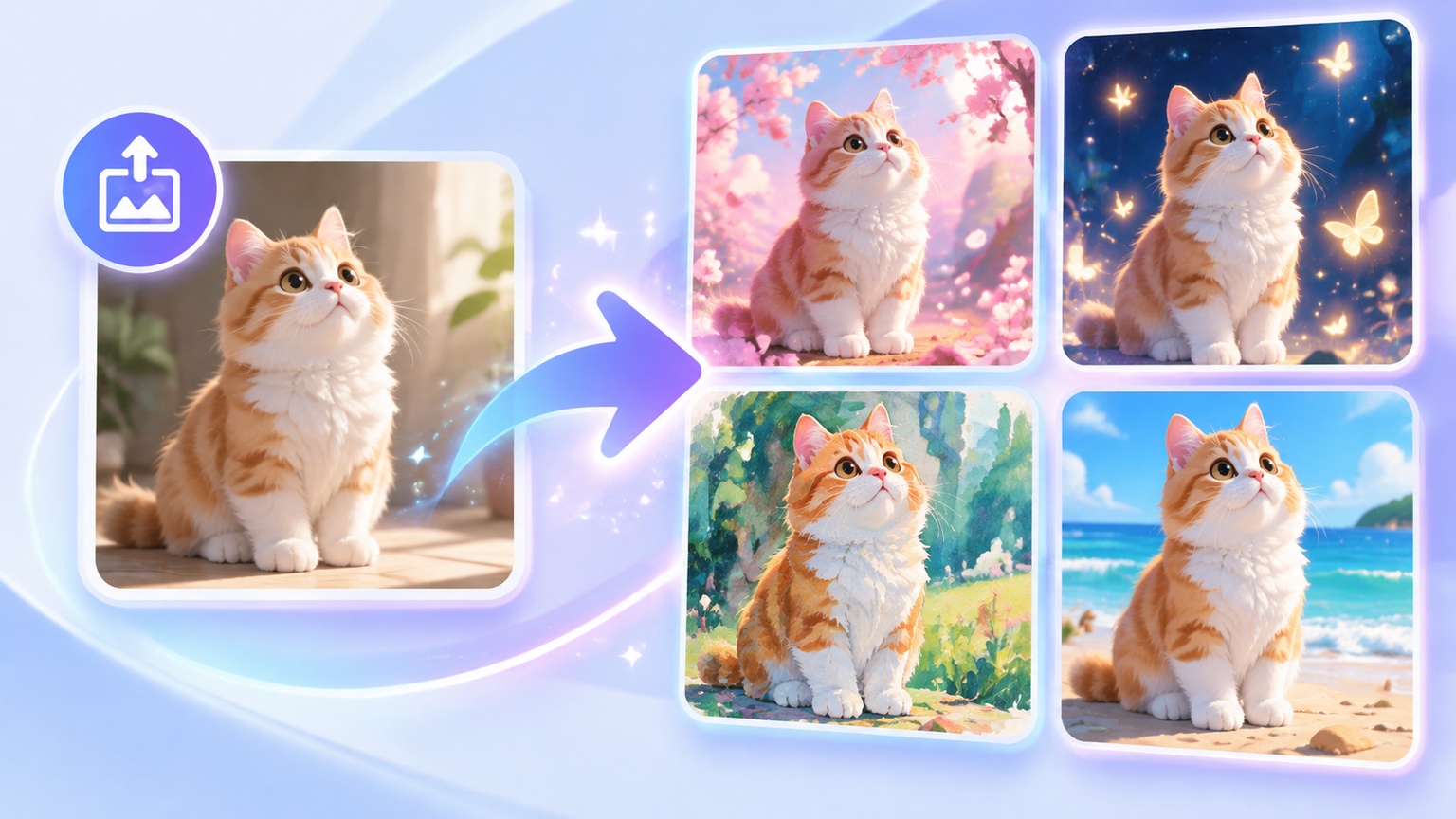


Explore More AI Illustration Styles and Effects
Frequently Asked Questions About the Guma AI Illustration Generator
What Is an AI Illustration Generator?
An AI Illustration Generator is an online tool that transforms a regular image into illustration art. After a photo is uploaded, the tool reworks its lines, colors, and visual details to create an illustrated result.
How Does Guma Turn a Photo Into an Illustration?
Guma uses a simple upload, generate, and download process. No written prompt is required, making it easy for anyone who wants to turn a photo into an illustration without additional setup.
Do I Need to Write a Prompt Before Using Guma?
No prompt is required to use the Guma AI Illustration Generator. Upload your photo and start generating without describing the person, scene, or desired appearance.
What Types of Photos Work Best for Illustration Generation?
Photos with a clear subject, even lighting, complete framing, and minimal obstruction tend to work best. For portrait illustrations, choose a photo with a visible face and a natural viewing angle.
Can Guma Create Portrait Illustrations and Illustrated Profile Pictures?
Guma can transform a portrait photo into an illustration. The generated image can be used as an illustrated profile picture, a social media visual, a content image, or artwork for a personal project.
Can I Turn a Pet Photo Into an Illustration?
Yes. Pet photos with a clear subject and visible details can also be transformed into illustrations. Choose an image that shows the pet’s face and body shape clearly with minimal background distractions.
Why Does the Illustration Look Different From the Original Photo?
Photo to illustration conversion changes the lines, colors, and smaller visual details in the original image. The result will not look exactly the same as the source photo. A clear subject and minimal obstruction can help retain recognizable features.
What Should I Do if the Generated Result Is Not What I Expected?
Try using a clearer photo with a more complete view of the subject. For portraits, avoid images with covered faces, dark lighting, heavy blur, or a person who appears too small in the frame.
Can I Upload a Photo of Someone Else?
Using your own photos is recommended. If another person appears in the image, ask for their consent first and make sure the image source and intended use are appropriate.
Where Can I Use the Generated Illustration?
Generated illustrations can be used for personal profile pictures, social media content, creative visuals, and personal projects. Before publishing an image publicly or using it commercially, review the source image and Guma’s current terms of service.